


If a business card QR code won’t scan, the cause is most often a print or design issue: check size, quiet zone and contrast first. Scan it with a current phone camera in good light to confirm, and tap the link to see if the destination loads properly. A printed QR code should measure at least 2 to 3 centimetres across to scan reliably.
TL;DR:
- Test with the built in camera from 10 to 15 centimeters away, then try another phone; failures across devices usually point to print.
- Print the code 2 to 3 centimeters wide, preserve its clear margin, and use high contrast; GS1 recommends at least 30% symbol contrast.
- Use a short HTTPS link to a mobile friendly page, avoid redirect chains, and choose a dynamic link if the destination may change.
- Print a physical proof at final size, test it across iOS and Android, then retest after one week, six months, or any print material change.
- Higher error correction can tolerate damage but adds modules, so dense codes may become unreadable at small sizes; use a short URL and moderate protection.
Table of Contents
- Physical and design faults that make printed QR codes unreadable
- How to test the card on phones and isolate whether the phone or card is at fault
- Print-ready specifications and design rules to ensure reliable scanning
- Why the QR destination matters and how link choices make scans feel like failures
- A practical proofing and maintenance protocol to keep QR codes working over time
- What to do right now when a business card’s QR won’t scan
- EcoCard perspective: how we advise clients to avoid scanning problems
- Keep your cards working without another reprint
- FAQ
- Sources
Physical and design faults that make printed QR codes unreadable
Most scanning failures trace back to how the code was printed, not the phone trying to read it. The first thing to check is size: a QR code packs data into small squares called modules, and shrinking the whole symbol shrinks each module’s “X-dimension” below what a camera can resolve at arm’s length.
The second most common fault is a crowded quiet zone, the blank margin that must surround the code on all sides. Borders, logos or text placed too close to the edge break the finder patterns a scanner uses to lock onto the code, and the scan fails even though the data itself is intact.

Contrast causes just as many failures. A QR code printed in a mid-tone colour on a similar background, or set against a gradient, often can’t be distinguished by a camera sensor even in good light. Printer resolution matters too: low-resolution inkjet or thermal printing, heavy varnish, or absorbent card stock can blur module edges until adjacent squares bleed into each other.
Common print defects to check for:
- Printed code smaller than 2 centimetres across, which pushes modules below a readable size.
- Logo, text or a border sitting inside the quiet zone around the code.
- Low contrast between the code and its background, including coloured or gradient fills.
- Blurry edges from low print resolution, heavy varnish or a porous substrate.
- A decorative logo placed directly over the finder patterns or data cells.
GS1’s 2D colour and quality guidance recommends avoiding gradients and logos that obscure finder patterns, and suggests aiming for at least 30% symbol contrast between the code and its background. Black-and-white combinations remain the most reliable choice for small printed codes, and any customisation beyond that should be tested before a full print run.
How to test the card on phones and isolate whether the phone or card is at fault
Before assuming the card is faulty, rule out the phone and the environment. A few quick checks will usually tell you where the problem sits.
- Open the phone’s built-in camera (the Camera app on iPhone, or the Google Lens/Camera app shortcut on Android) rather than a third-party scanner first.
- Hold the phone steady about 10 to 15 centimetres from the card, giving the whole code room inside the frame rather than filling it edge to edge.
- Improve lighting before anything else: avoid glare on glossy card stock and turn on the flashlight only if the room is genuinely dim.
- Try the same card on a second phone, ideally one iOS and one Android device, to see if the failure follows the card or the device.
- If both fail under good light, try one alternative scanning app as a diagnostic step, not as your long-term fix.
Pro Tip: Keep two or three test phones on hand when proofing new cards, since a code that scans on one device but not another usually points to a device-side quirk rather than a print fault.
Apple’s support guidance recommends starting with the built-in Camera app, positioning the code fully in frame, and using the flashlight in low light before trying anything else. If several current phones still fail to read the code in good lighting, the printed card itself is almost certainly the problem, not the hardware.
Print-ready specifications and design rules to ensure reliable scanning
Handing a designer or printer the right specifications upfront avoids a reprint later. The size, margin, contrast and finish all interact, so getting one wrong can undo the others.
Printed size matters most. A QR code on a business card should measure between 2 and 3 centimetres on each side; our own guide to print-ready QR sizing covers export settings in more detail, and a companion piece sets out exact dimensions for different card layouts. Below roughly 2 centimetres, the individual modules become too fine for a phone camera to resolve at a comfortable scanning distance.
The quiet zone needs to stay completely clear: no border, logo or text should intrude on the margin around the code. GS1’s best-practice guidance calls for leaving the full quiet zone and testing physical proofs on more than one phone before committing to a print run.
Key print specifications to request from a printer:
- Minimum printed size of 2 to 3 centimetres on the shortest side of the code.
- A clear quiet zone with no artwork, text or border inside it.
- High-resolution CMYK or digital print at 300 dpi or higher, avoiding cheap thermal output.
- Flat colour rather than gradients, with the code in black or a dark solid colour on a light background.
- No logo or decorative element placed over the finder patterns in the three corners.
The GS1 2D barcode creation and printing playbook notes that printer choice, substrate and print resolution all affect whether a 2D barcode scans reliably, and recommends testing proofs at the actual production resolution rather than relying on a screen preview.
Error correction is worth understanding but easy to misuse. Higher error-correction levels let a code tolerate more damage or obstruction, which sounds useful for a logo overlay, but they also increase the number of modules needed to encode the same data. On a small printed code, that extra density can make modules too fine to resolve, undoing the benefit. For most business cards, a short destination URL and a moderate error-correction level outperforms a dense, highly protected code squeezed into 2 centimetres.
Why the QR destination matters and how link choices make scans feel like failures
A code can scan perfectly and still feel broken if what it opens is slow, irrelevant or built for a desktop screen. That mismatch is one of the most overlooked causes of “my QR code isn’t working” complaints.
A few habits keep the destination from undermining a technically sound code:
- Point the code straight at a mobile-optimised page that shows the expected content immediately, not a homepage the visitor has to navigate from.
- Use a dynamic link where the destination might change later, so updates don’t require reprinting cards.
- Keep the encoded URL short and on HTTPS, which reduces symbol density and speeds up loading.
- Avoid stacking redirects, since each hop adds a delay that reads to the recipient as a failed scan.
GS1’s QR best-practice guidance notes that a scan is only successful when the user reaches useful information quickly, and that reducing unnecessary query parameters or redirect chains keeps both the code simpler and the destination faster.
A practical proofing and maintenance protocol to keep QR codes working over time
Treat a new QR card design the way you’d treat any print job with no second chances: proof it properly before ordering the full run.
- Print a single physical proof at the final size and finish, then test it on several current phones, both iOS and Android, in normal indoor and outdoor light.
- Follow a testing cadence beyond launch: check again after one week and once more at six months, and any time you change printers, stock or finish.
- When a scan fails, note the phone model, lighting conditions and distance, then adjust size, contrast or print quality rather than guessing.
- If the problem is the destination rather than the print, update a dynamic link instead of reprinting, and use scan analytics to confirm the fix worked.
What to do right now when a business card’s QR won’t scan
Work through these steps in order rather than jumping straight to a reprint.
- Improve lighting and framing, then scan with the phone’s built-in camera rather than a third-party app.
- Try a second phone, ideally a different operating system, to see whether the failure follows the card or the device.
- If the card fails on multiple phones, check printed size, quiet zone, contrast and finish, and request a 300 dpi proof from the printer.
- If the code scans but the destination is slow or wrong, verify the URL uses HTTPS, remove unnecessary redirects, and point it at a mobile-ready page.
- For a card that keeps causing problems, consider a managed digital card so the link stays live without another print run.
Pro Tip: Keep a saved copy of the exact export file and settings used for a working code, so a reprint uses the proven file rather than a new export that might introduce a fresh fault.
EcoCard perspective: how we advise clients to avoid scanning problems
We tell every client the same thing before they send a card to print: a 2 to 3 centimetre minimum printed size and a proof tested on more than one phone will prevent almost every scanning complaint we see. Most reprint requests we hear about trace back to a code that was shrunk to fit a crowded layout, not a technical fault in the code itself.
We also build our guidance around a simple maintenance habit: test again at one week, then again at six months, since substrate changes, printer swaps and even card wear over time can degrade a previously reliable code. For teams, the bigger risk isn’t the print at all, it’s a static link that goes stale when someone changes role or employer. Centralised, live-updating links remove that risk entirely, because the printed code never needs to change even when the destination behind it does.
— Chris
Keep your cards working without another reprint
We built our platform so a printed QR code never has to be the weak link in your contact details. Every card connects to a dynamic profile you can update instantly, which means a role change, a new phone number or a rebrand never requires another print run.
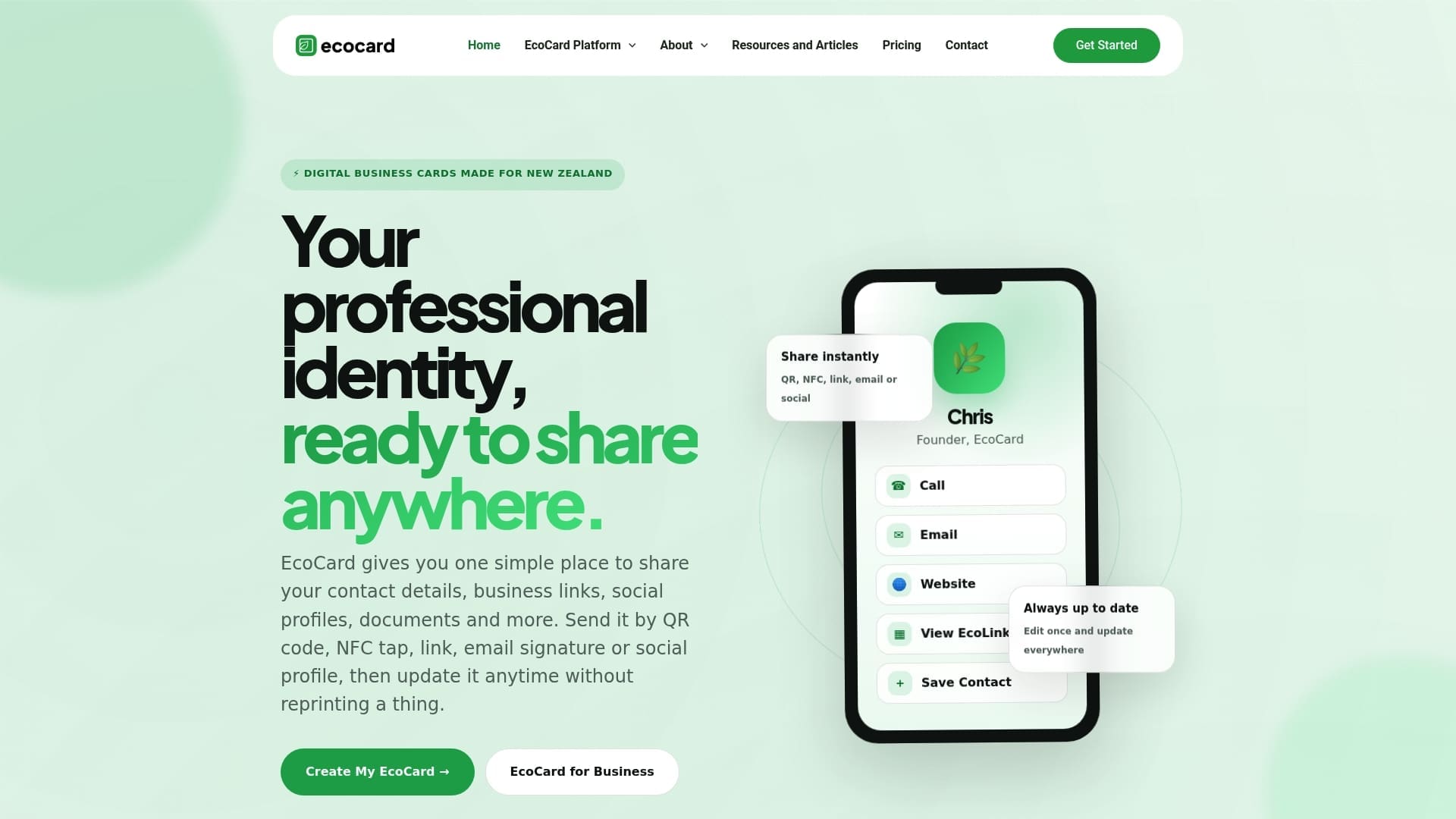
Our platform pairs QR sharing with vCard export, NFC tap and scan analytics, helping you see when a code is being used and identify scanning problems early. For teams, central management keeps every employee’s card on brand and current, with no one left holding an outdated design after they change roles. Our features overview covers the full set, and our guide to print-ready QR sizing walks through export settings if you’re fixing an existing card.
If you want to test your current card against our guidance, start with an Individual EcoCard or check our pricing plans to find the right fit for your team.
FAQ
Why does my QR scanner not work?
A scanner usually fails because of poor lighting, an unsteady or too-close camera, or a printed code that’s too small, low contrast or missing its quiet zone. Start by testing in better light with the phone’s built-in camera before assuming the code itself is broken.
What is the FBI warning about QR codes?
Security agencies have warned that scammers sometimes place fraudulent QR code stickers over legitimate ones in public places to redirect victims to malicious sites. On a printed business card you control, the main risk is a technical scanning fault rather than tampering, but it’s still worth checking that any public-facing code leads to the expected HTTPS destination.
How do you put a QR code on business cards?
Generate a code that encodes your mobile-ready destination URL, export it as a high-resolution file, and place it in a clear area with a full quiet zone and no logo overlapping the finder patterns. Always test a physical proof on a couple of different phones before ordering the full print run, following GS1’s best-practice guidance.
How can I convert a link to a QR code?
Any QR generator can turn a URL into a scannable code, but for print you need a high-resolution export (EPS or PNG) sized for at least a 2 to 3 centimetre print, not just a screen preview. A platform like EcoCard generates print-ready codes alongside a live digital profile, so the destination can be updated later without reprinting the card.
How often should I retest a business card’s QR code?
Test a new design immediately after printing, then again after one week and at six months to catch any wear or substrate issues. Retest any time you change printers, card stock or finish, since those changes can affect contrast and resolution enough to break a previously working code.
Sources
Recommended
- Print Ready QR Code Size for Professionals: 2.5–3.0 cm Business Cards
- Make QR Code Business Cards Print Ready for Professionals: 2 cm Min
- Small Businesses: Keep QR Codes Working, Test at 1 Week and 6 Months
- Avoid 4 Print Mistakes When Adding LinkedIn to NZ Business Cards
This article was produced with AI assistance and reviewed for accuracy. It is provided for general information only and is not professional advice.

