


Yes, a well-built QR code on your business card lets contacts save you or open your portfolio in one tap. The recommended default is a vCard for instant contact saving, or a short branded URL for a trackable portfolio or booking link. Either way, add a short call to action and scan-test the design before you send it to print.
TL;DR:
- Static QR codes are suitable for unchanging links, while dynamic codes are better for updates and tracking, despite higher costs.
- Keep QR codes at least 2 cm by 2 cm and within a quiet zone of four modules on all sides to ensure reliable scanning.
- Limit vCard fields to essential contact info and avoid long URLs, opting for short, editable redirects to maintain flexibility.
- Testing on multiple devices and printing physical proofs are critical to prevent scanning failures caused by size, glare, or design errors.
- Emerging uses include linking to videos or overlaying augmented reality features, especially in design-centric industries.
Table of Contents
- What is a QR code business card and when should you use each link type
- What to encode: vCard fields and privacy considerations
- Design and print rules that make QR codes reliably scannable
- Step-by-step: generate, export and place the code in your layout
- Testing and launch checklist before you print the full run
- Tracking and analytics possibilities with dynamic QR codes
- Common pitfalls and troubleshooting tips for scans that fail
- Trends and innovative uses of QR codes on business cards
- Why a digital-first approach makes sense for teams
- Try a digital business card that updates itself
- FAQ
- Sources
What is a QR code business card and when should you use each link type
A QR code business card simply swaps or supplements printed text with a scannable square that opens something on the recipient’s phone. What that square opens matters more than most people realise, because the destination changes how useful the card actually is.
A vCard is a small contact file. When someone scans it, their phone offers to save your name, number, email and company straight into contacts, no browser required. A URL, on the other hand, sends the scanner to a web page: your portfolio, a booking calendar, a LinkedIn profile or a digital card. A dynamic QR code adds a layer in between: the printed code points to a short redirect link that you can repoint later without reprinting a single card.
Choose based on the job the card needs to do:
- Quick contact capture (conferences, sales meetings): encode a vCard so the save happens instantly.
- Portfolio or booking links (freelancers, consultants, real estate): use a short branded URL or dynamic QR so you can update the destination and see who scanned.
- Ongoing marketing or events: dynamic QR codes let you swap a landing page seasonally without touching the print file.
Avoid linking to large PDFs or desktop-only pages. A mobile-friendly landing page loads faster and scans better on the small screens most recipients are actually using.
What to encode: vCard fields and privacy considerations
Keep the vCard tight. Too many fields slow the save-to-contacts prompt and clutter the result, and some details simply don’t belong on a card that strangers might photograph.
Essential fields to include:
- Full name and job title or role
- Primary phone number
- Primary email address
- Company name and website
Optional fields worth considering, used sparingly:
- LinkedIn profile URL
- A single portfolio or calendar booking link
- A physical address, only if client-facing meetings require it
Leave out personal mobile numbers you don’t want publicly scanned, home addresses and multiple long URLs stacked into one field. A card that tries to hold five links usually fails at holding any of them cleanly. If you want flexibility without reprinting, point the code at a dynamic redirect or a short branded domain instead of a raw long URL: you can update where it leads later, and you avoid exposing a permanent link that might need to change when a role, phone number or business name does.
Pro Tip: Put only one primary action behind the code (save contact or view profile), and use secondary text underneath to mention a second option, like your website address.
Design and print rules that make QR codes reliably scannable
Scannability comes down to a handful of fixed rules, and skipping any one of them is the fastest way to end up with cards that look great but don’t scan.
- Size: plan for at least 2 cm × 2 cm for handheld scanning distances, which is the minimum size guideline for codes read up close. For codes viewed from further away, such as on posters or screens, apply the 10:1 scan-distance rule: the code’s width should be roughly one-tenth of the expected scanning distance.
- Quiet zone: leave a clear margin of at least four modules (the small squares) on every side of the code. Text, borders or logos placed inside this zone risk unreadable scans even on high-quality paper.
- Contrast and finish: use dark modules on a light background rather than the reverse, and prefer matte or satin stock over glossy, which tends to cause glare under indoor lighting.
- Logo placement: if you add a logo, keep it centred and no larger than roughly 20 to 25% of the code’s width, and use error correction level H so the extra data redundancy compensates for the obscured area, as recommended in logo-placement guidance.
- File formats: export a vector master, SVG preferred, EPS when a printer specifically requires it, and supply a 300 DPI PDF for the press run, following standard vector export guidance for print jobs.
A QR code on a business card should measure at least 2 cm × 2 cm for reliable close-range scanning. Anything smaller risks modules merging together once the card is printed, especially on lower-resolution desktop printers.
Step-by-step: generate, export and place the code in your layout
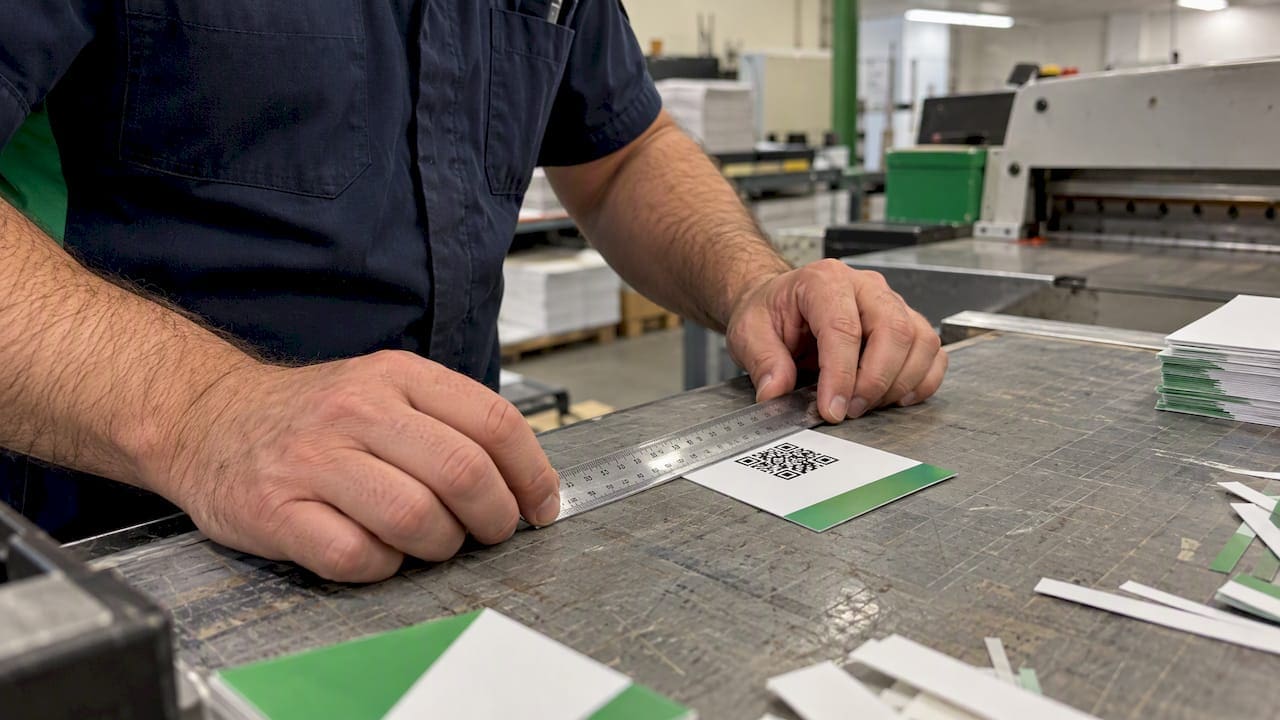
Start by deciding static or dynamic. A static code is free and points permanently to whatever you encoded, fine for a fixed vCard that rarely changes. A dynamic code routes through a short redirect link, which costs a little more effort to set up but lets you change the destination and see scan counts later, a point the QR design rules guide makes clear when comparing printed assets to live destinations.
Then work through the build:
- Prepare your vCard content or finalise your short branded URL, double-checking every field for typos before generating anything.
- In the generator, set error correction to M for a plain code or H if you’re adding a logo, and keep contrast high (dark on light).
- Export a vector file (SVG) for the print layout and a separate PNG at 300 DPI if you need a quick digital proof to check on screen first.
- Place the code away from card edges, corners and the fold or seam line of any folded card stock, since trimming tolerances can clip the quiet zone.
- Add a short line beneath it, such as “Scan to save contact,” so recipients know what the code does before they bother pulling out their phone.
Pro Tip: Send your printer the vector master, a scaled PDF proof and a note confirming you want a hardcopy sample approved before the full run goes to press.
Testing and launch checklist before you print the full run
Testing catches problems a screen proof never will, because paper texture and lighting behave differently from a monitor.
- Scan-test on at least three different phones, mixing iOS and Android, using two separate scanner apps, in both bright and dim light.
- Print one hardcopy proof on the actual card stock and finish you plan to use, then check specifically for glare and blurred module edges, a step testing best practice flags as essential before a full print run.
- If using a dynamic code, add tracking parameters or rely on the generator’s built-in analytics so you can see scan activity after launch.
- Nominate one person as the owner of the destination link, so updates don’t get forgotten when a role or phone number changes.
- Print a small batch of fallback cards with the URL spelled out underneath the code, for the recipients who would rather type a link than scan one.
Tracking and analytics possibilities with dynamic QR codes
A static code is a dead end once it’s printed: whatever you encoded is what every scanner gets, forever. Dynamic codes work differently. Because the printed square points to a short redirect link rather than the final destination directly, you can change where that link leads at any time, and the generator or platform behind it can log every scan, as the design rules guide notes when separating printed assets from live destinations.

That logging opens up a few practical uses. You can see roughly when scans happen, which helps gauge whether a conference, trade show or client meeting actually drove engagement. You can swap the destination seasonally, pointing the same printed code at a holiday booking page in December and a standard portfolio the rest of the year, without reprinting a single card. You can also run small experiments, sending one batch of cards to one event and a different batch to another, then comparing scan activity to judge which setting generates more follow-up.
The trade-off is dependency: a dynamic code relies on the redirect service staying active, so it’s worth confirming the platform you choose has a track record of reliability before committing an entire print run to it. For most professionals handing out a modest stack of cards, the analytics won’t rival a full marketing dashboard, but knowing whether anyone scanned the card at all is often enough to justify the small extra setup step.
Common pitfalls and troubleshooting tips for scans that fail
Most scan failures trace back to a handful of repeat offenders. The code is printed too small for the material, the quiet zone gets swallowed by a decorative border, or a glossy laminate throws enough glare that the scanner’s camera can’t lock focus.
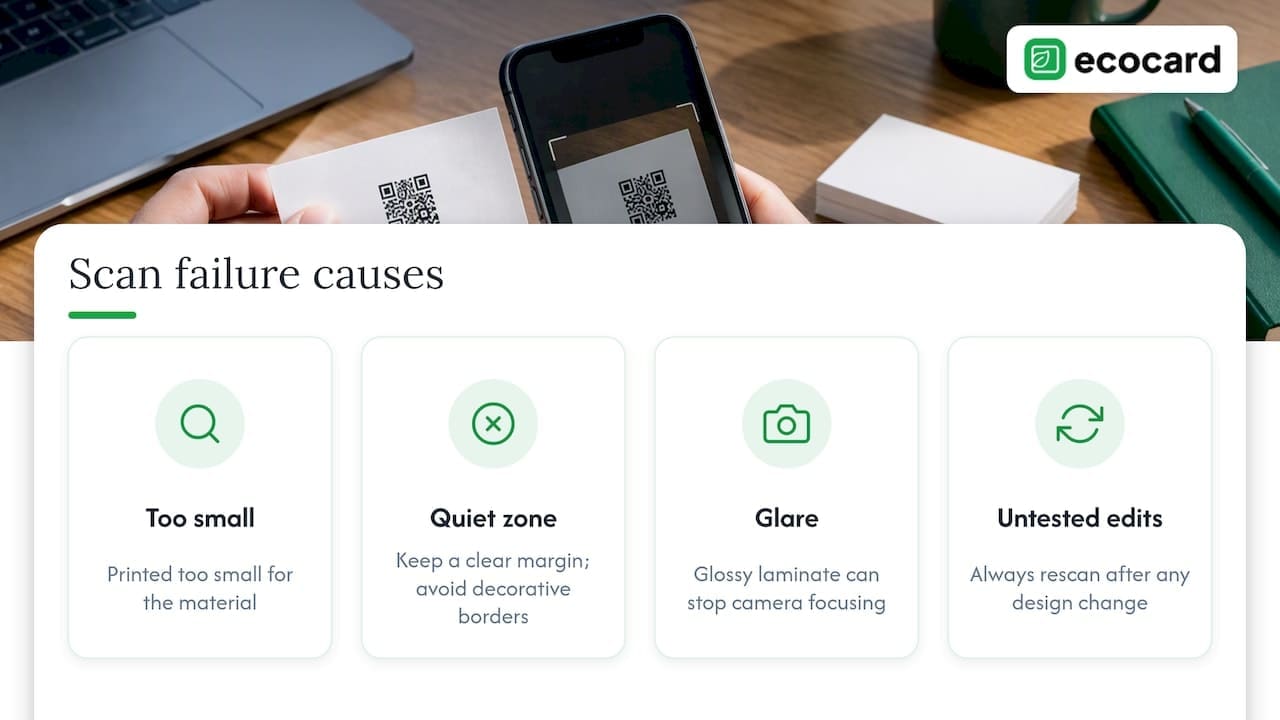
Another common pitfall is forgetting to test after a last-minute design change. Swapping a logo, resizing the card layout or shrinking the code to fit a crowded corner can silently break a code that scanned perfectly in the original proof. Always rescan after any edit, not just once at the start of the project.
A less obvious failure is simply that recipients don’t know the code is scannable. A plain square with no explanation gets ignored by people who don’t immediately recognise it as a QR code, or who assume it’s decorative. Adding a short instruction like “scan to save contact” removes that ambiguity and noticeably increases how many people actually use it.
Finally, watch for destination problems that have nothing to do with the printed square: a vCard with a typo in the phone number, a short link that expired, or a landing page that wasn’t optimised for mobile and loads slowly on data. The code itself might scan perfectly and still fail the reader if what’s on the other end doesn’t work.
Trends and innovative uses of QR codes on business cards
QR codes on business cards have moved well past the plain “scan for my contact details” setup. Some professionals now link the code to a short video introduction or a portfolio reel instead of a static page, giving recipients something more memorable than a list of job titles.
Augmented reality overlays are an emerging use too: scanning the code can trigger an animated layer on top of the physical card, such as a rotating 3D logo or a pop-up business summary, though this remains a niche feature mostly seen in design-forward industries rather than everyday networking. Event and conference organisers have also started building single-scan check-ins into card codes, letting attendees register or join a mailing list the moment they meet someone, rather than filling out a form later.
For most professionals, the practical version of “innovative” is simpler: a card that links to a live, constantly updated profile rather than a static page frozen at the moment of printing. That’s a meaningfully different experience from a code pointing at a PDF that goes stale the day your phone number changes.
Why a digital-first approach makes sense for teams
A QR code is only as useful as what it points to, and that’s where a managed digital card has a real edge over a one-off printed link. We built our individual EcoCard profiles so a single person can update contact details, portfolio links and social profiles any time, without reprinting anything. For businesses, our centrally managed features let an administrator keep branding consistent across every employee’s card and handle onboarding and offboarding in one place, which also reduces the paper waste that comes with traditional printed cards.
— Chris
Try a digital business card that updates itself
A printed QR code locks in whatever you encoded on the day it went to press. We built EcoCard around the opposite idea: your card stays current automatically, whether that’s a new phone number, a fresh portfolio link or a role change across an entire team. For a business, that means one administrator can update branding or swap staff details centrally instead of chasing down every printed batch, and usage analytics show which cards are actually getting scanned.
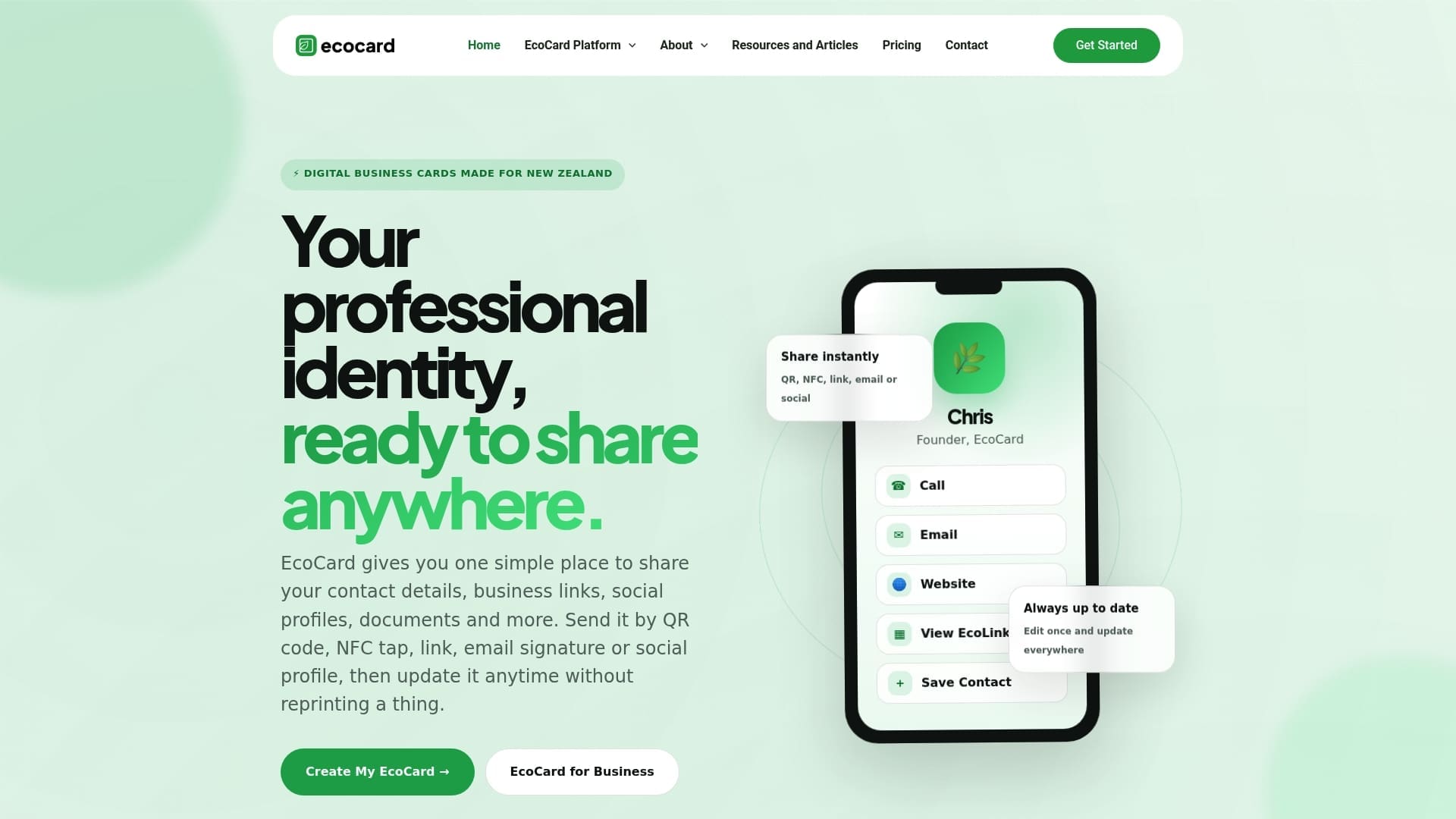
- Individual plans start from $9.99 NZD per month for one professional profile.
- Business and Teams plans add central branding control and onboarding and offboarding support.
If you’re ready to move past static printed codes, check EcoCard pricing to find the plan that fits how you or your team shares contact details.
FAQ
How do I generate a QR code for my business card?
Choose a generator, enter either your vCard details or a short branded URL, set error correction to M or H if adding a logo, and export a vector file such as SVG for print. Always scan-test the exported file on a real printed proof before ordering the full run.
Is it worth it to put a QR code on my business card?
It’s worth it when the code saves a recipient a step, such as instantly saving your contact details or opening an up-to-date portfolio, rather than duplicating text already printed on the card. A dynamic code adds extra value because you can update the destination and see scan activity after printing.
Is a business QR code free?
Many generators offer free static QR codes that point permanently to one destination, while dynamic codes with editable destinations and analytics are usually part of a paid platform. EcoCard’s individual plan, which includes a digital card you can update anytime, starts from $9.99 NZD per month.
How do I place a QR code on a business card correctly?
Keep the code at least 2 cm × 2 cm, leave a clear quiet zone of roughly four modules on every side, and avoid edges, corners or fold lines where trimming could clip it. Add a short instruction like “scan to save contact” beneath it so recipients know what to do.
Sources
- QR Code minimum size guidelines
- 10 QR Code design rules for flawless scans
- How to add logos to QR codes
- Vector QR Code: SVG, EPS & print-ready guide
Recommended
This article was produced with AI assistance and reviewed for accuracy. It is provided for general information only and is not professional advice.

