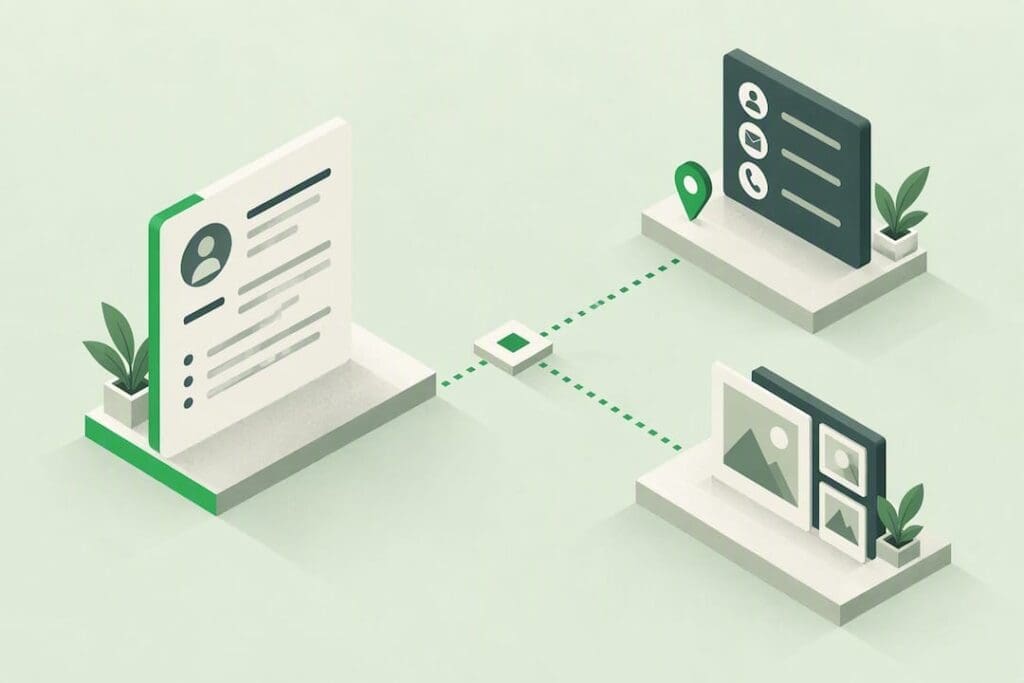


A lead capture QR code, in the sense that matters for professionals and admins, is a code that opens a live digital business card so that someone can save your details or pull up your profile on the spot. The best approach is a dynamic QR pointing to an editable hosted profile with a one-tap save, not a static vCard baked in at print time. Teams should centralise that profile so nobody is handing out a code linked to an old job title six months from now.
TL;DR:
- Using a dynamic, editable profile link ensures your contact information stays up-to-date and can be tracked, unlike a static vCard that becomes outdated after printing.
- Always test QR codes on both iPhone and Android devices to confirm they trigger the contact save prompt correctly and don’t open raw files or text.
- Centralized management of team cards prevents outdated information, maintains brand consistency, and allows immediate disablement of departed employees’ profiles.
- Keep QR codes at 15 to 25 millimeters with a clear white border, avoiding textured or patterned backgrounds, to maximize scan reliability.
- Regularly review scan and follow-up analytics, especially after initial deployment, to identify and fix issues in the lead capture process.
Table of Contents
- What is a lead capture QR code, and why dynamic profile links win
- How do I set up a QR code for my digital business card?
- Why do teams need centrally managed QR-linked cards?
- What size and design maximise QR scan rates?
- How do you test and track a lead capture QR code?
- Rolling out QR-linked cards across a team: what actually works
- Get your team’s cards under one dashboard
- Sources
- FAQ
What is a lead capture QR code, and why dynamic profile links win
A vCard QR code encodes your contact details directly in VCF format, so a phone reads the code and offers to save the contact immediately. It’s a neat trick, and it’s the reason vCard QR codes are often called the gold standard for contact transfer. The catch: once that code is printed, the data inside it is frozen. Change your phone number, get promoted, switch companies, and the code on five hundred printed cards is now wrong.
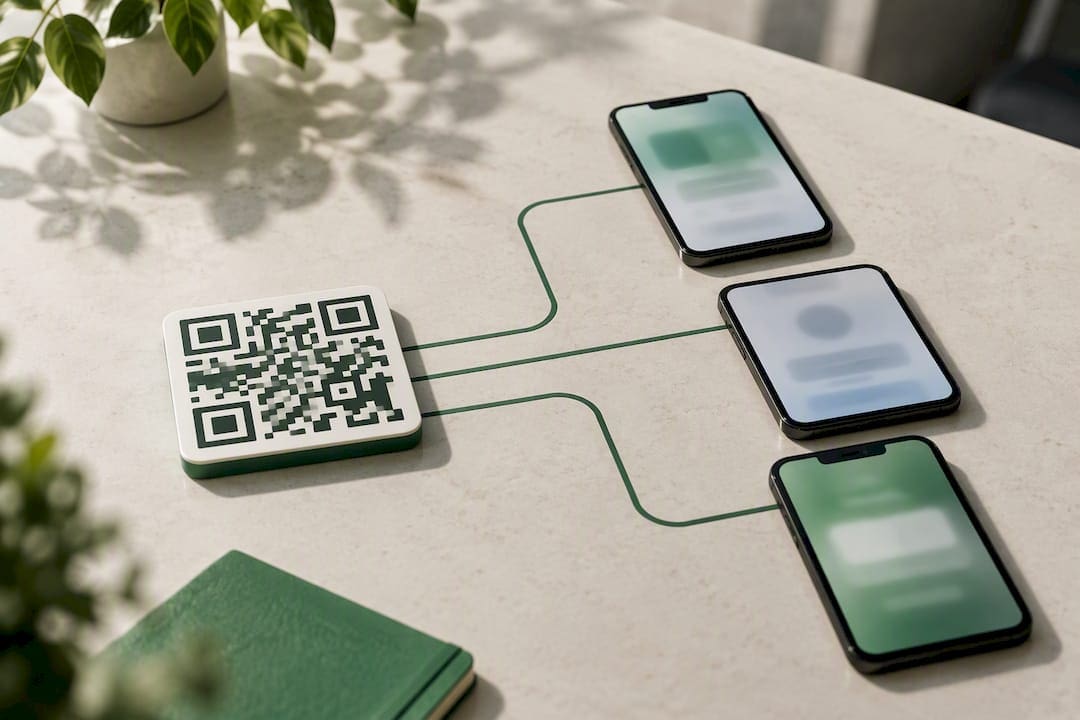
That’s the practical case for linking to a hosted profile instead of encoding a static vCard. A dynamic QR code redirects to a short URL you can update after printing, and it logs every scan. Static codes can’t do either.
Device behaviour matters here too. Modern iPhone and Android cameras both read QR codes natively, but they don’t always handle a raw vCard file the same way.
- Static vCard QR: fixed data, no analytics, breaks the moment your details change.
- Dynamic profile link: editable after printing, scan tracked, works across a whole team.
- Hosted profile with a save button: often more consistent across devices than a bare VCF file, because server response and MIME type affect whether a phone offers a save prompt or just dumps raw text.
For an individual, either can work. For a team managing dozens of cards, dynamic wins outright.
How do I set up a QR code for my digital business card?
Building the code is the easy part. Getting the save flow right is where most people cut corners and pay for it later.
- Build the profile first. Fill in name, title, company, phone, email, and at least one social or portfolio link. Every field you skip is a field the recipient has to ask you for later, which defeats the point of the card.
- Choose dynamic over static. Pick a QR generator or platform that gives you a redirect you control. Decide whether you need a raw vCard (fastest single save, no app required) or a link to a hosted profile (better for multiple contact methods and analytics).
- Export at high resolution. Save as PNG or SVG, keep a generous white quiet zone around the code, and add a short call-to-action line like “Scan to save my contact” directly beneath it.
- Test before you print. Scan it on an iPhone and an Android phone and confirm the save-to-contacts prompt actually appears, not just a browser tab.
Pro Tip: Generate the QR code last, after the profile is fully built and live. A code generated against an incomplete profile still works, but it trains you to think the job is done when it isn’t.
Skipping the device test is the single most common mistake here. A code that works perfectly on your own phone can behave differently on a colleague’s, especially if one is running an older OS.
Why do teams need centrally managed QR-linked cards?
Individual cards are simple to manage. A team of thirty is a different problem entirely, and it’s where most QR-based sharing quietly falls apart.
Central administration prevents the classic failure mode: someone leaves the company, their card is still circulating with a working phone number and an active email signature, and nobody thinks to switch it off. Centralising card control also enforces brand standards so every employee’s card uses the same logo placement, colour scheme, and layout instead of thirty slightly different versions someone built themselves.
Onboarding and offboarding are the two moments this matters most. A new hire needs a branded, correctly populated card live on day one, not three weeks in. A departing employee’s card needs to be disabled or reassigned immediately, because teams gain measurable value from centralising digital cards once analytics and provisioning are handled at the account level rather than card by card. That kind of technical control, hosting, update ownership, and structured offboarding, is what keeps enterprise card data accurate at scale.
A simple admin checklist covers most of the risk:
- Assign one card owner per profile, and one admin who can override changes.
- Define a change process: who edits fields, and how fast updates go live.
- Pilot with a small team before rolling out company-wide.
- Review scan analytics monthly to catch cards nobody is using.
EcoCard’s central management features are built around exactly this workflow, letting an admin update every employee’s card from one dashboard.
What size and design maximise QR scan rates?
A beautifully designed business card with an unscannable QR code is worse than no QR code at all. The reader tries, fails, and moves on without your contact details.
Best-practice guidance puts the minimum printable size for a QR code at roughly 15 to 25 millimetres, and vCard codes with more embedded fields often need to sit at the larger end of that range because there’s simply more data to encode. Squeeze a dense vCard code down to postage-stamp size and you’re asking for scan failures.
- Keep a clean white quiet zone around the code. No text, no logo, no photo overlapping the border.
- Avoid printing on textured or dark card stock without testing contrast first.
- Never lay a QR code over a patterned background, even a subtle one.
- Pair the code with an explicit CTA: “Scan to save my contact” or “Scan for my digital card” both outperform a bare code with no label.
On a standard business card, bottom corner placement with the CTA directly underneath works reliably. On a slide or conference badge, give the code more breathing room since viewing distance is longer.
QR and NFC aren’t competitors here. A QR code is really just a visual encoding of a URL, and pairing it with NFC on the same card gives you a tap option for phones that support it and a scan option for everyone else. Redundancy, not either/or.
How do you test and track a lead capture QR code?
Printing five hundred cards before checking the save flow on a real phone is how most QR failures happen. It costs nothing to test and quite a lot to reprint.
A basic device checklist before anything goes to print:
- Scan on iPhone: confirm the native camera app recognises the code and shows a preview link, not just plain text.
- Scan on Android: confirm the same, since camera app behaviour varies more across Android manufacturers.
- If using a vCard file, confirm the phone actually offers “Add to Contacts” rather than opening the raw VCF as text.
- Check the server response and MIME type behind the link if the save prompt doesn’t appear, since this is the usual point of failure.
Once live, the scan data itself is where the code earns its keep for lead capture.
| What to monitor | Why it matters |
|---|---|
| Scans by time and event | Shows which networking events or campaigns actually drive engagement |
| Device type (iOS vs Android) | Flags if one platform is failing to trigger the save prompt |
| Repeat scanners | Signals genuine interest versus a single curious glance |
| Follow-up clicks (email, portfolio link) | The real conversion signal beyond the scan itself |
If scans are high but saves or follow-up clicks are near zero, the profile itself, not the code, is usually the problem.
Rolling out QR-linked cards across a team: what actually works
Most rollout failures aren’t technical. They’re organisational, someone forgets to update a card after a title change, or three people think they’re the one responsible for edits, and nobody is.
Assign a single owner for the profile data and be explicit about who’s allowed to change what. Pilot with five or ten people first, watch the scan numbers and follow-up rates for a couple of weeks, then expand once you’ve caught the obvious problems. The pattern I see most often: a business gets the printed card right and forgets the email signature is still pointing at the old profile link. Every identity surface, email footer, presentation slide, printed card, should point to the same live profile, or you’ve just recreated the stale-data problem QR codes were supposed to solve.
— Chris
Get your team’s cards under one dashboard
Most of the failure points covered above, stale vCards, inconsistent branding, forgotten offboarding, come from managing cards one at a time instead of from a single account. Platforms built specifically for that gap provide one dashboard to control every employee’s card, keep branding consistent across the whole team, and allow a departing staff member’s card to be switched off promptly.
Setting it up as an admin is straightforward. Start with a Business or Teams plan, build one profile properly, generate its dynamic QR code, and run it as a pilot with a handful of staff before rolling it out further. Scan and follow-up data will tell you within a fortnight whether the cards are actually working as a lead capture tool. Full plan details and pricing are on the EcoCard site, starting from $9.99 NZD a month for an individual card and scaling up to team and business tiers as your rollout grows.
Sources
- QR Code Business Cards: Complete Guide to vCard QR Codes (2026)
- Digital Business Card QR Codes: The Complete 2026 Guide. SigFinch
FAQ
What’s the difference between a vCard QR code and a profile link QR code?
A vCard QR code encodes your contact details directly, so the phone can offer an instant save with no internet needed. A profile link QR code opens a live hosted page instead, which can be updated after printing and gives you scan analytics that a static vCard never can.
Should I use a static or dynamic QR code for my business card?
Dynamic, in almost every case. A dynamic QR code redirects to an editable URL and tracks scans, while a static code is locked to whatever data it held at print time.
How do I make sure the QR code actually saves the contact on iPhone and Android?
Test it on both before you print anything. Confirm the phone shows an “Add to Contacts” prompt rather than opening raw text, since server response and MIME type both affect that behaviour.
How much does EcoCard cost for a team?
EcoCard’s Business plan runs $49.99 NZD per month, and the Teams plan is $99.99 NZD per month, both listed on the pricing page. Individual cards start at $9.99 NZD per month, with additional cards available for $4.99 NZD each.
What size should a QR code be on a printed business card?
Aim for roughly 15 to 25 millimetres as a minimum, with vCard codes carrying more data sitting toward the larger end. Keep a clear white border around the code and avoid printing it over textured or patterned stock.