


The quickest way to share a business card link is to send one short web address that opens your live contact page. You can send it by text, WhatsApp or email, show it as a QR code, or tap phones together using NFC. The recipient taps once, sees your details and saves them. Nothing needs installing and nothing needs retyping.
This guide covers each method, when it suits the moment, what to check before you send, and how to follow up in a way that fits New Zealand law and manners.
TL;DR
- One permanent link is the core of digital card sharing. Every other method (QR code, NFC tap, message, email signature, social bio) just delivers that link.
- Use a QR code or NFC tap face to face, and a message or email when you are not in the room.
- Send the link with a line of context, such as where you met and what happens next.
- Check your card page and its privacy details before you share it widely. A card you can edit live means you never need to re-send it.
- A business card swap is not blanket consent for marketing. Under New Zealand’s spam rules, keep follow-up relevant and give a clear way to opt out.
Table of Contents
- What a business card link actually is
- Which method to use, and when
- Step by step: sharing your card link
- Decide what goes on the card
- Check before you share
- Etiquette: manners that make the link land
- Perspective: why we think one live link beats everything else
- Sharing your EcoCard
- Common mistakes to avoid
- FAQ
- Sources
What a business card link actually is
A business card link is a web address that opens your digital card in any phone or desktop browser. The card holds your name, role, phone, email, social profiles and any business links you choose. Because the page is live, you change a detail once and everyone who opens the link sees the new version.
That is the real advantage over a PDF or a photo of a card. A PDF is frozen the moment you send it. A link is not. If you change roles, get a new mobile number or rebrand, the link you handed out last year still shows the right information.
The same link can sit behind several formats. A QR code is the link drawn as a square. An NFC tag is the link stored in a chip. A vCard is a standard file format that lets the recipient save your details straight into their contacts app. We cover how these fit together in our guide to a secure, live digital business card with QR, link and vCard.

Which method to use, and when
Pick the method by the situation, not by what feels most modern.
| Situation | Best method | Why |
|---|---|---|
| Chatting at an event or meeting | QR code on your phone screen | Works on any modern phone camera, no setup for them |
| One-to-one meeting, both with phones out | NFC tap | One motion, no scanning |
| Someone asks for your details afterwards | Text or WhatsApp message | They can tap it straight away |
| Formal or client-facing follow-up | Email with the link in the body | Easy to find and forward later |
| Every email you send | Link in your email signature | Always current, no extra effort |
| Online profiles and bios | Link in LinkedIn, Instagram or other profile fields | Works while you sleep |
| Printed material, signage, stalls | Printed QR code | Reaches people you never meet one-on-one |
Share it in person with a QR code
Open your card, show the QR code and let the other person point their camera at it. Hold the screen steady and turn your brightness up. Bright sunlight and screen glare are the usual reasons a scan fails.
A QR code that opens a contact card is a familiar idea. The vCard format is a standardised way to carry personal contact details such as name, email, phone number, company and job title. If you also print the code on a card, a lanyard or a banner, size and contrast matter. Our notes on print-ready QR code business cards and on what to do when a code won’t scan cover the specifics.
Share it with an NFC tap
NFC lets someone hold their phone near a tag or a phone and open your link without scanning anything. It is the fastest in-person option when it works, but it depends on the other person’s phone having NFC switched on. Keep your QR code ready as a backup. If you manage a team, it helps to program every tag to one link so nothing needs retagging when details change. Our NFC business card setup guide for teams explains how.
Share it by message
A text, WhatsApp or similar message is the simplest option once you have parted ways. Paste the link, add a sentence of context, and send. Because the recipient taps a link rather than downloading a file, it works on any phone.
A good message sounds like a person wrote it:
Hi Aroha, good to meet you at the Wellington Chamber breakfast this morning. Here’s my card with my direct line and the portfolio we talked about: [your link]
That one sentence does three jobs. It reminds them who you are, tells them why you are writing, and makes the link feel safe to open. A bare link from an unsaved number looks like spam.
Share it by email and in your signature
Email suits formal follow-ups and anyone who prefers to keep records. Put the link on its own line near the end, or give it a short label such as “My contact card”. Avoid attaching a screenshot, which cannot be tapped and goes stale.
A link in your email signature works quietly in the background, because every message you send carries your latest details. If you are weighing the two approaches, see how email signatures compare with digital cards.
Share it from a social profile
Put your card link in the website field of your LinkedIn, Instagram or other profiles. People who find you online can then reach your full contact options in one click. This is also the neat answer to the question of how to share a profile link: rather than pasting five separate profiles into a message, send one card that lists them all.
Share it using your phone’s built-in tools
Both major phone platforms can pass information nearby. On an iPhone, NameDrop lets two iPhones swap contact details when held a few centimetres apart, and you choose which fields to include. On Android, Quick Share sends files and links to nearby devices.
These tools are useful, but they share your phone’s own contact card, which may not match what you want a client to see. On an iPhone, sharing a contact sends all the information held on that card. A dedicated business card link lets you decide what is public and keep your personal details out of it.
Step by step: sharing your card link
- Open your card and copy the link. Do this before the event, not while someone waits. Save it as a note or pin it in your phone’s favourites.
- Check what the page shows. Open it in a private browser tab and read it as a stranger would.
- Choose the method that suits the moment. Face to face, use the QR code or NFC. Afterwards, use a message or email.
- Add one line of context. Say where you met and what the next step is.
- Confirm they got it. If they have scanned the code, glance at their screen to see your card open.
- Follow up once, with a reason. A single relevant message beats three vague ones.
Decide what goes on the card
The link only works as well as the page behind it. Keep it short. Most people want your name, role, one phone number, one email address and a way to see your work. Add more only if it helps the person you are sending it to.
Think about the action you want. If clients mostly ring you, make the phone number a tap-to-call button. The principle is explained well in this piece on how to add a click to call button that actually wins calls. If you work across different roles, a consultant, for example, who also sits on a board, a multi-card setup lets you send the right version to the right person.
For more on layout, see our mobile-first digital business card examples and the notes on designing for a three-second scan.
Check before you share
A link is easy to send, which is exactly why a few checks are worth the minute they take.
Know where your QR code points. QR codes are not dangerous in themselves, but New Zealand’s Consumer Protection agency warns about scams that use a QR code to give scammers access to information on a phone. When you receive a code, be cautious about codes from unknown sources. When you give one, make it obvious where it leads. Put your name and business beside it and print it only on material you control.
Read the privacy details of the service you use. Before giving any website personal information, Consumer Protection advises reading its privacy policy to see what is collected, why, how long it is kept, how it is protected and who it is shared with. For a general view of what good security and data handling pages explain, see this overview of security, encryption and your data. We go through the NZ-specific questions in digital business card privacy: what NZ professionals should check.
Be careful with other people’s details. If your card lists a colleague’s number or you are capturing someone else’s information, the Privacy Commissioner says it is best practice to get consent before sharing someone’s personal information, even where the law provides exceptions. If your card page collects details from visitors, the Commissioner says a privacy statement should explain what is collected, why, who can access it and how a person can access or correct it.
Keep the page current. An out-of-date number on a live link is worse than no link. Make a habit of checking it whenever your role changes.

Etiquette: manners that make the link land
Digital sharing has its own unwritten rules, and most are common sense.
- Ask before you send. “Can I send you my card?” takes two seconds and avoids pushing it on someone.
- Offer, don’t insist. If they prefer to give you their number instead, take it and send a message.
- Don’t hand over your phone. Let them scan the code or receive the link on their own device.
- Send it promptly. Within a day or so, while the conversation is still fresh.
- Say who you are. Always include your name and the meeting context. Unknown numbers get ignored.
- Receive the same way. If someone shares their link, open it, save the contact and say thanks.
- Match the formality. A WhatsApp message suits a casual contact. A prospective client or an executive is more likely to expect an email.
- Keep it to one link. Sending a link plus a PDF plus a LinkedIn request in the same minute feels like a lot.
In some cultures, the physical handover of a card carries ritual weight. If you are meeting contacts from those traditions, it is worth learning the conventions, such as this guide to business card etiquette for Chinese business contacts, and carrying a printed card with a QR code as a courtesy alongside your digital one.
Following up without breaking the rules
Sending your card link to someone who asked for it is fine. Adding them to a marketing list is a different matter. In New Zealand, the Department of Internal Affairs explains that the Unsolicited Electronic Messages Act covers commercial electronic messages. It requires consent, accurate sender identification and a clear, easy way to unsubscribe, and its FAQ specifically discusses the relationship created when people exchange business cards.
In practice:
- Send the card and a personal note, not a newsletter.
- Add them to a mailing list only if they agree.
- Identify yourself and your business in every message.
- Include an easy way to opt out of anything promotional.
If you are unsure whether a particular campaign falls under the Act, check the DIA’s guidance or take advice from a lawyer.
Perspective: why we think one live link beats everything else
We build EcoCard around a simple belief: the card is not the point, the information is. People change jobs, titles, numbers and logos. A printed card or a one-off PDF locks in the details of one day. A link you can edit lets every earlier handover stay correct.
The second thing we see is that individuals and businesses want different things from the same link. A consultant wants to switch between roles and show a portfolio. A business wants every staff card to look the same, with the right logo and the right titles, and wants departing staff removed on their last day. That is why we offer central management for teams, so the person responsible for branding makes a change once and it reaches every card.
The third is that recipients should never be asked to do work. No app to install, no account to create. They tap, they see you, they save you. If a sharing method needs the other person to jump through hoops, they will not do it, however clever the idea.
Our advice is to pick one link, put it everywhere you appear, and spend your effort on the conversation rather than the logistics.
— Chris
Sharing your EcoCard
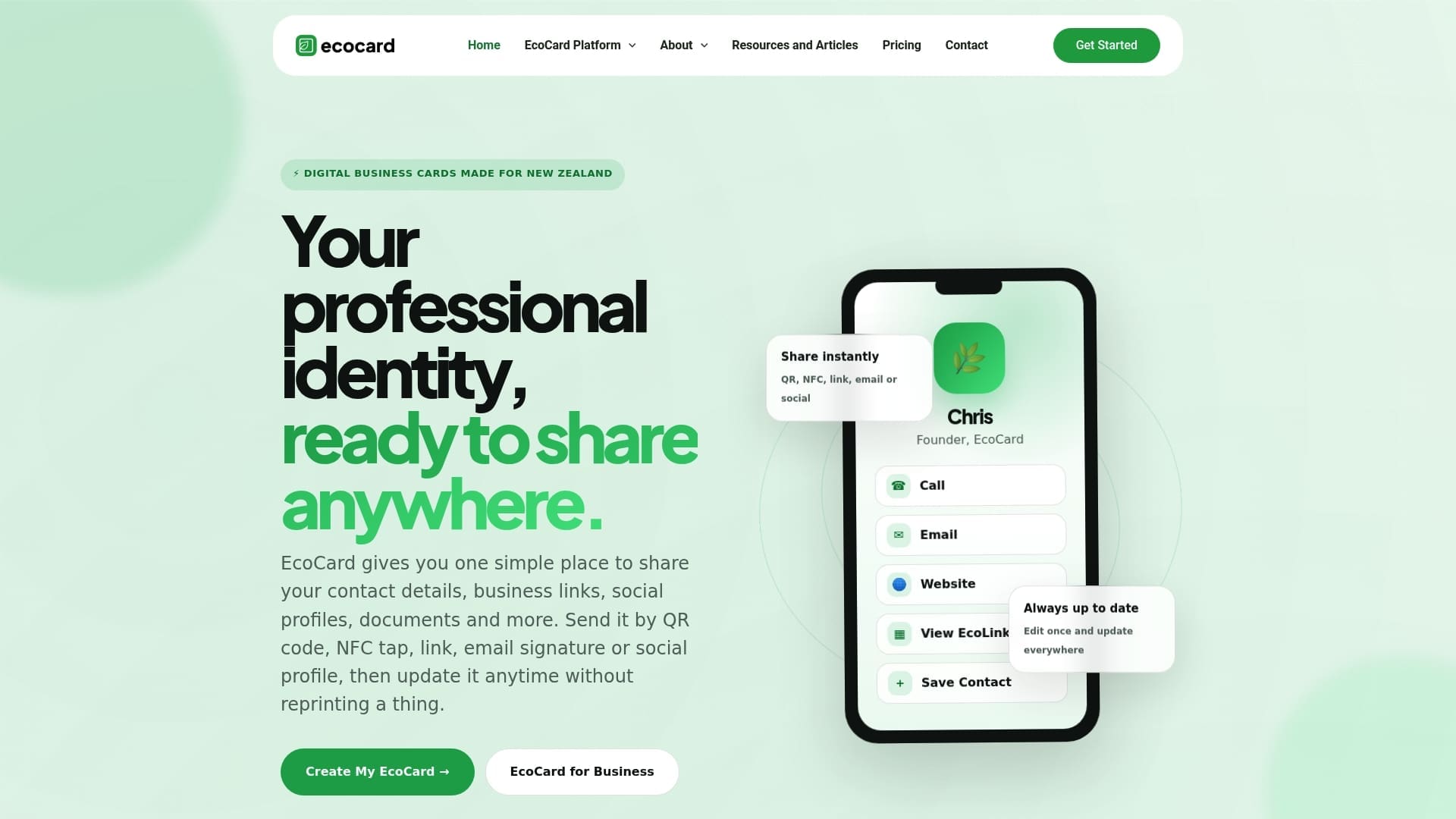
EcoCard gives each person a card with QR code and direct-link sharing, NFC tap, saved contacts through EcoWallet, portfolio and document sharing, and live updates. Businesses get central admin, consistent branding and simple onboarding and offboarding, plus analytics on card usage.
Plans start at NZ$9.99 a month for an Individual card, with Additional EcoCards at NZ$4.99 a month each. For businesses, Starter is NZ$19.99 a month, Business is NZ$49.99 a month and Teams is NZ$99.99 a month. Enterprise is available on request. Compare them on our pricing page.
If you manage staff cards, see how EcoCard for Business handles central control, and read our employee digital business card guide.
Common mistakes to avoid
- Sharing a link that needs a login. If the recipient has to sign up to see you, you have lost them.
- Cramming the card. Eight phone numbers and every social profile make it harder to act.
- Sending the link with no context. The recipient does not know who you are or why.
- Never testing the QR code. Scan your own code with a different phone before an event. Check that it opens the right page.
- Forgetting to measure. If you hand out cards at events, usage analytics tell you which channels get opened. Our playbook on tracking QR code scans shows how.
- Leaving old cards live. When someone leaves your business, deactivate their card the same day. Our offboarding checklist lists the steps.
If you collect leads at events, a lead capture QR code keeps contact details from going stale in a notebook.
FAQ
How do I share a digital business card link?
Copy the link from your card and send it by text, WhatsApp, email or social message. In person, show the QR code or use an NFC tap. Add a line saying who you are and where you met.
Can I share my contact details with a QR code?
Yes. A QR code can carry or link to your contact details, and the vCard standard covers name, email, phone number, company and job title. The other person scans it with their camera app and saves the details. Make sure the code leads to a page you control.
Do people need an app to open my card?
Not with a link-based card. The recipient opens it in their phone browser and can save the details to their contacts. This is how EcoCard works: nobody has to install an app to view your card.
Is it rude to send my card link by text?
Not if they asked for it or you offered first. Include your name and the context so it does not look like spam. For senior or formal contacts, email is usually the safer choice.
Can I add people I meet to my mailing list?
Not automatically. New Zealand’s Unsolicited Electronic Messages Act requires consent, accurate sender details and an easy unsubscribe for commercial messages. Ask first, and send a personal follow-up in the meantime.
Sources
- vCards, Tito Help Center
- Use NameDrop on iPhone to share your contact info, Apple Support
- Add and use contact information, Apple Support
- Use Quick Share on your Android device, Android Help
- Types of scams, Consumer Protection NZ
- Data and privacy, Consumer Protection NZ
- Do I need permission from an individual, Office of the Privacy Commissioner
- Collecting personal information, Office of the Privacy Commissioner
- Spam frequently asked questions, Department of Internal Affairs
- Security, encryption, and your data
- Click to Call Button: How to Add One That Wins Calls
- Chinese Business Card Etiquette for Pros
Recommended
- Avoid 4 Print Mistakes When Adding LinkedIn to NZ Business Cards
- Link Preview Business Cards: Fix Missing Images Before You Share
- Secure, live digital business card: QR, link & vCard for professionals
- NFC Business Card Setup for Teams: One Link, No Retagging
This article was produced with AI assistance and reviewed for accuracy. It is provided for general information only and is not professional advice.

