


To add a QR code to your email signature, create the code, save it as a PNG, then insert it as an image in your email client’s signature settings. Size it at roughly 100 to 120 pixels square, put a short line of text beside it, and send yourself a test. The steps take about ten minutes. The part that decides whether anyone scans it is what the code opens, so we cover that first.
TL;DR
- Save the code as a PNG, then insert it through Gmail (Settings > Signature) or Outlook (File > Options > Signatures). Keep it to about 100 to 120 pixels square.
- Use one code with one job: saving your contact, booking a meeting or opening a portfolio. Not your homepage.
- Add a text call to action beside it, such as “Scan to save my contact”, and hyperlink that text to the same place.
- Leave a clear border around the code and use dark on light. Test on desktop and phone before you roll it out.
- Choose a code that stays valid when your details change. A static code pointing at a fixed page goes stale. A live digital card does not.
Table of Contents
- Decide what the code should open
- Create the QR code image
- Set the right size
- Add it in Gmail
- Add it in Outlook
- Add it in Apple Mail
- Put words next to the code
- Test before you send it to anyone
- Why a static code goes stale
- Our perspective: the signature is the wrong place to store your details
- Using an EcoCard as the destination
- A short rollout plan for teams
- Small details that lift scans
- FAQ
- Sources
Decide what the code should open
Most guides jump straight to the clicking. Start with the destination, because the image is the easy part and a code that opens the wrong thing gets ignored.
A code that opens your website homepage gives the person nothing to do. Digital business card specialists suggest a destination with one goal: a vCard (.vcf) for saving your contact, a booking page for sales leads, or a curated portfolio link for consultants. Another guide makes the same point from the opposite side: it names cramming three codes into one signature, for vCard, LinkedIn and website, as the most common mistake, and says recipients end up scanning none of them.
Pick by role:
| Your role | Best destination | Text beside the code |
|---|---|---|
| Sales or account manager | Digital card with a booking link | Scan to book a call |
| Consultant or freelancer | Portfolio or case studies | Scan to see my work |
| Recruiter or HR | Digital card with your direct contact | Scan to save my details |
| Tradie or small business owner | Digital card with phone, reviews and quote request | Scan to save my number |
| Team member in a branded company | Your company-managed card | Scan to save my contact |
If you are unsure, a digital business card is the safest choice. It holds your phone, email, social profiles and links on one page, and the recipient can save it straight to their phone. We cover that further down.
Create the QR code image
You need a PNG file of the code. Any QR generator will give you one, and so will a digital business card platform. Three things matter when you export.
Resolution. Export larger than you need, such as 500 pixels square or more, then shrink it in the signature editor. You can scale a big image down cleanly. Scaling a small one up blurs the edges and makes the code harder to read.
Contrast. Use black on white or a very dark colour on a light background. GS1’s colour guide advises against low-contrast pairings and busy backgrounds behind the code. Pale grey on white looks smart in a mock-up and fails in a dim office.
Quiet zone. Keep a clear, empty border around the code. The same GS1 guidance puts the minimum at four modules, the small squares inside the code, on every side. If your signature template puts a coloured band or a logo right up against the code, add white padding to the image itself.
Set the right size
Email signatures are cramped. The sweet spot is 80 to 120 pixels square, which keeps the code scannable and avoids looking like an oversized image to spam filters. A second guide puts it at about 100 to 120 pixels for compatibility, and in practice 100 pixels is a safe place to start.
Smaller than 80 pixels and many phone cameras struggle, especially if the recipient is reading on a laptop screen at an angle. Larger than 120 pixels and the code dominates your signature and may push your name and title below the fold of a short email.
One caution: the more data a code holds, the denser it looks and the harder it is to scan at small sizes. A code that holds a short link is much sturdier than one that embeds your full contact details. That is one more reason to point the code at a short web address rather than stuffing a vCard into it.
Add it in Gmail
- Open Gmail, click the gear icon and choose See all settings.
- On the General tab, scroll to Signature.
- Select your existing signature or create a new one. Gmail allows up to 10,000 characters in a signature.
- Place the cursor where you want the code, then click the Insert image icon.
- Upload the PNG, or paste its web address. Resize it using the small, medium or large options, or drag the corners.
- Add your text call to action next to it and hyperlink the words.
- Scroll to the bottom and click Save changes.
If the image does not appear, check where it lives. Gmail’s help page says an image inserted from Google Drive needs its sharing set to “Anyone with the link can view”. It also suggests clearing your cache and cookies, or trying an incognito window, if uploads misbehave.
Add it in Outlook
On the classic desktop app:
- Choose File > Options > Mail > Signatures.
- Select the signature to edit, or click New.
- In the editing box, put your cursor in position and click the picture icon.
- Browse to your PNG and insert it. Right-click it and open Size if you need to set the dimensions exactly. Keep Lock aspect ratio ticked so the code does not stretch.
- Add your call-to-action text and hyperlink it.
- Click OK and set the signature as the default for new messages and replies if you want it on both.
Outlook on the web and the new Outlook have a similar signature panel under Settings, with an image button in the toolbar.
Outlook is the client most likely to cause trouble. Microsoft documents a known issue in classic Outlook where signature images show a red X instead of the picture. There is also a separate Microsoft article on images in signatures created in Outlook on the web that external recipients cannot see in an Exchange Server 2016 environment. If you work in a company with its own IT team, ask them whether signature images are blocked or restricted before you spend an hour debugging.
Add it in Apple Mail
Apple Mail is the fiddly one, because signatures are stored as text with no real image editor.
- Open Mail > Settings > Signatures and create a new signature.
- Untick Always match my default message font so you can format it.
- Drag your PNG into the signature box, or paste it in.
- Add and hyperlink your call to action.
- Close the window and send yourself a test.
If the signature reverts to plain text, quit Mail before editing and try again. Always send a test to an address you can open on a different device, because Apple Mail signatures sometimes look different once they arrive.
Put words next to the code
A bare black-and-white square tells nobody what it does. Add a short line of text that says what scanning gets them. QRapid recommends phrases like “Scan to save my contact” or “Scan to view my portfolio”, and notes that text also acts as a safety net when an email client strips images or the reader cannot scan from the device they are on.
That second point is real. Most people read email on the same phone they would need to scan with, which makes scanning impossible. So hyperlink your call-to-action text to the same destination as the code. The phone reader taps the link. The desktop reader scans the code. Both reach the same page.
A few rules we follow:
- Keep the line under eight words.
- Use a verb: save, book, view.
- Put it directly beside or under the code, never in a separate block.
- Do not add a second link to a different destination next to it.
The point of the code is to start a follow-up. If you chase leads from those scans, a CRM that automates follow-up for sales teams can turn a saved contact into a scheduled next step so nobody falls through the cracks.
Test before you send it to anyone
A signature that works on your screen can still fail in someone else’s inbox. Microsoft’s advice is to send a test to yourself and open it on both desktop and mobile. We would go further:
- Send a test to a Gmail address and an Outlook address.
- Open each on a phone and scan the code from a second screen, such as a laptop.
- Open each in dark mode. A transparent PNG can lose its white background and become unreadable. Give the code a solid white background to avoid this.
- Turn off image loading to see how the text version reads.
- Reply to your own test, because replies often pull a different signature.
Why your QR code is not showing
The usual causes, in the order we would check them:
- The image is hosted privately. Fix the sharing permissions, as above.
- Your client blocks images by default. Recipients may need to click to load images. Your text link covers this case.
- Corporate security is stripping it. Ask your IT provider.
- It was pasted rather than inserted. Use the image button, then save and reopen the signature to confirm it stuck.
- Your file is too large. Resize it to about 100 to 120 pixels.
If the code shows but will not scan, the culprit is nearly always size, contrast or a cramped border. Our guide on business card QR codes that will not scan walks through the checks, and the logic carries over to email.
Why a static code goes stale
Here is the catch with the generate-and-paste method. A plain QR code is a fixed link. Once it is in a signature on thousands of sent emails, you cannot change what is inside it. If your booking page moves, your job title changes or you leave the company, every old email still carries a code that points at the old thing.
There are two ways to deal with that. You can use a code that redirects through an address you control, so you can change the destination later. Or you can point the code at a live digital business card, where the details on the page update whenever you edit them. The code stays the same and the content behind it stays current. We go deeper on this in do QR codes expire.
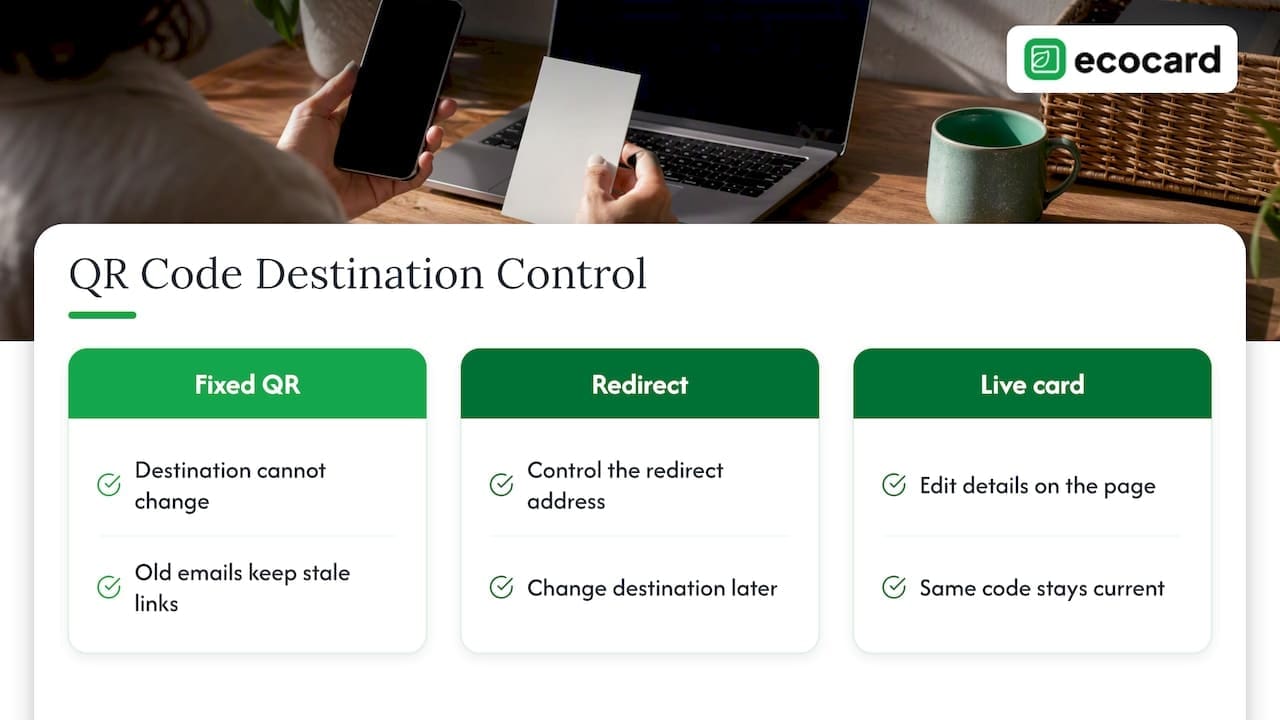
For a team the problem multiplies. If each person generates their own code, branding drifts, details go out of date and a leaver’s code keeps working. Popl’s guidance on teams says it plainly: use centralised tools so administrators can deploy standard templates, rather than leaving every employee to build their own. We agree with the principle, and it is how we built EcoCard for businesses.
Our perspective: the signature is the wrong place to store your details
We have a simple view on this. An email signature is a permanent record of a moment. A digital card is a living record of you today. The best way to use the first is to point it at the second.
In our experience people make three mistakes. They put the code on the signature without a reason to scan it. They send the code to a page that does not do anything. And in a business, they let staff build their own, so six people end up with six different logos, fonts and links. None of these are design problems. They are management problems.

So we suggest one code, one purpose, one place where you edit your details. When your role changes, you change the card, not the signature. When someone joins a team, an admin gives them the standard card. When someone leaves, the admin switches it off. That is what central management is for, and it is the core of what EcoCard does. If the recipient has to install an app to see your details, you have lost most of them, so recipients should only need their phone camera.
NFC taps are good in person, but they do nothing in an email. That is why QR still earns its place in a signature, as we explain in why QR still matters when NFC taps fail.
— Chris
Using an EcoCard as the destination
With EcoCard, your QR code opens a digital business card with your contact details, social profiles and business links. Recipients can save your contact without installing anything. When you update your details, the card updates live, so the code in last year’s emails still shows this year’s information. You can read how it works on our create a digital business card page and see the features.
Plans are billed monthly in New Zealand dollars:
| Plan | Price |
|---|---|
| Individual | 9.99 NZD per month |
| Additional EcoCards | 4.99 NZD per month |
| Starter | 19.99 NZD per month |
| Business | 49.99 NZD per month |
| Teams | 99.99 NZD per month |
| Enterprise | No published price |
If you are a sole trader or consultant, the Individual plan covers one card, and Additional EcoCards suits anyone who wears more than one hat, such as a director with a separate card for a side business. If you manage staff, the Business, Teams and Enterprise plans bring the central admin, consistent branding and onboarding and offboarding. You can compare them on the pricing page, or look at EcoCard for business if you manage a team.
A short rollout plan for teams
If you are the person responsible for everyone’s signatures, this is the sequence that saves the most grief.
- Choose the single destination. For most teams that is each person’s digital card.
- Design one template. Logo, name, title, phone, one code, one call to action. Nothing else.
- Fix the dimensions. Agree on 100 pixels square for the code and apply it to every signature.
- Pilot with three people. Use different devices and mail clients, including at least one Outlook user.
- Roll out and tell staff why. Explain what the code does, so they can answer when a client asks.
- Review at one week and six months. Check the codes still resolve, and that leavers’ cards are off.
You can also check how many people actually scan. Our QR scan tracking guide covers how to measure it, and our lead capture QR code article shows how teams keep contacts from going stale after a scan.
Small details that lift scans
- Placement. Put the code at the bottom left of the signature, under your contact details, where the eye finishes reading.
- Replies. Consider a shorter signature for replies in a long thread. A large block repeated twenty times is noise, and people stop looking.
- Accessibility. Add alt text to the image, for example “QR code to save Chris’s contact”. Screen readers and image-blocking clients will then show something useful.
- Security. Teach staff that people should not scan unexpected codes in email. Your signature code should always match a text link that shows its web address so the reader can see where it goes.
- Frequency. One code. If you want to promote an event, use a temporary banner line above the signature rather than a second code.
FAQ
How do I embed a QR code in an email?
Insert it as an image, either in a one-off message using the image button, or permanently through your signature settings. Use a PNG at about 100 to 120 pixels square. Add a text link next to it, because some recipients will not see images until they allow them.
Why are QR codes not showing up in my Outlook emails?
The usual causes are images blocked by security settings, a known display issue in classic Outlook, or an image that was not properly embedded or hosted. Microsoft documents the problem on its support site. Re-insert the image using the picture button, save, and send a test to a different mail account. If it still shows a red X, ask your IT provider whether signature images are restricted.
How do I create a QR code for my signature?
Generate a code for a single destination, such as your digital business card, a booking page or a portfolio. Download it as a PNG with a plain white background and a clear border. Then insert it into your signature in Gmail, Outlook or Apple Mail.
Should I put my full contact details inside the QR code?
We would not. The more data a code holds, the denser and harder to scan it is at small sizes. It also cannot be changed after it is sent. A short link to a live digital card keeps the code simple and your details current.
Sources
- QRWink: QR code for email signature
- QRapid: add a QR code to your email signature
- QR Generate: QR code in an email signature
- GS1 2D barcode colour and quality guide
- Gmail Help: Create a Gmail signature
- Gmail Help: Troubleshoot issues with Gmail signatures
- Microsoft Support: images not displayed in classic Outlook
- Microsoft Support: signature images created in Outlook on the web
- Popl: free email signature generator
Recommended
- Make QR Code Business Cards Print Ready for Professionals: 2 cm Min
- One Resume QR Code That Gives Recruiters 30 Extra Seconds
- Inbox Trust, Live Updates: Email Signatures vs Digital Cards
- Business Card QR Codes Won’t Scan? Check 2 cm Print Specs, Then Test
This article was produced with AI assistance and reviewed for accuracy. It is provided for general information only and is not professional advice.

