


The easiest way to manage employee business cards is to stop treating each card as a print job and start treating it as a live profile. You build one branded template, give every person their own card from it, and control all of them from a single admin area. When someone changes role, gets a new number or leaves, you edit or switch off one record and every shared link, QR code and tap shows the right details straight away.
This guide walks through how to do that for a New Zealand team: setting up the template, keeping people on-brand, handling updates, onboarding and offboarding, using cards at events and in sales follow-up, and staying on the right side of the Privacy Act.
TL;DR
- Build one master template (logo, colours, layout, required fields) and create every employee card from it, so no one designs their own.
- Keep cards live rather than printed: a change to a title, phone number or link updates everywhere the card has been shared.
- Tie cards to your onboarding and offboarding steps. A new starter gets a card on day one, and a leaver’s card is switched off the day they go.
- Treat card data as personal information under NZ privacy rules: share only what is needed, review who has admin access and use multi-factor authentication.
- Use a central platform such as EcoCard for Business once spreadsheets and print orders stop keeping up.
Table of Contents
- Why printed cards are hard to manage across a team
- Step 1: Build one master template
- Step 2: Create a card for every person
- Step 3: Keep cards on-brand while letting people personalise
- Step 4: Update details across the team
- Step 5: Onboarding and offboarding
- Using employee cards at events and in sales follow-up
- Privacy and security: what NZ businesses should do
- Our perspective
- Choosing a plan for your team
- Ready to put one template across your team?
- A simple rollout plan
- FAQ
- Sources
Why printed cards are hard to manage across a team
Printed cards go wrong in predictable ways. Someone gets promoted and the box of 500 in their drawer still carries the old title. A mobile number changes. The logo is refreshed, but half the team keeps handing out the old one. Each fix means a reorder, an approval and a wait, and the old stock either goes in the bin or keeps circulating.

The guides that rank for this topic usually describe the same fix for print: a master design, a central ordering portal and an approval step so every card stays on-brand. That is sensible for print. The weakness is that the card is frozen the moment it is printed, so the whole cycle repeats every time a detail changes.
A digital card removes the frozen part. The design lives in one place, the details live in one place, and what people receive is always the current version. For a team that hires, promotes and reorganises regularly, that is the real saving, more than the printing cost itself.
Step 1: Build one master template
Start with the template, because everything else depends on it. Decide these things once, before you create a single employee card:
- Brand elements. Logo, colours, fonts or typographic style, and any tagline you want shown.
- Required fields. Name, job title, company, work mobile, work email and website are the usual core. Decide which are mandatory and which are optional.
- Optional fields. Social profiles, a booking link, a portfolio or a document such as a capability statement.
- Rules for personal details. Whether a personal mobile may appear, and whether staff can add a profile photo.
Write these rules down in a half-page brief. If your branding is still being settled, it is worth sorting that first, whether in house or with B2B graphics and branding agencies, because a template built on a shifting brand just moves the rework from print to screen.
EcoCard is built around exactly this model: central management for businesses, with consistent branding across all employee cards. You can see the card features on the EcoCard features page.
Step 2: Create a card for every person
With the template in place, each employee gets their own card. A practical order of work:
- Collect the data. Pull names, titles, phone numbers and emails from your HR system or staff list, not from people’s memories. One source of truth avoids typos.
- Create the cards. Set up each person from the template so the brand elements are inherited, not rebuilt.
- Let people check their own. A short review window catches misspelt names, macrons that have gone missing and wrong direct lines. Getting te reo Māori names right matters, so ask people to confirm how their name should appear.
- Hand out the sharing methods. Each person can share by QR code, by direct link or by NFC tap. The person receiving the card does not need to install an app, which removes the main friction at the moment of sharing. We cover how that works in our guide to digital cards with no app.
Some people hold more than one role. A consultant who runs a side practice, or a manager who wears two hats, may need more than one card. EcoCard supports multiple cards and switching between roles, and extra cards are priced separately (see the pricing section below).
Step 3: Keep cards on-brand while letting people personalise
The tension in every team is the same: head office wants consistency, and individuals want their cards to reflect how they work. The way through is to decide which parts are locked and which are open.
| Element | Who controls it | Why |
|---|---|---|
| Logo, colours, layout | Admin | Keeps every card recognisably yours |
| Name, title, company | Admin, with employee confirmation | Must match HR records |
| Work phone and email | Admin or employee, per your policy | Accuracy matters more than who types it |
| Social profiles | Employee, within your guidelines | People know their own professional presence best |
| Portfolio links and documents | Employee or team lead | Different roles need different material |
A consultant might link to a case study, a salesperson to a price guide, a recruiter to open roles. The brand frame stays fixed, and the content inside it fits the person. That is how you avoid forty different designs without turning every card into a clone.
If you want to see what a good card looks like before you write your own rules, our mobile-first digital business card examples show how different professionals use the same structure.
Step 4: Update details across the team
This is where digital cards pay for themselves. Because cards are live, an update is not a reissue. The old card does not linger in anyone’s pocket, because the link or QR code a contact saved points to the current version.
Build these routine triggers into how you work:
- Role or title changes. Update the card on the same day the change is confirmed by HR.
- New phone numbers or office moves. Change the field once and it is correct everywhere.
- Rebrands. Update the template and the new look carries across the team, instead of a pallet of reprinted stock.
- New offers or campaigns. Swap a link or document on the relevant cards, for example a seasonal promotion or a new brochure.
A quarterly sweep is a good habit even if nothing obvious has changed. Ask each person to open their own card, confirm it is right, and report anything out of date. It takes a few minutes per person.
One caution applies to contacts, not cards. A live card keeps the card current, but a contact someone has already saved to their phone may hold older details. That is why a card people can reopen by link is more useful than a one-off file. Our guide on how to name, share and keep a digital business card URL explains how to keep links stable.
Step 5: Onboarding and offboarding
Cards belong on your people checklist next to email accounts and building access.
Onboarding
A new starter should have a working card by their first day or first week. That means the card is part of the setup task list: details confirmed, photo added if your policy allows it, and the person shown how to share by QR, link or NFC. A new salesperson who can share a polished card in their first client meeting looks like part of the team immediately.
Offboarding
This is the part print cannot do at all. A departed employee’s printed cards stay in circulation indefinitely, still showing their direct line and your company name. With a centrally managed card, the admin can deactivate or change that card the day the person leaves, so a client who taps an old link is not sent to someone who no longer works for you.
Add these items to your leaver process:
- Deactivate or reassign the card on the last day.
- Decide where enquiries go, such as a team lead or a shared mailbox.
- Remove the leaver’s admin or editing access, if they had any.
- Record that the step is done alongside the other offboarding tasks.
Our employee offboarding checklist for NZ teams lays out the wider list this sits inside.
Using employee cards at events and in sales follow-up
Cards matter most at the moments people meet. At a conference or trade show, someone can show a QR code on their phone or tap to share, and the other person has the details with no typing. For a team on a stand, that means every staff member shares the same polished profile rather than whichever card they remembered to pack.
Follow-up is where sales teams get the real value. A few habits help:
- Follow up within hours, not weeks. Contacts are warmest right after the conversation. We go into the operations in capturing leads at events.
- Put the next step on the card. A booking link or a relevant document gives the contact something to do immediately.
- Use usage analytics. EcoCard includes analytics on card usage, which helps a team see how cards are being used and where to improve.
- Pair the card with the rest of your outreach. Many sales teams also build relationships online, and approaches such as B2B social selling on LinkedIn work best when the profile people land on from your card is current and consistent.
Contacts you receive also need organising. If your team collects dozens of cards after an event, our piece on how to organise business contacts so you can find them covers what to do next.
Privacy and security: what NZ businesses should do
An employee business card is personal information: a name, a phone number, an email address. Managing a team’s cards centrally means you are holding and sharing that information digitally, so New Zealand privacy expectations apply.
Collect and share only what you need. Business.govt.nz summarises the Privacy Act duties: collect only what you need for business purposes, keep it safe, use it only if you are reasonably sure it is accurate and up to date, and do not pass on someone’s details without their permission. For cards, that means a staff member’s personal mobile or home details should appear only if they agree.
Restrict and review access. The same guidance advises limiting access so only the people who need to view or edit information can do so, reviewing that access regularly and removing it when someone leaves or changes role. Apply this to your card admin area: a small number of named administrators, not a shared login.
Turn on multi-factor authentication. The Office of the Privacy Commissioner advises that if your organisation holds or shares personal information digitally, you should have multi-factor authentication enabled. That includes any platform where staff details live.
Check where data goes. Business.govt.nz also says you must not send personal information overseas without checking it will be protected. Ask any card provider where data is stored and how it is protected, and record the answer in your privacy documentation.
Mind marketing messages. If you use contact details collected through cards for email or text marketing, the Unsolicited Electronic Messages Act 2007 requires consent, clear identification of the sender and an easy way to unsubscribe, as this NZ explainer outlines. A business card handed over in person is not automatically permission for a marketing campaign. If you are unsure how the rules apply to your situation, talk to a privacy or employment lawyer.
For more detail, see our guides on what NZ professionals should check about digital business card privacy and GDPR and business cards for NZ businesses.
Our perspective
Most teams we talk to do not have a card problem. They have a consistency problem that shows up on cards. Someone is always on the old logo, someone’s title is a year out of date, and nobody owns the fix.
We built EcoCard around central management for exactly this reason. One admin controls the branding, every employee has their own card, and a change to a role, a detail or the brand shows up live. We think the card should behave like the rest of your business systems: set up when someone joins, edited when something changes, and switched off when they leave.
It is also a better fit for how people work now. Recipients do not need to install an app, people can switch between cards and roles, and nothing ends up in a drawer or a bin. Fewer printed cards also means less waste, which is where the name came from.
If you take one thing from this guide: decide who owns the template and who owns the leaver step. Everything else gets easier once those two are named.
Chris
Choosing a plan for your team
EcoCard bills monthly in New Zealand dollars. The published plans are:
| Plan | Price |
|---|---|
| Individual | NZ$9.99 per month |
| Additional EcoCards | NZ$4.99 per month |
| Starter | NZ$19.99 per month |
| Business | NZ$49.99 per month |
| Teams | NZ$99.99 per month |
| Enterprise | No published price |
If you are a sole operator or a consultant with a second role, Individual plus an additional card may be all you need. Once you have staff, central admin, branding control and onboarding and offboarding become the point, and the Starter, Business, Teams and Enterprise plans are built around that. Our Enterprise page covers larger organisations.
Ready to put one template across your team?
EcoCard gives NZ businesses one place to create, brand, update and retire employee cards, with QR, direct-link and NFC sharing, live updates and analytics on card usage. Compare plans on our pricing page or see how it works for teams on the EcoCard for Business page.
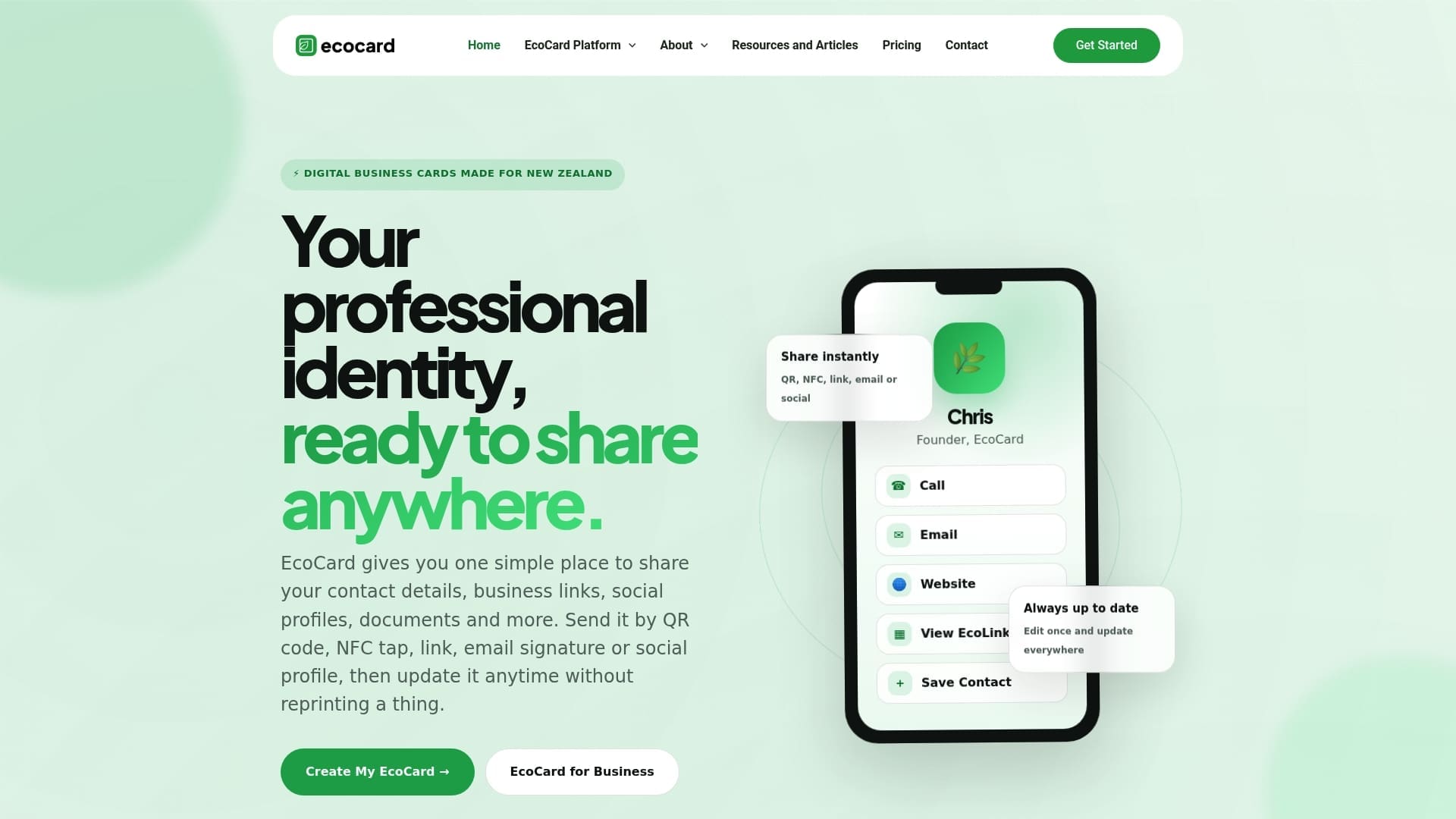
If you want to read more before choosing, start with our guide to employee digital business cards for NZ teams.
A simple rollout plan
For a team of any size, this sequence works:
- Week one: agree the template, the required fields and the rules on personal details. Name the card owner and the leaver owner.
- Week two: create cards from your HR data, have each person confirm theirs, and switch on multi-factor authentication for admins.
- Week three: show the team how to share by QR, link and NFC, and set expectations for follow-up after meetings and events.
- Ongoing: add cards to onboarding, deactivate them in offboarding, and run a quick quarterly check.
Stop handing out old printed stock once the digital cards are live, so clients see one version of your team.
FAQ
How do I manage business cards for employees who leave?
Deactivate or reassign their card on their last day, and decide who receives enquiries from that point. Add the step to your offboarding checklist and remove any admin access they held. Because digital cards are live, anyone who taps an old link sees what you have set, not the leaver’s old details.
Can employees personalise their cards and still stay on-brand?
Yes. Lock the logo, colours and layout in a master template, then let people add their own portfolio links, documents and professional profiles within your guidelines. The brand frame stays consistent while the content fits each role.
Do people receiving an employee card need an app?
No. The recipient can open the card from a QR code, a link or an NFC tap without installing anything. That keeps sharing quick at events and in client meetings.
Is an employee’s business card personal information under NZ law?
Yes, a name with a phone number or email is personal information, so Privacy Act expectations apply to how you collect, store and share it. Share only what is needed, restrict who can edit cards, and review access when roles change. For specific legal questions, see a privacy or employment lawyer.
Sources
- Office of the Privacy Commissioner: Security and internal access controls
- Business.govt.nz: Protecting customer and employee information
- Tiffany Digital: Unsolicited electronic messages and privacy
- EntreResource: B2B graphics and branding agencies
- Kynzo: B2B social selling on LinkedIn
Recommended
- Employee Digital Business Cards: A Guide for NZ Teams
- Digital Business Card Privacy: What NZ Professionals Should Check
- Digital Business Card With No App: How It Works in NZ
- Avoid 4 Print Mistakes When Adding LinkedIn to NZ Business Cards
This article was produced with AI assistance and reviewed for accuracy. It is provided for general information only and is not professional advice.

