


Most Gmail VCF import problems come down to five things: a file that is badly structured, too many contacts in one go, a file saved with the wrong encoding, importing on a phone or the wrong account, or an import that worked but landed somewhere you did not look. This guide walks through each cause in the order worth checking, then shows how to confirm the result and clean up duplicates.
TL;DR
- Import from a computer at contacts.google.com where you can. Google’s own steps cover the desktop route and list the usual problems: contacts not formatted for Google, more than 3,000 at once, and the 25,000-contact limit.
- Split big files into batches of fewer than 3,000 contacts, and check that every record has its own BEGIN:VCARD and END:VCARD lines.
- If the import says “success” but nothing appears, check the Imported label, the Notes field, and which Google account you were signed in to.
- After a good import, merge duplicates before you sync to your phone.
- For your own details, share a live link or QR code instead of a file, so nobody has to import anything.
Table of Contents
- What a VCF file is, and why Google can be fussy about it
- The correct way to import first
- Cause 1: the file is too big or has too many contacts
- Cause 2: broken structure inside the file
- Cause 3: the “invalid contact data” message
- Cause 4: the wrong device, account or file type
- When the import says “success” but nothing shows
- A fast checklist for partial imports
- Our view: stop sending files around at all
- After the import: check for duplicates
- When your own details are the thing you are sharing
- Prevention: habits that stop import problems recurring
- FAQ
- Sources
What a VCF file is, and why Google can be fussy about it
A .vcf file (vCard) is a plain text file. Each contact sits between a BEGIN:VCARD line and an END:VCARD line, with fields such as name, phone and email in between. Because it is only text, it is easy for another app, a phone or a spreadsheet export to write something that looks fine to you but trips Google’s importer.
There is also more than one vCard version. Apple’s Contacts app, for example, exports vCard 3.0 files and suggests trying another format, such as vCard 2.1, if another app cannot import them. Version mismatches are one reason a file from one device behaves differently on another.
The symptoms vary. You might see “Can’t import contacts”, a file-size warning, or a message that Gmail is temporarily unable to access your contacts, all of which Cisdem lists as common errors. Or you might see nothing at all: the import finishes and the contacts are not there. Each has a different fix.
The correct way to import first
Before troubleshooting, rule out a simple process mistake. Google’s desktop steps are short:
- Go to Google Contacts on a computer and sign in to the account you want the contacts in.
- Click Import in the left menu.
- Click Select file and choose your .vcf file.
- Click Import.
That is Google’s published desktop process, and it accepts both .vcf and .csv files.
On an Android phone, the route is different: open the Contacts app, choose Organise then Import from file, pick the Google account to save into, and select the VCF file. Google documents this on its Android help page. If the phone route fails, try the computer. It reports problems more clearly and is easier to check afterwards.
If you want a second walkthrough of the same job, there is a clear guide to importing Gmail contacts step by step that covers the general sequence and what to check along the way.
Cause 1: the file is too big or has too many contacts
This is the most common cause of a partial import. Google warns that importing more than 3,000 contacts at a time can cause problems and recommends splitting the contacts into multiple files. It also lists the 25,000-contact limit as a possible reason an import fails.
Cisdem reports a 20 MB file-size limit and suggests splitting a VCF that exceeds it. That figure comes from a third-party guide rather than from Google, so treat it as a rule of thumb: if a file is very large, split it anyway. Contact photos embedded in the file are what usually inflate a VCF.
How to split a file
- If you still have the original contacts app, export in smaller groups, such as one label or one group at a time.
- If you only have the file, open it in a plain text editor and cut it at a boundary between one END:VCARD line and the next BEGIN:VCARD line. Never cut in the middle of a record.
- Save each part with a .vcf extension and import them one at a time.
Import the smaller files in order and check the count after each one. If a batch fails, you know where the bad record is.
Cause 2: broken structure inside the file
When a file is rejected or a message says the contact data is invalid, look at the structure. CorrectVCF’s troubleshooting guide says a VCF should begin with BEGIN:VCARD, and each record should have matching BEGIN:VCARD and END:VCARD markers. Its developer checklist adds that every record needs its own complete wrapper and must end before the next one begins.
Open the file in Notepad, TextEdit set to plain text, or any code editor, and check these points:
| Check | What good looks like | What goes wrong |
|---|---|---|
| First line | BEGIN:VCARD | Stray characters or blank lines before it |
| Each record | One BEGIN:VCARD and one END:VCARD | A missing END line, so two contacts merge into one |
| Version | A VERSION line is present | Missing or empty version |
| Names | FN and N lines contain text | Empty name fields on records with only a phone number |
| Text | Saved as UTF-8 | Garbled accents, hidden characters |
The name fields matter more than people expect. CorrectVCF recommends checking that VERSION, FN and N are present and non-empty when Google rejects a file or imports fewer contacts than expected. A record that has a phone number but no name is a typical casualty.
The same company’s file-repair guide lists other corruption symptoms: unescaped characters, extra whitespace, incorrect colons, non-standard property names, mixed line endings and a byte order mark. You do not need to know what each means. The practical takeaway is to re-save the file as UTF-8 plain text and delete blank entries, which is also that guide’s advice.
Cause 3: the “invalid contact data” message
This error is a catch-all. It can reflect malformed structure, unsupported properties, damaged encoding, missing record boundaries, or data Google cannot accept. So the fix is to narrow it down, not to guess:
- Split the file in half and import each half.
- Whichever half fails, split again.
- Keep going until you have a handful of records, then open them and look for the odd one out: an empty name, a missing END line, a strange character.
- Fix or delete that record, then re-import the full set.
It is tedious for a large file, but a bisect like this finds the problem record in a few rounds even among thousands.
Cause 4: the wrong device, account or file type
Some failures are not about the file at all.
- Wrong account. If you are signed in to more than one Google account in the browser, the import goes into whichever account is active. Check the profile picture at the top right before you click Import.
- A CSV disguised as a VCF, or the reverse. Renaming a file does not convert it. If a spreadsheet export will not load, check that it really is the format you think it is.
- A phone app reporting “invalid file type”. Some apps and phones only accept certain versions. Try the computer route, or export the contacts again from the source in a different vCard version, as Apple suggests above.
- Work or school accounts. Workspace administrators can restrict some features. Google’s Workspace guidance notes that to add contacts to another email account you first download them as a CSV or vCard file, so if the import option seems missing, ask your administrator.
When the import says “success” but nothing shows
This is the most confusing case, and the usual explanations are mundane.
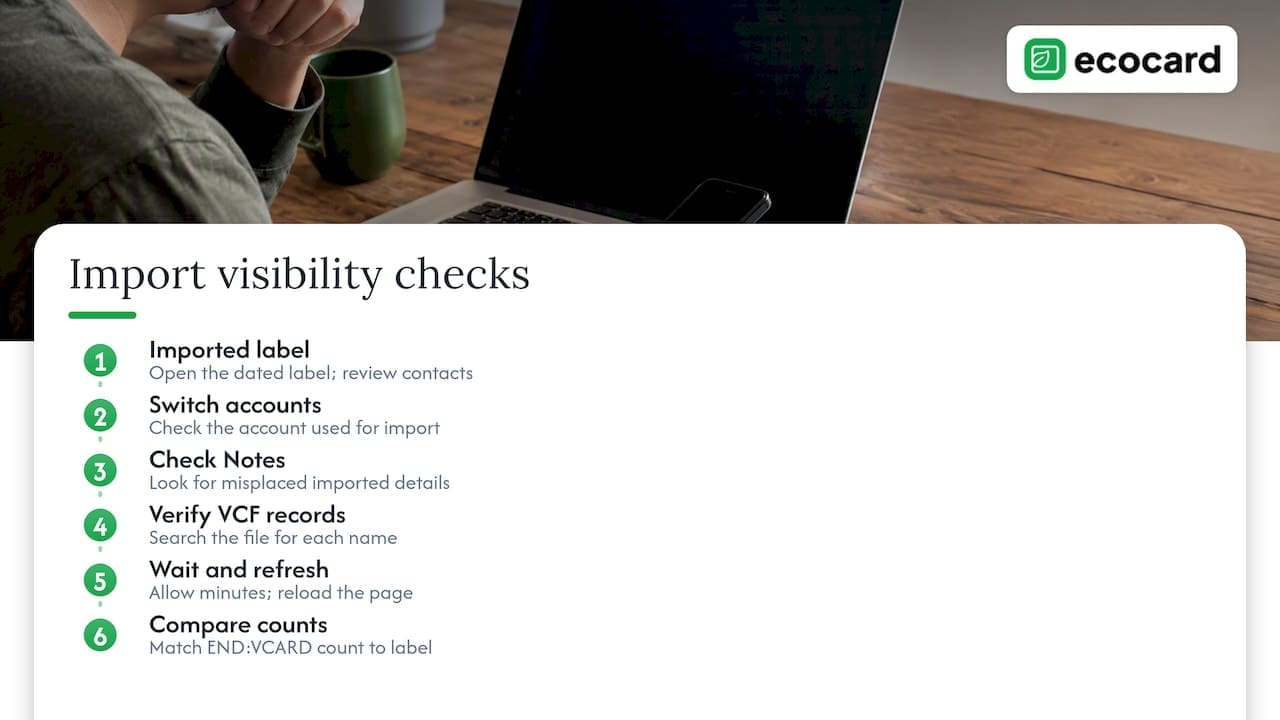
Look in the right place. Imported contacts get a label named Imported on, followed by the date. Univik’s guide explains that clicking this label in the left sidebar shows exactly which contacts that import added, which is the fastest way to see whether it worked. The same label is also your undo: select everything under it and delete, and you are back to where you started, without touching other contacts.
Check the account. If you imported while signed in to your personal account but are looking at your work account, the contacts will appear to have vanished. Switch accounts and look again.
Check Notes. Google says to check the Notes section if an imported detail is not where you expected it. Fields Google has no home for tend to end up there rather than being dropped.
Confirm the contacts were in the file. CorrectVCF advises first confirming that the missing contacts are actually present in the source VCF. Open the file in a text editor and search for the name. If it is not there, the problem was the export, not the import.
Wait and refresh. On a very large import, give it a few minutes, then reload the page. Phones can take longer again to sync.
If none of that explains it, count. Search the file for END:VCARD to see how many records it holds, then compare with the number under the Imported label. A gap points to specific records being skipped, and the bisect method above will find them.
A fast checklist for partial imports
When only some contacts arrive, work through this list in order:
- Count records in the source file.
- Confirm you are importing on a computer with the right account active.
- Make sure the batch is under 3,000 contacts.
- Check that each record has BEGIN:VCARD, END:VCARD, VERSION, FN and N.
- Re-save as UTF-8 and remove blank entries.
- Open the Imported label and compare the count.
- Search Notes for any detail that seems to be missing.
Our view: stop sending files around at all
We see this problem from the other side. A VCF is a snapshot. The moment someone saves it, it starts going out of date: a new mobile number, a promotion, a change of company email. Then somebody emails a fresh file, someone else imports it, and you end up with two versions of the same person.

That is why we built EcoCard around a live link and QR code rather than a file. The person receiving your details opens a profile in their browser with no app to install, and saves what they need. When your details change, you update the card once and the link shows the new information. For a team, an administrator controls the branding and the details in one place, so a new starter gets a correct card on day one and a leaver’s card can be switched off.
A vCard still has its place. People like to save a contact to their phone, and EcoCard supports that. The difference is that the file comes from a card you maintain, not from a spreadsheet export someone made two years ago. If you are tidying up first, our guide on vCard files and how to fix import errors goes deeper on the file side, and how to organise business contacts covers keeping them findable once they are in.
— Chris
After the import: check for duplicates
A successful import can create a different problem. If you imported the same people twice, or the file overlaps with contacts already in your account, you will have duplicates.
On Android, Google’s steps are: open the Contacts app, select the account, tap Fix & manage, then Merge & fix, then Merge duplicates, and accept suggestions one at a time or choose Merge all. Google also notes that you cannot merge contacts saved in different Google accounts. If the option does not appear, there is nothing to merge.
A sensible order of work:
- Do not merge everything blindly. Open the Imported label first and scan a few records. Check names, numbers and emails look right.
- Sort by name in the list view and scroll for obvious doubles, which also catches the ones Google did not suggest.
- Merge the suggestions once you are happy.
- Delete a bad import via its label if it duplicated nearly everything. That is quicker than merging thousands of pairs.
- Check the phone after syncing. Contacts saved locally on a phone, not in the Google account, will not be merged with account contacts.
When your own details are the thing you are sharing
A lot of VCF trouble starts with someone trying to share their own contact details: a file attached to an email, a file on a stand at an expo, a file exported from a phone for a colleague. Each recipient then has to download, open and import it, and each is another chance for something to go wrong.
If that is your use case, a live digital card avoids the whole chain. EcoCard starts at NZ$9.99 a month for an individual card, with additional cards at NZ$4.99 a month. For businesses, the Starter plan is NZ$19.99 a month, Business is NZ$49.99 a month and Teams is NZ$99.99 a month, and Enterprise is priced on request. You can see what each includes on the pricing page and in the features overview.
If you manage a team, the business page explains central management, and our guide to one-link NFC setup for teams shows how a tap on a card can open the same live profile.
Prevention: habits that stop import problems recurring
- Export in small groups by label, not as one giant file.
- Keep names filled in. A contact with only a number is the one most likely to fail.
- Avoid editing VCF files in word processors. They add formatting characters. Use a plain text editor.
- Name files sensibly and keep the original untouched. Edit a copy.
- Import a test file first. Five contacts, check the label, then the full set.
- Keep one master list. Whether that is Google Contacts or a CRM, decide where the truth lives and import into it, not between five places.
FAQ
Why does Google Contacts say my VCF file is not formatted correctly?
Google lists contacts not formatted to work with Google Contacts as a possible import problem. Typically the cause is missing BEGIN:VCARD or END:VCARD lines, empty name fields or a damaged encoding. Open the file in a plain text editor, check those points, and re-save as UTF-8.
Why do only some of my contacts import?
The usual causes are importing more than 3,000 contacts at once, records with missing name fields, or the contacts never being in the file. Count the records in the source, compare with the Imported label in Google Contacts, and split the file into smaller batches.
Can I import a VCF on my phone?
Yes. On Android, open Contacts, choose Organise then Import from file, select the Google account, and pick the file. If it fails with an invalid file type message, try the computer route at contacts.google.com, which is easier to check.
How do I undo a bad import?
Open the Imported on label in the left sidebar of Google Contacts, select all the contacts in it and delete them. That removes only that import and leaves the rest of your contacts alone.
How do I find duplicates after importing?
In the Google Contacts app, go to Fix & manage, then Merge & fix, then Merge duplicates. Review the suggestions before choosing Merge all, and note that contacts in different Google accounts cannot be merged.
Sources
- Import your contacts into Google Contacts (computer), Google Help
- Import your contacts into Google Contacts (Android), Google Help
- Get started with Contacts in Google Workspace, Google Help
- Merge duplicate contacts (Android), Google Help
- If an app can’t import vCards into Contacts on Mac, Apple Support
- VCF won’t import into Google Contacts, CorrectVCF
- VCF import errors, CorrectVCF
- VCF file won’t open, CorrectVCF
- VCF import checklist for developers, CorrectVCF
- Import VCF to Google Contacts without hassle, Cisdem
- How to import VCF to Google Contacts in one pass, Univik
Recommended
- vCard Files: Fix Import Errors, Then Share Contact Details Live
- How to Organise Business Contacts So You Can Find Them
This article was produced with AI assistance and reviewed for accuracy. It is provided for general information only and is not professional advice.

