


The fastest reliable way to set up an NFC business card is to write a short HTTPS profile link as the first NDEF record on an NTAG213, NTAG215 or NTAG216 tag using a free phone app, then verify the tap on both an Android phone and an iPhone. You need an NFC-enabled phone, a blank NTAG tag and a writing app such as NFC Tools. Once that link points to a live profile like an EcoCard page, you can update your details without ever touching the physical tag again.
TL;DR:
- Choose NTAG213 for a short profile URL; use NTAG215 or NTAG216 when storing a full vCard, whose extra fields can exceed smaller tag capacity.
- Use a vCard only when no web profile exists or contacts must save offline; changing its details later requires rewriting every physical tag.
- A private browser window or a phone that has never opened the link can expose login and caching problems that ordinary repeat taps may hide.
- iPhone 7 or later can read tags, but most apps require iPhone XS or later to write, so test compatibility before buying tags in bulk.
Table of Contents
- What an NFC business card is and why professionals use one
- What you need: tags, devices and apps
- Step-by-step: write an HTTPS web link to the tag
- Programming a vCard vs a URL: when to use each
- Testing and verification: how to confirm the card works across devices
- Security and best practice for professional deployments
- Why use EcoCard profiles as your NFC destination
- Practical tips for bulk or programmatic encoding when scaling
- How to customise the digital card content and design within the EcoCard platform
- Syncing and updating contact information dynamically after card distribution
- Integration options with CRM or other business tools
- Environmental benefits of switching from physical to NFC digital cards
- Author perspective: quick wins and common beginner mistakes
- Try EcoCard: fast profile links, team controls and a demo
- FAQ
- Sources
What an NFC business card is and why professionals use one
An NFC business card is a small chip embedded in a card, sticker or fob that stores a tiny data record, usually a web link or a contact file known as a vCard. When someone taps their phone against it, the phone reads that record and acts on it: opening a browser to your profile or prompting the phone to save your contact details. The pattern that works best across devices is a URI record pointing to a web page rather than a stored contact file, since browsers handle links consistently while vCard support varies by phone and app.
The appeal for professionals comes down to a few practical gains:
- You can update your details any time by changing the destination page, without reprogramming the physical card.
- A tap feels more polished than fumbling for a paper card or spelling out an email address.
- A link-based card lets you see how often it gets tapped, which a paper card never tells you.
One thing worth knowing upfront: iPhones and Android phones don’t read tags identically. Most modern iPhones read NFC tags in the background without opening an app first, but some older models need the Control Centre or camera pointed at the tag. Android phones generally read in the background too, though behaviour can vary by manufacturer and NFC settings.
What you need: tags, devices and apps
Before you write anything, get the right gear. For a standard business card, NTAG213 tags are the cheapest and hold enough memory for a short URL. If you plan to store a full vCard or want extra headroom for a longer link, NTAG215 or NTAG216 give you more room to work with, since NDEF memory varies: NTAG213 offers a limited amount of usable memory, while NTAG216 holds substantially more, which matters if you’re storing longer vCard payloads rather than a short link, according to RFIDTag’s programming guide.
Your shopping list:
- An NFC-enabled smartphone (most Android phones from the last several years, and iPhone 7 or later for reading; iPhone XS or later for writing with most apps).
- Blank NTAG213, NTAG215 or NTAG216 tags in your preferred form factor: adhesive stickers, card inlays, keyfobs or embedded ISO cards.
- A free writing app such as NFC Tools or NXP’s TagWriter.
- For larger runs, a USB NFC reader can save you from tapping dozens of tags by hand.
iPhones can read and, on newer models, write NFC tags, but writing support through third-party apps is more limited than on Android, so test your chosen app before buying tags in bulk.
Step-by-step: write an HTTPS web link to the tag
This is the method that works most reliably across every phone your contacts are likely to own, because encoding a URL as the first NDEF record is the approach the NFC Forum’s cross-platform guidance recommends for consistent handling on both Android and iOS, avoiding the app-selection prompts that other record types can trigger.
- Prepare your destination first. Have a short, clean HTTPS link ready, ideally a profile page like an EcoCard link rather than a long tracking URL.
- Open your writing app. In NFC Tools or TagWriter, choose “Write” and then select a URL or URI record type.
- Paste your link and confirm it’s HTTPS. Avoid HTTP links, since some phones flag them or decline to open them automatically.
- Hold your tag against the back of your phone. Keep it steady for a second or two until the app confirms a successful write.
- Read the tag back immediately. Use the same app’s “Read” function to confirm the stored record matches exactly what you intended.
- Tap test on a second Android phone and an iPhone. Confirm the link opens cleanly in the browser on both without a security warning or an unexpected app prompt.
A simple project like this, buying an NTAG213 or NTAG215 sticker, writing a URL with a free app and testing the tap, can be finished quickly according to beginner project guides from NFCFYI.
Pro Tip: If a write fails partway through, don’t assume the tag is faulty. Move your phone’s NFC antenna (usually near the top back of the device) slightly and try again before giving up on the tag.
If you hit snags, a few quick fixes solve most problems. On iPhone, make sure the screen is on and unlocked before tapping, since a locked or sleeping phone sometimes won’t trigger a background read. On any phone, hold the tag flat and still rather than swiping it past the antenna. If the app reports the tag as “locked” or “read-only”, you’ve likely bought a pre-programmed or protected tag rather than a blank one, and you’ll need a genuinely writable NTAG tag instead.
Programming a vCard vs a URL: when to use each
A vCard record stores your contact details directly on the tag, so a tap can prompt the phone to save your name, number and email straight into its address book without opening a browser first. That sounds convenient, but it locks your details to that physical tag: change jobs or update your number, and every card you’ve handed out is now wrong.
A URL pointing to a live profile avoids that problem entirely, since you update the destination page and every tag that points to it reflects the change instantly. This is the better default for most professionals and nearly all teams.
Reach for a vCard instead only when you genuinely have no web profile to point to, or you need the contact to save offline with zero network dependency. Keep a few things in mind:
- NTAG213’s limited memory can be tight for a full vCard with multiple phone numbers, a title and a company name, so NTAG215 or NTAG216 give more breathing room.
- Format your vCard carefully (correct line breaks, UTF-8 encoding for special characters) since malformed vCards are a common cause of a contact saving with garbled fields.
- Most writing apps have a dedicated “Contact” or “vCard” record type rather than requiring you to type raw vCard syntax, so use that built-in option rather than typing a custom text record.
Testing and verification: how to confirm the card works across devices
Don’t consider a card finished until you’ve run through a short verification pass. Read the tag back in your writing app straight after programming it, then do live tap tests rather than trusting the app’s confirmation alone.
- Tap the card with at least one Android phone and one iPhone, ideally from different manufacturers or model years.
- Confirm the link opens in the default browser without a certificate or “not secure” warning, which means your destination needs a valid HTTPS certificate.
- Test from a phone that’s never visited the link before, or use a private browser window, to catch any login or caching quirks that might hide a problem.
iPhone and Android don’t behave identically here. According to Apple’s Core NFC documentation, iOS parses the first URI record on a tag and handles it directly, though some models require a brief confirmation tap, while Android more often opens the link automatically without an extra step.
Security and best practice for professional deployments
A business card doesn’t carry sensitive data, but it’s still worth protecting against casual tampering, especially once you’re handing out tags at scale. NTAG21x tags support an optional 32-bit password that stops someone from overwriting your card without the password, which is a sensible middle ground for most professional deployments, according to the Forbes Business Council’s guide to NFC business cards.
- Password-protect writable tags rather than leaving them open, so a stray phone running a writing app can’t accidentally overwrite your link.
- Avoid the permanent lock option unless you’re certain you’ll never need to update that physical tag again, since locking is irreversible.
- Stick to HTTPS destinations throughout, since HTTP links are more likely to trigger a browser warning or get blocked by a phone’s security settings.
- For teams, point every card at a shared, centrally managed profile link rather than a unique one per person, so a role change or a new starter never means re-encoding physical tags.
- Build in a periodic audit: tap a handful of cards every few months to confirm the destination still resolves correctly, especially after any website migration.
Pro Tip: If you manage cards for a team, write the same team profile URL to every tag and handle personalisation entirely on the web page side. It scales far better than programming unique contact details onto each card.
Why use EcoCard profiles as your NFC destination
The whole point of writing a URL rather than a vCard is that the destination can change without touching the tag again, and that’s exactly the job a live EcoCard profile does. We built our profile links to be the kind of clean, HTTPS destination that writes cleanly to any NTAG tag and updates the moment you edit your details.
- Central management tools let a business admin update branding or contact details across every employee’s card from one dashboard, with no need to reprogram a single physical tag.
- When someone joins or leaves a team, their profile can be switched on or off centrally, so onboarding and offboarding can be managed efficiently.
- Our feature set covers multi-card management, so one person can hold several roles or cards and switch between them without owning multiple physical tags.
Practical tips for bulk or programmatic encoding when scaling
Writing tags one by one with a phone app is fine for a handful of cards, but it gets slow once you’re outfitting an entire team. For bulk runs, a USB NFC reader paired with a desktop writing tool or SDK lets you automate the process instead of tapping each tag by hand, according to NXP’s developer resources for its TagWriter app and related tools.
The general workflow looks like this: export your list of destination URLs or profile links from a spreadsheet, feed that CSV into a script or SDK tool that drives the USB reader, and loop through each tag in sequence. Desktop readers like the ACR122U are commonly used for this kind of batch encoding because they can write and verify tags far faster than a phone held against each one individually.

Build a verification pass into the process rather than treating the write as the final step: after each tag is written, have the script immediately read back the NDEF content and log it against the intended value. For a run of fifty or more employee cards, this catches a handful of failed writes before cards go out the door rather than after someone’s first tap fails in front of a client.
If you’re only setting up a handful of cards for yourself or a small team, a phone app remains the simpler path. Reach for a USB reader and scripted encoding once you’re regularly outfitting new starters or replacing cards across a growing team.
How to customise the digital card content and design within the EcoCard platform
Once your tag points to a live profile, the design and content of that profile are what your contacts actually see, and that’s where most of the polish happens. Inside our platform, you can set your name, title, company, phone numbers, email and social links, then arrange them in the order that makes sense for how you work.
Branding options let you apply a consistent logo, colour scheme and layout across every card on a team account, so a sales rep’s profile looks like it belongs to the same company as the founder’s. You can also attach a portfolio, embed documents or link out to booking pages and payment links directly from the profile, turning a single tap into more than just a contact exchange.
Our examples page shows a range of layouts if you want a starting point rather than building from a blank profile. Because the content lives on the web rather than on the tag, you can revisit the design any time, swap a job title after a promotion or refresh a headshot, and every card that points to that profile reflects the change the next time someone taps it.
Syncing and updating contact information dynamically after card distribution
This is the core advantage of writing a link instead of a vCard: your contact details live in one place, and every tag you’ve already handed out stays accurate automatically. Change your phone number, update your job title or swap your email address on your EcoCard profile, and the update applies instantly to anyone who taps a card you distributed months or years earlier.
For a team, this matters even more. An admin can update a shared template, such as a new office address or a rebrand, and have it reflect across every employee’s card at once rather than asking each person to reprogram their own tag. There’s no reprinting, no re-encoding and no gap where some cards show old information while others show new.
This also solves the classic problem of a card becoming obsolete the moment someone changes roles. Instead of treating a physical NFC card as a one-time investment that goes stale, a live profile link means the card itself never needs to change again, only the page it points to.
Integration options with CRM or other business tools
A tap that opens a profile is only half the value; what happens after someone views your card matters just as much for a business tracking leads. Profile links can connect to common workflows such as capturing a visitor’s details when they choose to share their own contact back, or feeding a new connection straight into a CRM rather than relying on someone manually typing a business card into a spreadsheet later.
For teams running structured lead capture at events or in retail settings, pairing an NFC card with a QR code lead-capture flow extends the same profile link to people without an NFC-enabled device or who prefer scanning with their camera, as explained in detail in the CrispSign blog on making QR codes on signs work for your business. We’ve covered how that kind of setup works for teams wanting to stop stale contact data from piling up in disconnected spreadsheets.
Analytics tied to your profile link also give a simple way to see which cards or which team members are generating the most engagement, useful context when deciding where to invest in further training or materials.
Environmental benefits of switching from physical to NFC digital cards
Printed business cards carry an ongoing cost most people don’t think about until they’ve thrown out a stack of outdated ones after a job change. Every reprint uses paper, ink and packaging, and a significant share of printed cards end up discarded within a week of an event.
Switching to an NFC card that points to a live digital profile removes most of that waste at the source: you program a tag once, and every future update happens on the web page rather than through another print run. A single reusable physical tag can represent years of contact information without ever being replaced, unlike a box of five hundred cards that becomes obsolete the moment your phone number changes.
For a team adopting this approach across dozens or hundreds of staff, the reduction in printed material scales with headcount, since no one needs a fresh card order every time there’s a title change, a rebrand or a new starter. We go into more detail on the environmental impact of this shift for businesses weighing up a full switch away from paper cards.
Author perspective: quick wins and common beginner mistakes
The two habits that separate a smooth NFC rollout from a frustrating one are simple: always test on both an iPhone and an Android phone before handing cards out, and default to an HTTPS profile link rather than a hard-coded vCard whenever you have the option. The most common mistake I see is someone buying the cheapest NTAG213 stickers and then trying to cram a full vCard with multiple numbers and a long title onto them, which either fails to write or saves a garbled contact. Choose your tag’s memory to match what you’re storing, not the other way around.
— Chris
Try EcoCard: fast profile links, team controls and a demo
If you’d rather point your NFC tags at a profile built for exactly this job, our platform gives you a live HTTPS link you can update any time, without ever touching the physical card again. For a team, our central management tools handle onboarding, offboarding and branding consistency from one dashboard rather than asking each person to look after their own tag.
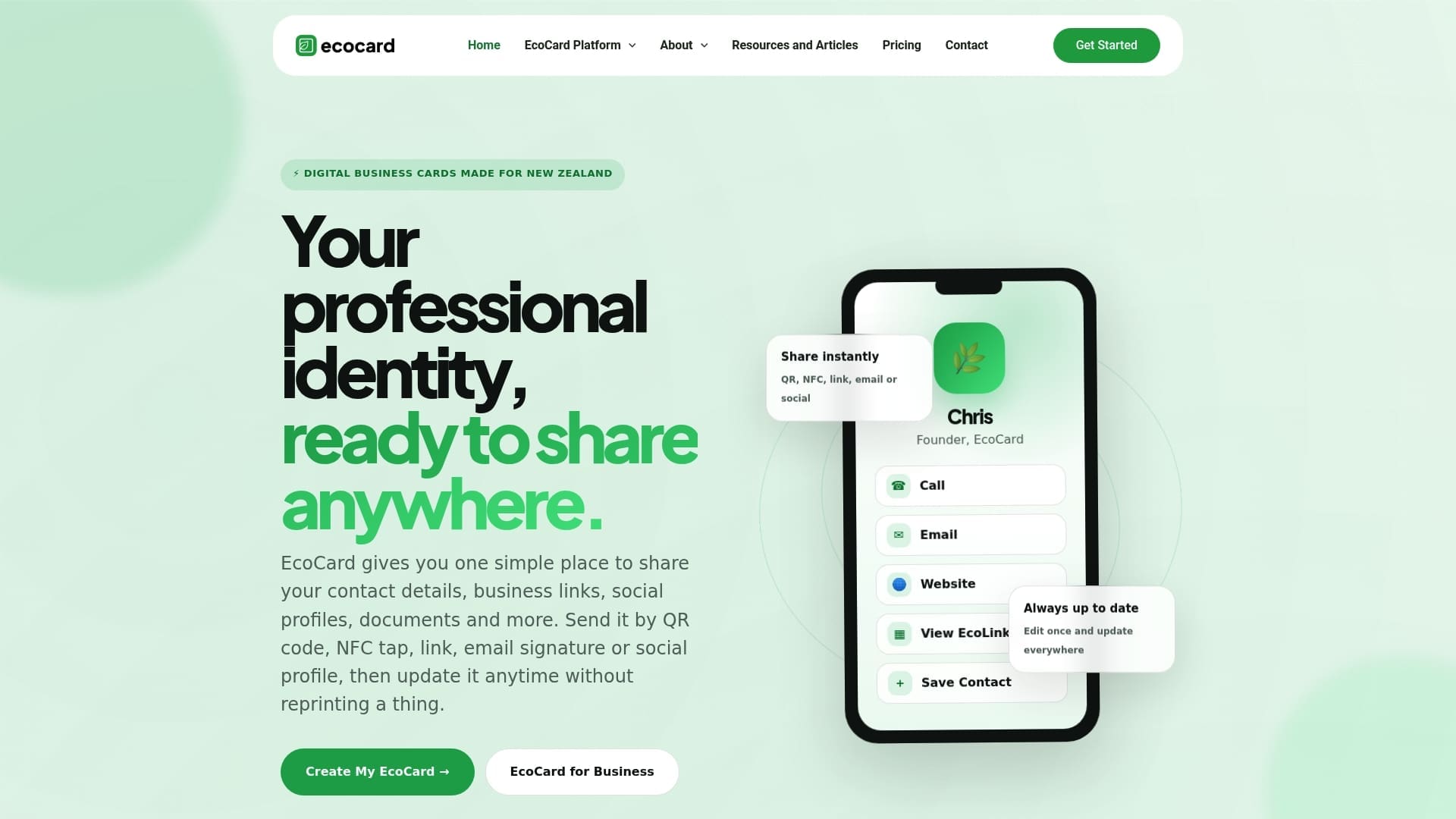
- Create a profile in minutes and write its link straight to your NTAG tag.
- Update your details, title or branding instantly across every card that points to your profile.
- Manage a whole team’s cards centrally, including adding new starters and switching off former staff.
| What you write to the tag | Updates after distribution | Best suited to |
|---|---|---|
| HTTPS profile link | Instant, no tag reprogramming | Individuals and teams expecting changes |
| vCard contact record | Requires rewriting the physical tag | A one-off card with no web profile |
Our Individual plan starts at $9.99 NZD per month, with Business plans from $49.99 NZD per month for teams needing central management. Have a look at our pricing page to find the plan that fits your team, or start with a single profile today.
FAQ
What is the best tag type for an NFC business card?
NTAG213 suits most people writing a short URL, since it’s inexpensive and has enough memory for a link. If you need a longer vCard or want extra headroom, NTAG215 or NTAG216 offer more usable memory, as RFIDTag’s guide notes.
How long does it take to set up an NFC business card?
A single card can be programmed and tested in well under 15 minutes using a free app like NFC Tools, according to NFCFYI’s beginner project guide. The process is quicker still once you’ve done it once and have your destination link ready.
Should I write a URL or a vCard to my NFC tag?
A URL pointing to a live profile is the better default for most professionals, since you can update your details without reprogramming the tag. A vCard only makes sense when you have no web profile to link to or need the contact saved with no network connection.
Does an NFC business card work on both iPhone and Android?
Yes, both platforms read NFC tags, though the experience differs slightly: iPhone generally reads in the background but can require a brief confirmation tap, while Android more often opens the link automatically, according to Apple’s Core NFC documentation.
How much does EcoCard cost for an individual or a team?
Our Individual plan starts at $9.99 NZD per month, and our Business plans for teams start at $49.99 NZD per month, as listed on our pricing page. Both plans include a live profile link suited to writing onto an NFC tag.
Sources
- Cross-platform NFC Tag UX — NFC Forum
- NFC for Beginners: Your first project — NFCFYI
- A quick guide to NFC business cards — Forbes Business Council
- NXP TagWriter / developer resources — NXP
Recommended
- Stop Stale Contacts: Lead Capture QR Codes for Teams
- Make QR Code Business Cards Print Ready for Professionals: 2 cm Min
- Secure, live digital business card: QR, link & vCard for professionals
- Same Day Wins: Networking Follow Ups with Templates and Digital Cards
This article was produced with AI assistance and reviewed for accuracy. It is provided for general information only and is not professional advice.

