


Yes, a digital business card can work with no app on the other person’s phone. The recipient scans a QR code, taps an NFC card or opens a link, and your card loads as a normal web page in their browser. From there they can read your details and save them to their contacts. With EcoCard, people who receive your card don’t need to install anything.
That is the short answer. The rest of this guide covers what “no app” means in practice, what a web-based card can hold, how to put one on your website, what New Zealand privacy rules mean for you, and how a business keeps every staff card consistent.
TL;DR
- A web-based business card opens in the recipient’s browser from a QR code, an NFC tap or a link, so there is nothing to download.
- EcoCard is designed so recipients never install an app, and it updates live, so everyone who opens your link sees your current details.
- Always offer a QR code alongside NFC, because not every phone or case reads a tap.
- In NZ, handing over a card implies consent for relevant follow-up, not for unrelated marketing.
- Businesses can manage branding, onboarding and offboarding centrally, from NZ$19.99 per month on the Starter plan.
Table of Contents
- What “no app” really means
- How a web-based business card works
- What a digital card can include
- Ways to share it without an app
- Putting your digital card on your website
- Privacy: what to check before you publish
- Keeping a whole team consistent
- Perspective
- Choosing a plan
- A quick checklist before you share your card
- FAQ
- Sources
What “no app” really means
The phrase can mean two different things, and it helps to separate them.
No app for the person receiving your card. This is the one that matters at a networking event. Someone you meet scans a code with their phone camera and your card opens in their browser. They don’t create an account, sign in or visit an app store. If they want to keep you, they save your details to their phone’s contacts.

No app for the person sharing the card. This depends on the product. What you need to run your own card should be checked on the provider’s page before you commit.
The first one is where most digital cards win or lose. If a stranger has to download something before seeing your name, they usually won’t bother. A web-based card removes that step.
There is an even simpler version. A QR code can carry a vCard (the standard contact file format) directly inside the code. One open-source project generates a QR code with a vCard embedded, and scanning it opens the phone’s own contact viewer with no website, tracking service or internet connection involved. It is a neat trick, but the details are frozen into the code. If your number or role changes, the printed code is out of date. A web-based card avoids that because the code points to a page you can edit.
How a web-based business card works
A web-based business card is a mobile-friendly page with a permanent address. Your QR code, NFC tag and link all lead to that same address. When you change something on the page, everything pointing to it shows the new version.
The flow looks like this:
- You build your card with your name, role, contact details, social profiles and links.
- You share it by QR code, direct link or NFC tap.
- The other person’s phone opens the page in a standard browser.
- They read it, tap to call or email, or save you to their contacts.
- Later, you update a detail and the same link shows the change.
Step 5 is the real advantage over paper. A printed card from last year still lists the old mobile number. A live card never goes stale, which is why we built EcoCard around live updating for roles, details and branding.
What a digital card can include
A paper card holds perhaps six lines. A web card has no such limit, so choose what helps the person you just met.
- Core contact details: name, role, company, phone, email and address.
- Social profiles: LinkedIn and any others you use for work.
- Business links: your website, booking page or a shop.
- Portfolio and documents: EcoCard supports portfolio and document sharing, which suits consultants who want to show a capability statement, case studies or a price list without emailing attachments.
- Branding: your logo and colours, so the card looks like your business.
Keep it focused. Three or four strong links beat fifteen. If you do different kinds of work, multi-card management lets you hold more than one card, for example one per role or business, and switch between them. Additional EcoCards cost NZ$4.99 per month each on top of the Individual plan at NZ$9.99 per month.
Ways to share it without an app
| Method | What the recipient does | Needs special hardware? | Best for |
|---|---|---|---|
| QR code | Points their camera at the code | No | Events, printed material, email signatures, slides |
| Direct link | Taps or pastes a URL | No | Messages, email, LinkedIn |
| NFC tap | Holds their phone near a card or tag | A compatible NFC phone | Face-to-face meetings |
QR codes
QR is the most universal option. Current phone cameras read QR codes natively, so nobody needs a scanner app. Size and placement matter if you print the code, and we cover that in our guides on making a QR code print ready and where to place it on a card.
Direct links
A link is the easiest way to share remotely. Pick a short, readable address that you can say aloud. Our guide to the digital business card URL explains how to name, share and keep it. Messaging apps work well too: see how to send a card on WhatsApp in NZ. The recipient only needs to tap the link.
NFC tap
NFC is quick and feels slick, but it has limits. The recipient needs an NFC-enabled phone, and phone settings or thick cases can stop the read. One New Zealand NFC card supplier notes this too, and says a QR code gives another route to the same page. So treat the QR as your reliable fallback. We go deeper in why QR still matters when taps fail and in what to check before you tap.
Putting your digital card on your website
Many people also want the card to live on their own site. The sensible approaches, from simplest to most involved:
- Link to it. Add a “Save my details” button or text link to your contact page, footer or team page, pointing to your card’s address. This works on any website builder.
- Show the QR code on screen. On a desktop visitor’s screen, a QR code lets them scan with their phone and carry your card away with them. On mobile, a plain link button is better, because people can’t scan their own screen.
- Put it in your email signature. A link or small QR image there means every message carries a live card.
For mobile display, keep two things in mind. Use a large, thumb-friendly button, and test the link on both iPhone and Android before you publish. Whichever route you pick, using the same permanent address everywhere means a later edit flows through to every place it appears.
Privacy: what to check before you publish
A digital card puts more about you in one place than paper does, so decide deliberately what goes on it.
Share only what the card needs. A mobile number and work email are normal. A home address usually isn’t. Portfolio documents should contain nothing confidential, such as client names you haven’t cleared.
Understand what a card exchange permits. In New Zealand, the Department of Internal Affairs explains that giving someone a business card may imply consent to communications relevant to the business relationship, but it does not automatically give consent to unsolicited commercial electronic messages unrelated to that meeting. In practice: following up on the quote you discussed is fine. Adding the person to a promotional newsletter they never asked for is not. For a wider look at consent in your contact records, see this piece on consent management in CRM.
Prefer direct collection. Privacy practitioners advise that although publicly available information can be collected, organisations should collect details directly from the person to stay in line with the Privacy Act 2020. When someone saves your card, they have chosen to hold your details. When you note theirs after an event, ask them first.
We set out a fuller checklist in Digital Business Card Privacy: What NZ Professionals Should Check. For anything specific to your business, such as a complaint or a data request, speak to a privacy lawyer or the Office of the Privacy Commissioner.
Keeping a whole team consistent
For a business, the hard part of business cards is not design. It is keeping thirty cards correct as people join, change roles and leave.
A centrally managed system fixes this. EcoCard gives business administrators one place to control branding and user cards, so every employee card shares the same look, while each person’s own name, role and contact details stay individual. Because changes are live, a new job title or office address is correct everywhere as soon as it is saved.
Onboarding and offboarding are where it pays off most:
- Onboarding: a new starter gets a card in the company’s branding without a print run or waiting for stock.
- Offboarding: when someone leaves, an admin can update or remove their card, so old details don’t keep circulating. See our offboarding checklist for NZ teams.
- NFC cards for teams: the tap points to one link, so changing a card’s content doesn’t mean retagging hardware. Details are in our NFC setup guide for teams.
For more, read our guide to employee digital business cards and the benefits for teams, which include analytics on card usage.
Perspective
We built EcoCard on a simple belief: the person receiving your card shouldn’t have to do any work. No app store, no account, no sign-up form. If a contact has to jump through hoops to get your number, you have lost the moment that made the introduction worthwhile.
The second belief is that a card should never be wrong. Roles change, mobiles change, brands get refreshed. With paper, every change means a reprint and a drawer of out-of-date cards. With a live digital card, you edit once and everyone who opens your link sees the current version.
For businesses, we think control matters as much as convenience. Central management means the brand looks consistent across every employee, new starters are ready on day one, and leavers don’t leave stale details behind. It also means fewer printed cards in the bin, which is better for the environment.
That is why we recommend a card that works from a QR code, a link and an NFC tap together. Whatever phone the other person has, one of them will work.
Chris
Choosing a plan
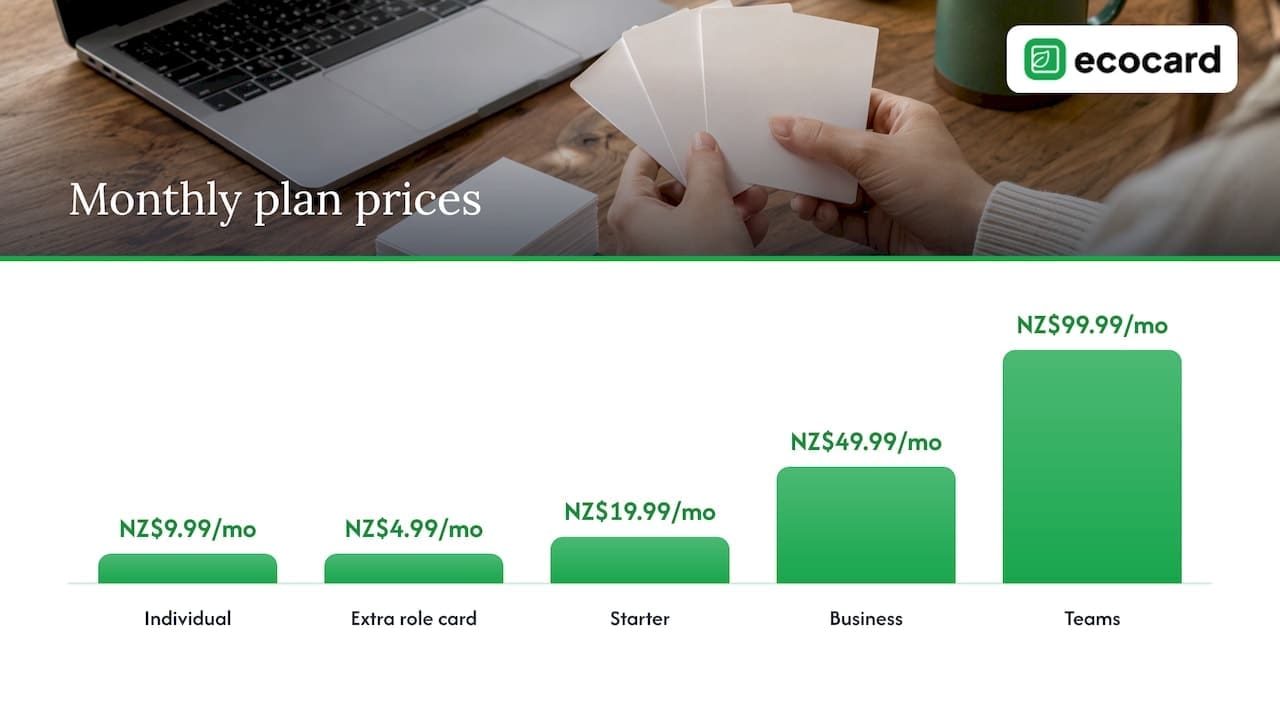
If you are an individual, the Individual plan is NZ$9.99 per month, and extra cards for other roles are NZ$4.99 per month each. For small businesses and teams, the published plans are Starter at NZ$19.99 per month, Business at NZ$49.99 per month and Teams at NZ$99.99 per month, billed monthly. Enterprise is available too, with pricing on request.
If you want to see what a finished card looks like, browse our mobile-first card examples or the features page.
Ready to try it? Create your own card on the Individual plan, or look at EcoCard for Business if you manage a team. Prices are on our pricing page.
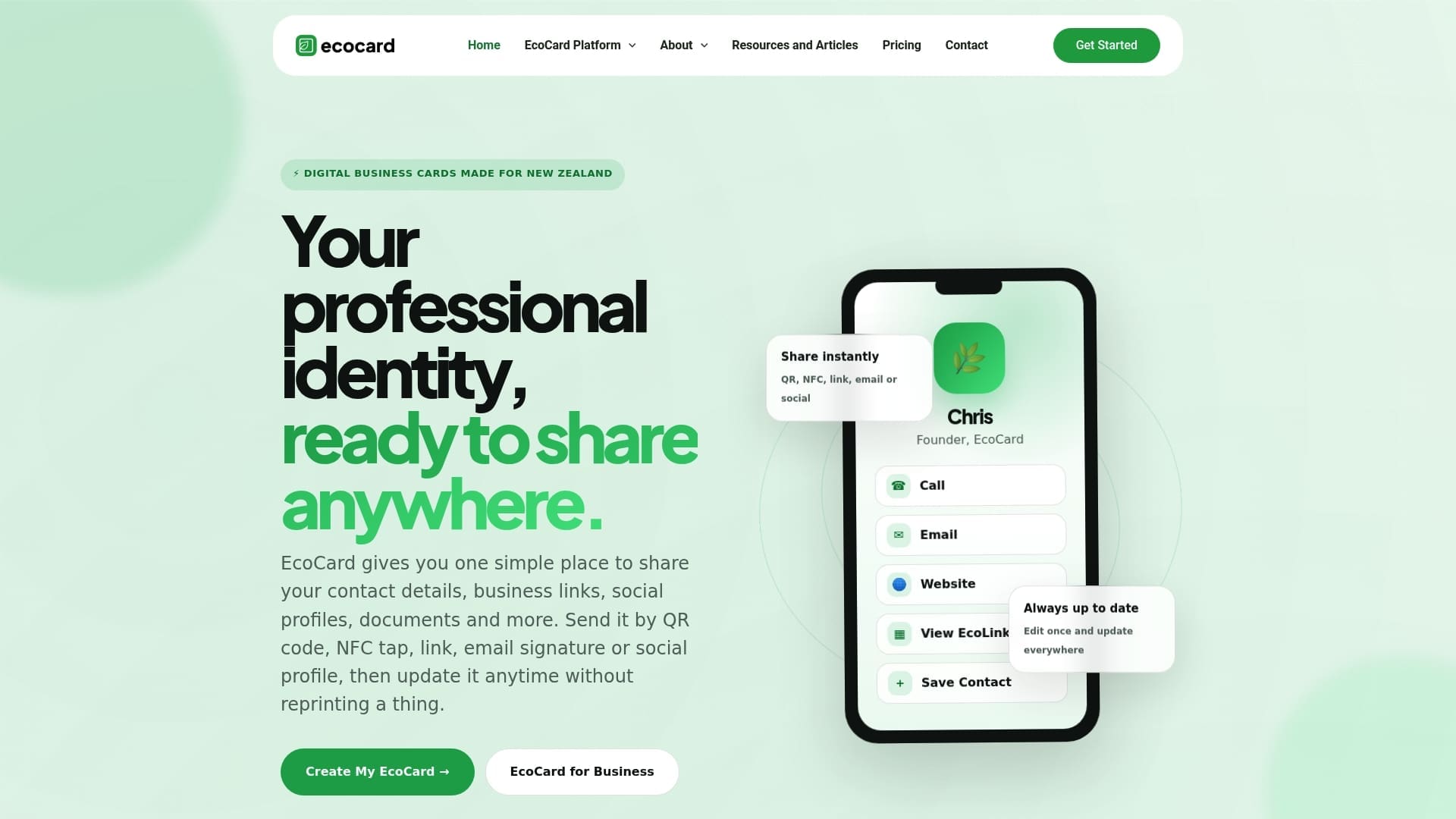
Cards you create work with QR, link and NFC sharing, and the people you meet don’t need to download anything.
A quick checklist before you share your card
- Test the link and QR code on both an iPhone and an Android phone.
- Confirm your phone number, email and role are correct.
- Remove anything you wouldn’t hand a stranger on paper.
- Add a QR code as backup to any NFC card.
- Use the same permanent address in your email signature, website and social profiles.
- Follow up only on what you discussed, and ask before adding anyone to marketing lists.
For how to run follow-up well after a conference or trade show, our guide on capturing leads at events covers timing and privacy. And if you want the full picture of how a card is created, see how to create a digital business card.
FAQ
Does the person I give my card to need an app?
No. With EcoCard, recipients open your card in their normal phone browser after scanning a QR code, tapping an NFC card or clicking a link. They don’t need to install an app or create an account to see your details.
What is the difference between a web-based card and a QR code with a vCard?
A vCard QR code stores your contact details inside the code itself, so changing them means making a new code. A web-based card stores them on a page, and the code or link points to it. Edit the page and everyone sees the update.
Can I embed my digital business card on my website?
Yes, in the sense that you can link to it from your contact page, footer or email signature, or show its QR code for desktop visitors. Use the same permanent card address everywhere so updates carry through. On mobile, a clear tap-friendly button works better than a QR code.
Will NFC work on every phone?
No. The other person needs an NFC-capable phone, and settings or thick cases can block the read. That is why we recommend printing a QR code beside any NFC tap card, so the same page opens either way.
Is it okay to email someone after they take my digital card?
It is fine to follow up on the topic you discussed. In New Zealand, a card exchange does not automatically cover unrelated marketing messages, according to the Department of Internal Affairs. Ask before adding people to promotional lists.
Sources
- Steve0verton/qr-business-card (GitHub)
- NFC Digital Business Cards NZ
- Spam Frequently Asked Questions, Department of Internal Affairs
- A Marketers guide to the New Zealand Privacy Act
- Consent Management in CRM
Recommended
- Digital Business Card Privacy: What NZ Professionals Should Check
- WhatsApp Digital Business Card: How to Send One in NZ
- One Tap, Live Updates: Digital Business Cards for NZ Teams
- Digital Business Card URL: How to Name, Share and Keep It
This article was produced with AI assistance and reviewed for accuracy. It is provided for general information only and is not professional advice.

