


Put your name, role, company, one phone number, one email, a professional photo or logo, your website and a single clear next step (book a call, save my contact) on your digital business card. Add social profiles and portfolio links only if they help the person you are meeting. Everything else is clutter. The sections below show what to include, what to leave off and how to keep the card accurate once it is in circulation.
TL;DR
- Essentials: full name, title, company, phone, email, website and a headshot or logo.
- Add one action: a booking link, a “save my contact” button or an enquiry form.
- Keep it to one mobile screen, with the most important details at the top.
- Link to your best two or three pieces of work, not everything you have ever made.
- Check every link regularly and update the card the day something changes.
Table of Contents
- The essentials every card needs
- Optional extras worth adding
- Choose one clear next step
- Design it for one phone screen
- What to include for portfolio and work samples
- Adding a QR code, an NFC tap and a short link
- What to leave off
- Keep it accurate and respect privacy
- Our perspective
- How EcoCard handles this
- A worked example
- Common mistakes to avoid
- FAQ
- Sources
The essentials every card needs
Start with the details a person needs to recognise you and reach you. AWeber’s guide to digital business cards lists the core elements as your website URL, full name (with pronouns if you want them shown), professional title and company name, primary contact details such as phone and email, and a professional headshot or company logo.
In practice that means:
- Full name. Use the name people will search for or see on your email. If you go by a shortened name at work, use that.
- Job title and company. Be specific. “Senior Building Consultant” tells a stranger more than “Consultant”.
- One phone number. Pick the mobile you actually answer. Make it tap-to-call, because Webby Web Design recommends click-to-call for phone numbers and email addresses.
- One email address. Use a work address on your own domain rather than a personal inbox.
- Website. Link to your homepage, or to the one page that best explains what you do.
- Photo or logo. People remember faces, and a photo helps them match the card to the conversation. If you are a sole trader with a strong brand, your logo may do the job. A clear, well-lit headshot with a plain background works for most roles.
That is already a complete card. Anything you add from here should earn its place.
Optional extras worth adding
Once the essentials are in, the optional items depend on how you work. The same AWeber list names social media profiles, a short elevator pitch, a QR code, a calendar booking link, portfolio or work samples and a contact form as sensible additions.
Here is how to decide:
| Item | Add it if… | Leave it off if… |
|---|---|---|
| LinkedIn profile | Clients or employers check your background | The profile is out of date |
| Other social profiles | They show professional work (design, photography, industry commentary) | They are mostly personal |
| Booking link | You sell your time (consultants, advisers, trades quotes) | Your diary is managed by someone else |
| Short pitch | You meet people briefly at events | Your title already says it all |
| Enquiry form | You get leads from people who would rather not phone | You already get plenty of calls |
| Documents (brochure, price guide) | Buyers ask for the same file repeatedly | The file changes weekly and nobody owns it |
| Pronouns | You want them shown | You prefer not to |
A good test: imagine the person reading your card on a phone, standing in a queue at a conference. Would they know in five seconds who you are and what to do next? If an item does not help, cut it.
Choose one clear next step
A card with fifteen buttons gives people fifteen reasons to do nothing. Choose the action you most want and put it near the top.
- Consultants and advisers: “Book a call” linking to your calendar.
- Sales teams: “Save my contact” or a short enquiry form, so the lead lands with you.
- Tradies and local services: tap-to-call and a quote request form.
- Creatives: a link to your portfolio.
- Event attendees: your LinkedIn profile plus a save-contact button, so the follow-up is easy for both of you.
Secondary links can sit below. The main action should be obvious without scrolling.
Design it for one phone screen
Most people will open your card on a phone, straight after scanning a QR code or tapping an NFC tag. Webby Web Design advises designing for mobile, keeping information brief and to a single screen, or placing the most important details near the top if scrolling is unavoidable. It also suggests checking that the card looks good on desktop too, since colleagues and clients sometimes open links from an email on a laptop.
A few practical rules:
- Order by importance. Name, role, photo, main action, then contact details, then links.
- Use your brand colours and fonts. The same source recommends including your logo and branded colours and fonts, so the card looks like part of the same business as your website and email signature.
- Keep labels short. “Website”, “Book a call”, “LinkedIn”, not full sentences.
- Group links. If you have more than five or six, group them under headings such as “Services” and “Resources”.
- Check contrast. Light grey text on a white background is hard to read on a phone in daylight.
If you want to see what this looks like in practice, we have collected mobile-first digital business card examples that show different layouts for different professions.
What to include for portfolio and work samples
A digital card can act as a small portfolio, which is a real advantage over paper. Consultants, designers, architects, photographers, writers and developers can all show work in the moment, and the person can revisit it later.
The trap is including too much. Two university careers services give consistent advice on this. The Oxford University Careers Service says a strong portfolio contains your best and most relevant work, a clear structure, short descriptions of each project, your own role in group projects, and links that work and are easy to access. It also advises tailoring the work to the role or opportunity. The UConn Center for Career Readiness recommends being selective and deliberate, giving each piece basic information such as title, medium, year and a description, and grouping projects into categories where that helps.
Translated to a digital business card:
- Link to two or three of your strongest projects, or to a single portfolio page that is already curated.
- Add one line for each: what it was and what you did.
- If you serve different audiences, use separate cards or sections so each visitor sees relevant work. A commercial client does not need your community project, and vice versa.
- Use a hero image if your work is visual. Make sure the image loads quickly on mobile data.
- If you are just starting out and have little client work to show, this guide on how to build a standout portfolio as a new freelancer covers choosing and presenting your first projects.
Documents work the same way. A one-page capability statement, a price guide or a product sheet is useful if buyers regularly ask for it. Keep the file current, because an out-of-date price list does more harm than no file.
Adding a QR code, an NFC tap and a short link
Your card is only useful if people can open it easily. There are three common ways to share it: a QR code on a printed item or screen, an NFC tap, and a short link you send by text, email or social message. Each suits a different moment. QR codes work on posters, name badges, email signatures and slides. NFC works when two people are standing together and the other person’s phone supports it. A link works everywhere else.
If you print a QR code anywhere, the details matter:
- Size. We recommend a minimum of 2 cm, and more comfortable sizes for business cards are covered in our guide to print-ready QR code size.
- Placement. Where the code sits on a card affects how easily it scans. See QR code placement on a business card.
- Troubleshooting. If a printed code will not scan, our checklist for QR codes that won’t scan walks through the usual causes.
- A short label. Put a few words next to the code that say what it does, such as “Scan to save my contact”. People are more likely to scan something that tells them what happens next.
NFC is convenient, but not every tap works every time, which is why a QR code or link is a good backup. We explain the trade-off in NFC business cards and why QR still matters.
Your card’s address also matters. A short, readable link is easier to say aloud, type into a message and put in a signature. Our guide to the digital business card URL covers how to name it, share it and keep it stable.
What to leave off
A good card is as much about omission as inclusion. Leave these off:
- Your home address, unless it is also your business address and you want visitors.
- Several phone numbers. Choose one. If people have to guess which to call, they often call none.
- Personal social accounts that do not support your professional image.
- Long biographies. One or two sentences is enough. Link out for more.
- Dead or placeholder links. An empty link looks worse than no link.
- Information about other people without their agreement, such as a colleague’s mobile number.
- Sensitive personal details such as a date of birth or personal identification numbers. No contact exchange needs them.
Keep it accurate and respect privacy
A digital card has an advantage over paper: you can change it after you hand it out. That advantage only counts if you use it. Role changes, new phone numbers, a new website address or a closed social account should all be reflected straight away.
In New Zealand there is a legal side to accuracy too. Under the Privacy Act 2020, an agency holding personal information must take reasonable steps to make sure it is accurate, up to date, complete, relevant and not misleading before it uses or discloses it. For a business that publishes staff details on cards, that is a practical reason to review them regularly and to remove staff details promptly when someone leaves. If you are an employer, our employee offboarding checklist for NZ teams covers that step, and our page on digital business card privacy lists what NZ professionals should check.
Follow-up has its own rule. The Department of Internal Affairs explains that swapping business cards at a meeting creates inferred consent to receive electronic messages that relate to that meeting or the business relationship, but not unrelated commercial messages. So a follow-up email about what you discussed is fine. Adding someone to a general promotional mailing list is a different matter. If you are unsure how the rules apply to your marketing, speak to a lawyer or check the DIA guidance.
A simple upkeep routine:
- Click every link on your card each month.
- Update the card the same day your title, number, email or website changes.
- Review your photo once a year, or sooner if you look noticeably different.
- If you manage a team, check that every card still belongs to a current employee.
Our perspective
We built EcoCard around one idea: the details on a card should always be right, and they should look like they belong to your business.
That is why we put so much weight on live updating. When a role, a phone number or a brand colour changes, you change it once and everyone who has your link or QR code sees the new version. There is no box of outdated printed cards to throw away, which is also better for the environment.
For businesses, the real difficulty is rarely one person’s card. It is twenty cards that each look slightly different, and a former employee whose details are still in circulation. Central management lets an administrator keep branding consistent and handle onboarding and offboarding in one place.
For individuals, our advice is the same as in this article: keep the essentials, choose one clear action and give people only what helps them. You can run more than one card if you wear more than one hat, such as an adviser role and a board role, and recipients do not need to install an app to open them.
Chris
How EcoCard handles this
If you want to put this checklist into practice, EcoCard lets you build a card with your contact details, social profiles and business links, then share it by QR code, direct link or NFC tap. It also supports portfolio and document sharing, multiple cards, branded profiles, the EcoWallet for saving contacts and analytics on card usage.
Plans are billed monthly, in New Zealand dollars:
- Individual: $9.99 per month
- Additional EcoCards: $4.99 per month
- Starter: $19.99 per month
- Business: $49.99 per month
- Teams: $99.99 per month
- Enterprise: no published price
See the EcoCard pricing page for what each plan includes, or go straight to the Individual EcoCard if you are setting up for yourself.
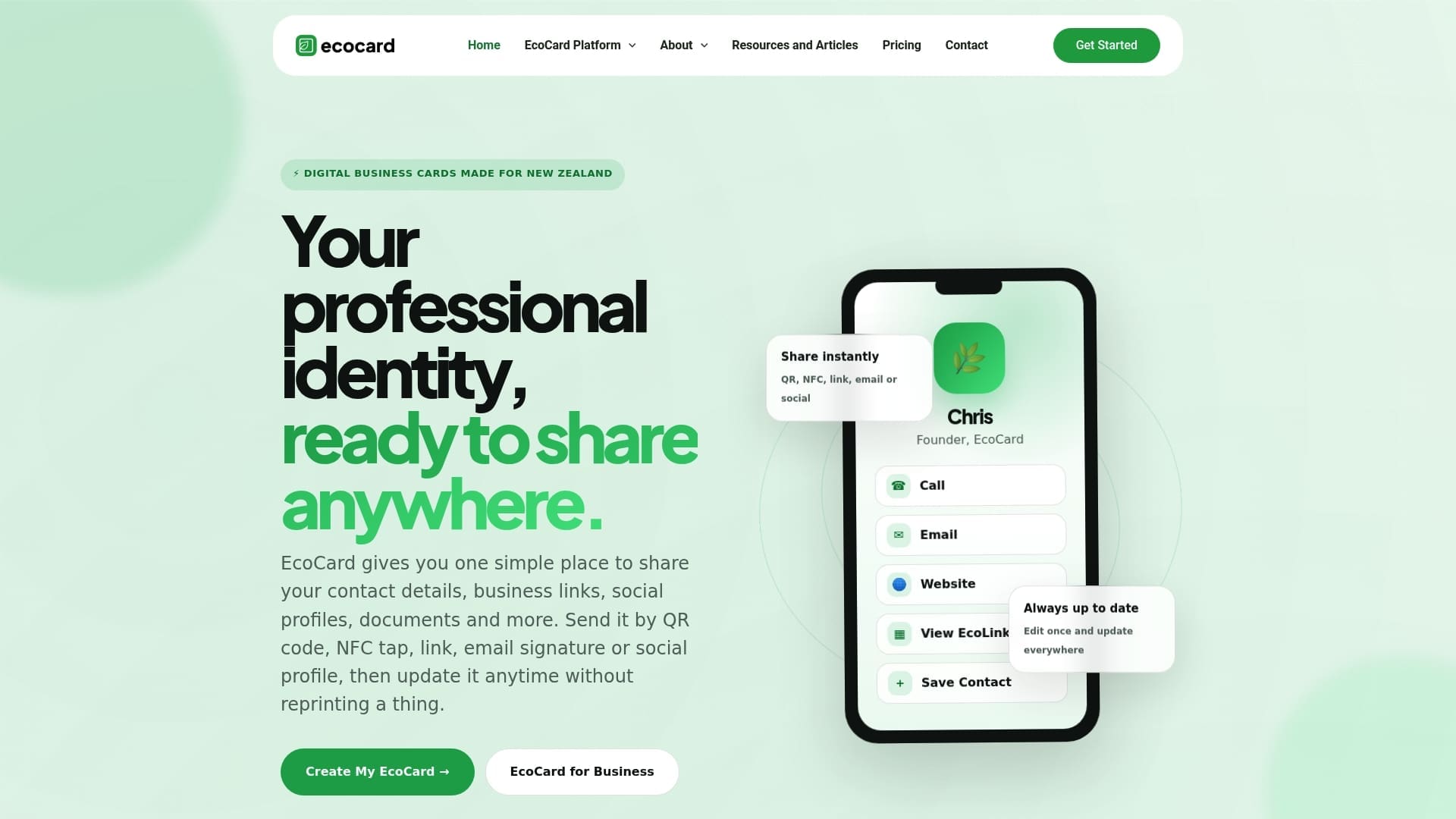
If you manage a team, EcoCard for Business explains central management and consistent branding across staff cards.
A worked example
Here is how the checklist plays out for an independent business consultant in Wellington.
Top of card: headshot, name, “Business Improvement Consultant”, company name and logo.
Main action: “Book a 20-minute call”, linking to a calendar.
Contact: tap-to-call mobile, work email, website homepage.
Links: LinkedIn, plus a page with two case studies. Each has one line: the client’s sector, the problem and the consultant’s role.
Document: a one-page services overview, updated whenever fees or services change.
Left off: a landline, a home address, a personal Instagram account and a long biography.
The result fits on one phone screen, has one obvious action and can be maintained in a few minutes each month.
Now a sales representative at a trade show. Their card leads with “Save my contact” and an enquiry form, and their QR code sits on their badge with a short label. After the event, the follow-up message refers to the conversation, which fits the inferred-consent guidance above. The portfolio section is replaced with a product brochure and a link to a demo booking page.

Both cards use the same structure: essentials, one action, a small number of supporting links.
Common mistakes to avoid
- Treating the card as a website. It is a doorway. Send people to your site for depth.
- Using a tiny or blurry logo. It looks careless on a modern phone screen.
- Forgetting the label on QR codes. Without it, people hesitate.
- Letting the card go stale. A wrong number defeats the purpose of having a live card.
- Not testing on a real phone. Open your card on both an iPhone and an Android handset, in daylight, before you share it.
- Putting the same card in front of every audience. If your clients, suppliers and employers care about different things, consider separate cards.
For a step-by-step setup, see our guide to creating a secure, live digital business card.
FAQ
What are the most important things to include on a digital business card?
Your full name, job title, company, a phone number, an email address, your website and a photo or logo. Add one clear action, such as booking a call or saving your contact. Everything else is optional and should only go on if it helps the person reading it.
What contact details should I put on a digital business card?
One mobile number and one work email are enough for most people, both set to tap-to-call or tap-to-email. Add your website and, if you take enquiries online, a form or booking link. Leave off home addresses and extra phone numbers unless there is a good reason to share them.
How do I make my digital business card stand out?
Keep it to one phone screen, use your brand colours and logo, and lead with a good photo. Choose one main action and link to only your best two or three pieces of work. Clear, short labels and a card that is always up to date do more than decoration does.
How often should I update my digital business card?
Update it the same day anything changes, such as your role, number, email or website. Beyond that, click through every link once a month to catch pages that have moved or closed. Since the card is live, a change reaches everyone who already has your link.
Sources
- How to create a digital business card (AWeber)
- Guide to Digital Business Cards (Webby Web Design)
- Creative portfolios, CVs and applications (Oxford University Careers Service)
- Portfolio Guide (UConn Center for Career Readiness and Life Skills)
- Privacy Act 2020 (New Zealand Legislation)
- Spam frequently asked questions (Department of Internal Affairs)
Recommended
- 10 Mobile First Digital Business Card Examples for Professionals
- Digital Business Card URL: How to Name, Share and Keep It
- Secure, live digital business card: QR, link & vCard for professionals
- 6 Digital Business Card Benefits for Teams, From Analytics to Privacy
This article was produced with AI assistance and reviewed for accuracy. It is provided for general information only and is not professional advice.

