


A digital business card is a mobile-friendly contact profile you share by QR code, link, NFC tap or vCard file instead of handing over a paper card. It carries a direct benefit over print: you update one profile and everyone who has saved it sees the change instantly, with recipients able to save your details to their phone in a single tap using the vCard 4.0 standard. This guide walks through formats, design, setup and the team controls that keep a company’s cards consistent.
TL;DR:
- Use QR codes for print, short links for email, and NFC for face to face networking; add a vCard file for one tap contact saving.
- Put your name, role, company, phone number, and email first; choose one main action, such as booking a meeting, and keep supporting links limited.
- Design for mobile with a single column, readable high contrast text, and compressed images; test contact saving on iOS and Android before sharing.
- For teams, use a central dashboard to standardize branding, push contact changes, issue cards to new hires, and revoke cards when employees leave.
- Biometric lead capture in New Zealand carries added privacy duties; explain what you record and collect only information needed for follow up.
Table of Contents
- Formats and sharing methods: QR, link, NFC and vCard
- What to put on your digital business card
- Digital cards versus paper: what actually changes
- Design rules that make a card fast and readable
- Step-by-step: creating, testing and sharing your card
- Managing digital cards across a team
- Technical essentials: vCard 4.0 and privacy for advanced features
- Getting started checklist for your first card
- Why centrally managed, live-updating cards make sense for teams
- Get a managed digital card up and running with EcoCard
- FAQ
- Sources
Formats and sharing methods: QR, link, NFC and vCard
The format you pick shapes how easily someone can get your details into their phone. Most digital cards combine several sharing methods so you are covered whether you are standing in a hallway or sending a follow-up email.
QR codes work best where scanning is quick and natural: printed cards, event signage, the final slide of a presentation or a poster at a trade stand. A phone’s camera reads them instantly, no app required.
NFC tap cards add value when you want a near-zero-effort exchange, a tap against another phone opens your profile without anyone opening a camera app, which suits frequent face-to-face networking more than one-off encounters.
Short links are the practical choice for email signatures, social bios and text messages, where a QR code would be clunky but a clickable line of text fits naturally.
A vCard or .vcf file is what actually lets someone save your contact details into their phone’s address book in one tap, rather than just viewing a web page. Wallet passes and attached media (a portfolio PDF, a price list, a special offer) extend a card beyond contact details into a small marketing tool.
- QR codes suit print, signage and presentation slides where scanning is instant.
- NFC tap cards reduce friction in repeated face-to-face networking.
- Short links fit email signatures, social profiles and text messages.
- A vCard/.vcf download is what lets a recipient save you to contacts in one tap.
- Wallet passes and attached files extend a card into a lightweight portfolio.
Our guide to creating a digital business card walks through setting up QR, link and vCard support on one profile.
What to put on your digital business card
A card earns its keep when it answers two questions fast: who are you, and what should the viewer do next. Cramming in every possible detail defeats that purpose on a small screen.
Start with the essentials: full name, role or title, company, a phone number and an email address. These essential fields cover almost every networking need and should sit at the top of the card, not buried under extras.
From there, add action items that turn a viewer into a contact or a lead: a “book a meeting” link to your scheduling tool, and a prominent save-to-contacts button tied to your vCard/.vcf file so the viewer’s phone can import your details without retyping anything.
Useful extras depend on your work. A consultant might add a portfolio link and a LinkedIn profile; a retailer might add a map pin and store hours; a service business might attach a brochure or price sheet.
- Essential fields: full name, role, company, phone, email.
- A primary CTA such as “book a meeting” or “send an enquiry”.
- A vCard/.vcf save button so the viewer can store your details in one tap.
- Optional extras: portfolio, LinkedIn, website, document links, map pin.
Resist the urge to add everything you can think of. A card with too many links and CTAs reads as clutter on a phone screen; one clear primary action and a short list of supporting links reads as professional. If you are drafting the wording before building the card, a free resume builder style text tool can help you format a tidy summary line without uploading anything.
Digital cards versus paper: what actually changes
The practical gap between a digital card and a printed one shows up the moment your details change. Move teams, get promoted or update a phone number, and a digital card updates everywhere it has been shared, while a box of printed cards becomes partly wrong overnight.
Digital business cards are commonly shared through QR codes, short links and NFC, and typically support dynamic updates, richer content and usage analytics that help with follow-up after events, according to Bitly’s explainer on digital business cards. That analytics layer is the other real advantage: knowing who opened your card and when makes follow-up after a conference or trade show far more targeted than guessing from a stack of cards someone handed you.
Sustainability is the other side of the comparison. Fewer printed cards means fewer reprints when details change and less paper sent to landfill, a point worth noting given how often job titles and phone numbers shift over a career.
None of this means paper disappears completely. A hybrid approach, a slim printed card with a QR code linking to your full digital profile, still suits situations where handing over something physical matters, such as formal introductions or markets where a paper card is still the expected courtesy.
Design rules that make a card fast and readable
A digital card lives or dies on a phone screen, so design decisions need to assume a small display, patchy wifi at a conference, and a viewer who gives you a few seconds before moving on.
Keep the layout mobile first: one column, a compact hero image or none at all, and photos or logos compressed so the page loads quickly on mobile data rather than stalling on a large file.
Typography needs to survive a glance. Use high-contrast text, avoid thin decorative fonts, and keep body text large enough to read without zooming.
QR codes need enough size to scan reliably. On a printed business card, keep the code large enough and away from the card’s edges; on a banner or poster, the code needs to scale up accordingly so it still scans from a normal viewing distance. Our piece on scan design covers sizing and placement in more detail.
- Build mobile first: single column, light images, fast load times.
- Use high-contrast, legible type, not thin decorative fonts.
- Size QR codes generously and keep them clear of card edges.
- Keep one CTA visually dominant rather than competing with five links.
- Add alt text and accessible labels so screen readers can interpret buttons and icons.
Pro Tip: Test your printed QR code from across a desk before ordering a full batch, a code that scans fine up close can fail at arm’s length if it is printed too small.
Step-by-step: creating, testing and sharing your card
Building a working card is a short process once you know the order of operations.
- Choose your format and platform category. Decide whether you need a simple individual profile or a centrally managed option for a team, then pick a platform built for that category rather than trying to fake it with a generic website builder.
- Draft your content. Write your essential fields, pick one primary CTA, and attach a vCard/.vcf save action so viewers can store your details without retyping them.
- Generate your QR code and short link. Create both from the same profile so a scan and a click lead to identical, current information.
- Test on iOS and Android. Scan your own QR code and tap your own NFC card (if you have one) on both operating systems; contact-saving behaviour and prompts can differ slightly between phones, so confirm the vCard import works cleanly on each. Our vCard file guide covers common import errors and how to fix them.
- Add it to your email signature, LinkedIn and presentation slides. Paste the short link or embed the QR image wherever people already look for your contact details.
- Print and test a physical QR sample. If you are putting the code on a printed card, banner or lanyard, print one test copy and scan it at realistic distance before ordering a full run.
- Track early engagement. Check how many scans, link clicks or vCard saves your card gets after launch, which tells you whether it is actually being used or just sitting in a signature unnoticed.
Once a card is live, treat it the way you would any piece of marketing material: revisit it after a role change, a rebrand or a new product launch, and check the links still point where you expect.
Managing digital cards across a team
Individual cards are simple to manage. A business with many staff needs a different approach, because inconsistent branding or stale contact details across employee cards undermine the professional impression a card is meant to create.
A central dashboard solves the consistency problem: one template, one set of brand colours and logos, applied automatically to every employee card rather than left to each person’s own design taste.
Live updates matter more at scale. When someone changes role, moves office or leaves the business, a centrally managed card updates instantly everywhere it has been shared, instead of leaving a stale printed card or an outdated profile circulating with the wrong title or a number that no longer connects.
Onboarding and offboarding workflows follow the same logic: a new hire gets a branded card issued on day one, and a departing employee has their card revoked centrally rather than left active with company branding after they have gone. Our offboarding checklist sets out a practical sequence for that step.
- A central dashboard keeps templates, colours and logos consistent across every employee card.
- Live updates propagate role or contact changes instantly, without reprinting anything.
- Onboarding issues a branded card when someone joins; offboarding revokes it when someone leaves.
- Usage analytics across the team can support both sales follow-up and HR visibility into card adoption.
Technical essentials: vCard 4.0 and privacy for advanced features
Reliable contact saving depends on a technical standard most users never think about. The current standard is vCard 4.0 (RFC 6350), which structures contact data so a recipient’s phone can import it directly with a single tap rather than requiring manual entry.
vCard 4.0 introduced the text/vcard MIME type, requires UTF-8 encoding, and added properties such as KIND, LANGUAGE and CLIENTPIDMAP that improve international use and structured exchanges compared with earlier versions. In practice, this is why providing a vCard/.vcf download alongside a QR code or link makes such a difference to the recipient experience: it is the difference between viewing your details and actually saving them.
Privacy considerations become relevant once a card moves beyond basic contact sharing into advanced features such as biometric lead capture at events. In New Zealand, the Biometric Processing Privacy Code sets out requirements under the Privacy Act 2020 for organisations that collect or process biometric information, including proportionality, openness about what is collected, and appropriate safeguards. A standard digital business card sharing contact details sits outside this code; it only becomes relevant if you add biometric capture or similar advanced tracking on top of the card itself.
The practical takeaway is straightforward: keep any tracking transparent, collect only what you genuinely need for follow-up, and tell people what you are recording. A card that simply counts scans and link clicks for your own follow-up does not raise the same questions as one capturing biometric data.

Getting started checklist for your first card
A first card does not need to be perfect, it needs to be live and testable.
- Define the card’s purpose: networking, sales follow-up or team rollout.
- Choose your primary format: QR, link, NFC or a combination.
- Write your essential fields and one clear CTA.
- Attach a vCard/.vcf file and test saving it on at least two different phones.
- Generate your QR code and short link from the same profile.
- Add the card to your email signature and relevant social profiles.
- Print and scan-test a sample QR code before ordering printed materials.
- Track scans, clicks and saves for the first week.
- Schedule a reminder to review and update the card after any role change.
Why centrally managed, live-updating cards make sense for teams
The strongest argument for a centrally managed card is not design polish, it is operational simplicity: one place to fix a wrong title across a team beats individual edits or a reprint order. Businesses that treat their cards as a managed asset, not a one-off design task, avoid the slow drift of outdated contact details that quietly undermines a professional impression.
— Chris
Get a managed digital card up and running with EcoCard
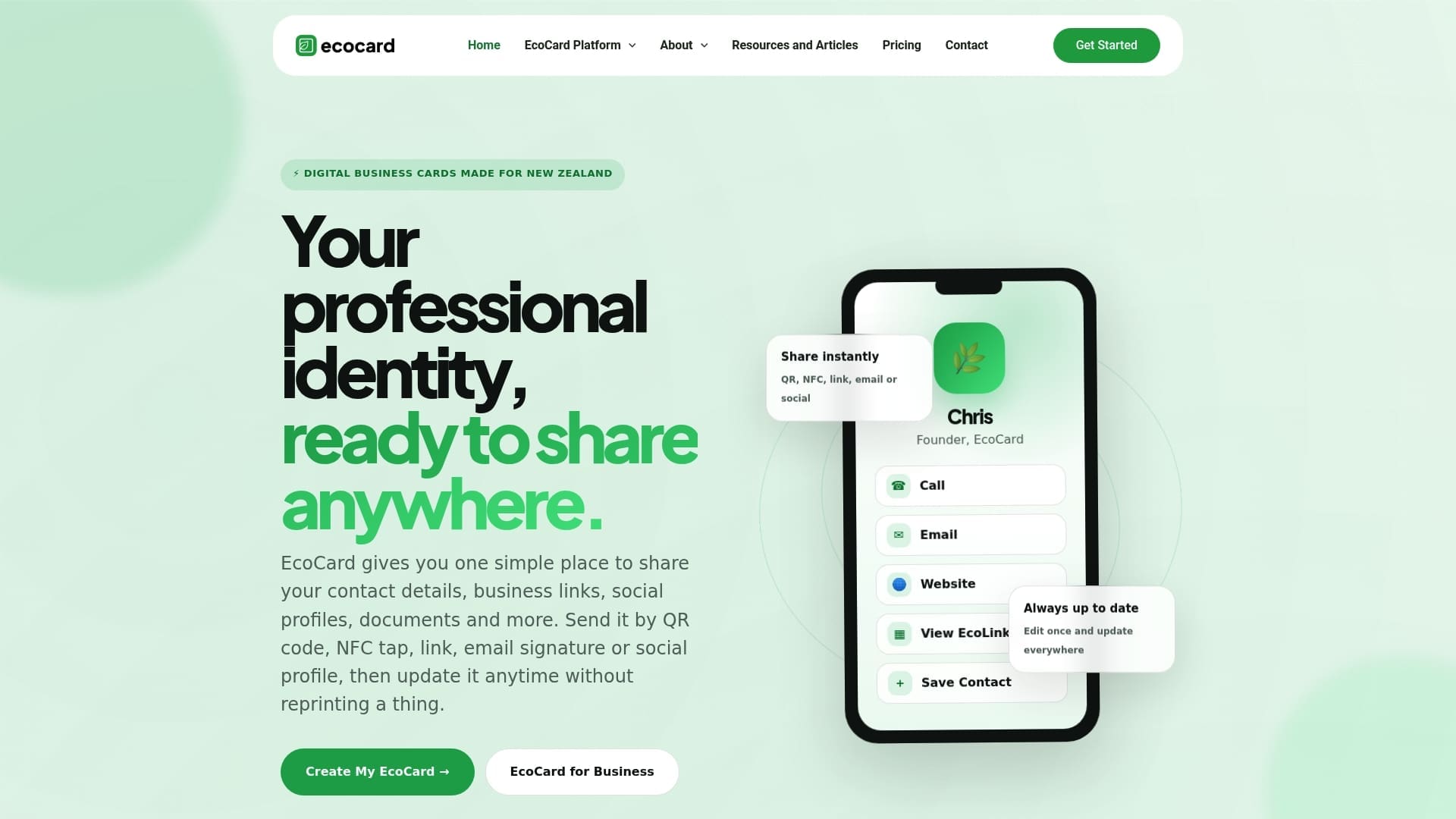
We built EcoCard around a centrally managed setup for consistent branding, live updates, and support for QR, links and sharing contact details, so recipients never need to install an app to view your card.
- Try a ready-made template to see a finished card before building your own.
- Compare individual and team plans to find current prices for an Individual card.
- Review full feature details for QR, NFC and analytics support.
Check our pricing page to find the plan that fits your team and get your first card live today.
FAQ
How much does it cost to have a digital business card?
Pricing depends on the platform and plan. Current prices for EcoCard plans are on its pricing page.
What do business cards look like in 2026?
Business cards in 2026 commonly combine a physical or digital profile with QR codes, short links and NFC tap sharing rather than relying on print alone. Many cards now support one-tap contact saving through a vCard 4.0 file, live updates and basic engagement analytics.
What is the size of a digital business card?
A digital business card has no fixed physical size since it lives as a web profile, viewed on whatever screen opens it. When a QR code linking to that profile is printed, it needs to be large enough to scan reliably at a normal viewing distance, which means a generous minimum size on a standard card and a proportionally larger code on banners or signage.
Do I need to add a vCard file to my digital card?
A vCard (.vcf) file lets a recipient save your contact details directly into their phone’s address book with one tap, rather than just viewing your profile. Using the vCard 4.0 standard for this file gives the best compatibility across iOS and Android.
How do I keep a digital business card up to date?
Update your profile directly whenever your role, phone number or company changes, and the change appears immediately to anyone who has saved or scanned your card. Centrally managed platforms extend this to whole teams, pushing branding and contact updates across every employee card at once.
Sources
Recommended
- Avoid GST surprises: Digital business card pricing for NZ small teams
- 3 Second Scan Digital Business Card Design That Updates Live
- 10 Mobile First Digital Business Card Examples for Professionals
- Inbox Trust, Live Updates: Email Signatures vs Digital Cards
This article was produced with AI assistance and reviewed for accuracy. It is provided for general information only and is not professional advice.

