


The fastest, most reliable digital business card is a live-hosted profile you share via link and QR, with an optional NFC tag and a printable card that carries the same QR. This setup keeps your details current across every channel, works on any phone without an app, and lets you see who actually opens your card. The rest of this guide covers the design rules, the technology choices and the exact steps to build one.
TL;DR:
- Hosting a live profile URL enables instant updates across all cards, avoiding reprint costs and ensuring current contact details.
- Use a high-contrast QR code with a clear quiet zone and test it on older phones to ensure reliable scanning.
- Point QR codes and NFC tags to redirect URLs rather than static files like vCards, which do not update after initial sharing.
- For frequent role or contact changes, a cloud-managed platform with live editing and analytics offers better control and consistency.
- Keep the digital content concise, focusing on your main value proposition and a single call to action, to maximize readability and engagement.
Table of Contents
- Design principles that keep your card scannable
- Where to design and which templates to use
- QR, NFC, vCard and signatures: the technical choices that matter
- Step-by-step: building and publishing your card
- Writing the copy and keeping it on brand
- How a managed platform handles teams and live updates
- Choosing between a DIY card and a managed platform
- Get your card live with EcoCard
- FAQ
- Sources
Design principles that keep your card scannable
A digital business card earns its keep only if people can read it in three seconds and act on it in one tap. On a small screen, put your name, role and one clear call to action above the fold: everything else, including social links and a bio, can sit lower.
If your card includes a QR code, give it a clean quiet zone (the blank margin around the code) and strong contrast between the code and its background. A code smaller than about 2 centimetres on a printed card tends to fail at a normal arm’s length reading distance.
- Lead with your name, title and one action (call, book, save contact).
- Keep the quiet zone clear and use dark-on-light contrast for the QR code.
- Pick a single typeface family and limit yourself to two weights.
- Use a logo or headshot, never both competing for the same space.
Pro Tip: Test your QR code on an old phone with a scratched camera lens before you print or publish anything.
Where to design and which templates to use
Most people start in a visual editor, move to a cloud profile for sharing, or use a quick app when they need something today. Each path suits a different habit.
Design-first editors such as Canva are the natural choice when you want full control over colour, layout and print files. Canva’s business card tool includes thousands of templates and a built-in QR generator you can embed directly into a design, and you can publish the finished card as a view-only link or a simple website, which turns a print layout into something shareable by text or email.
Cloud-managed platforms take a different approach: instead of a static image, you get a profile page that updates everywhere at once. Expect live editing, multiple cards under one account and basic engagement analytics as standard features in this category. EcoCard’s examples page shows this pattern in practice, with profile layouts built to update instantly when a title or phone number changes.
App-based quick cards work well when you need a card in the next five minutes and don’t care about custom branding; they typically cover contact capture and QR or link sharing out of the box.
Free plans across all three categories usually cover one card, basic templates and link sharing. Paid tiers add multiple cards, team management, analytics and custom branding.

QR, NFC, vCard and signatures: the technical choices that matter
Host your contact details on a profile page and point your QR code and NFC tag at a short redirect URL, not at a static file. That way, changing your phone number or job title updates every card, tag and printed piece at once without reprinting anything.
Near-field communication tags work by letting a phone read a small chip when tapped close by, and the best practice is to programme the tag with a redirect link rather than raw contact data, for the same reason as above. A vCard export is useful for adding a contact straight into someone’s phone book, but it is a static file: once sent, it doesn’t update if your details change later.
QR codes are governed by ISO/IEC 18004:2024, the standard specifying QR code formats, encoding and error correction. Higher error correction levels let a code still scan even when part of it is scratched or obscured, which matters more on a physical card than on a screen.
- Point QR codes and NFC tags at a redirect URL, never a static vCard file.
- Use vCard exports only for one-off contact saves, not as your primary sharing method.
- Add your profile link to your email signature and to your phone’s wallet app where supported.
Step-by-step: building and publishing your card
Work through these steps in order and you’ll have a working, shareable card by the end.
- Define the objective. Decide whether the card’s job is to get a call booked, a meeting set or a social follow, and choose only the fields that support it.
- Pick a template and place the QR code. Check contrast and quiet zone on both screen and print versions before moving on.
- Choose your hosting pattern. A profile page you can edit live beats a static link or image if your role, number or team changes often.
- Generate and test your QR code, and programme any NFC tags with the same redirect link, then test both on at least two different phones.
- Add the link everywhere it’s useful: your email signature, your phone’s home screen and your digital wallet app.
- Run a final device test, publish, and check engagement after the first week to see which links people actually tap.
Pro Tip: Share your card link with a colleague before publishing widely and ask them to open it on a different phone brand than yours.
Writing the copy and keeping it on brand
The amount of text on a digital business card is small, so every word has to work. Your descriptor line, typically five to ten words, should combine your role with the value you offer: “Freelance brand photographer, headshots and product shoots” tells a stranger more than a job title alone.
Pick one primary call to action and place any secondary links below it so the main action doesn’t compete for attention.
- Use your brand’s existing colour palette, but check it still passes a contrast test around your QR code.
- Stick to fonts your brand already uses in other materials for consistency.
- Leave off your home address and personal mobile number unless the recipient genuinely needs them.
- Review what’s publicly visible on your card before sharing it at an event or online.
How a managed platform handles teams and live updates
Businesses with more than a handful of staff run into a different problem: keeping every employee’s card consistent and current. A central admin panel, like the one behind EcoCard’s features, lets one person control branding, update a job title across the business, and add or remove cards as people join or leave, without chasing individual staff to update their own files.
Analytics on card views and link taps give a business a simple read on which staff or events are generating the most engagement. Because every card lives on a hosted profile, there’s no printed stock to reorder or discard when details change, which also cuts the waste that comes with traditional paper cards.

Choosing between a DIY card and a managed platform
If you’re updating a card for yourself once a year, a free template and a redirect link will serve you fine. Once you’re managing cards for a team, or your details change often enough that reprinting feels wasteful, a managed platform earns its subscription through consistency and control. Either way, the underlying approach stays the same: host your profile live, share it by link and QR, and keep a printed fallback pointing at the same code.
— Chris
Get your card live with EcoCard
Everything this guide recommends, a live profile, QR and link sharing, and centrally managed branding for teams, is what we built our platform to handle from day one. We take care of the hosting and the live updates, so changing a phone number or title once updates every card, tag and printed piece at the same time.
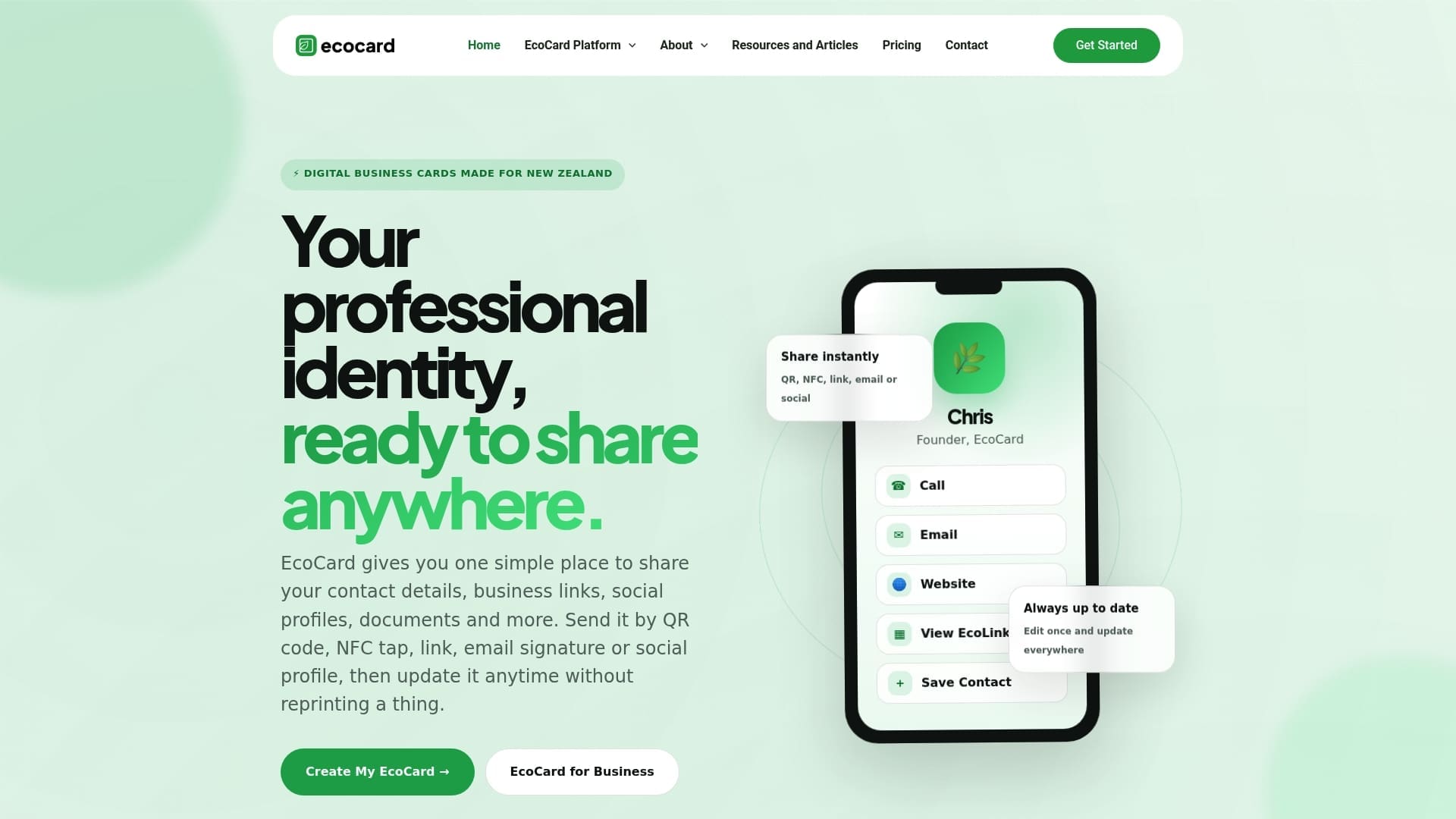
Our pricing page lays out plans for individuals through to larger teams, and our features page walks through the admin controls and analytics covered above. If you’re weighing up options, our examples page shows real card layouts you can adapt, and you can browse everything from our home page.
FAQ
Can I create a digital business card for free?
Yes, most design editors and card apps offer a free tier covering one card, a basic template and link or QR sharing. Paid upgrades typically unlock multiple cards, custom branding and analytics.
Can ChatGPT make business cards?
ChatGPT can help you write the text for a card, such as your descriptor line or call to action, but it doesn’t generate a finished visual design or a hosted, shareable card on its own. You’ll still need a design editor or a card platform to produce and publish the actual card.
What is the best way to digitise business cards?
Host your details on a live profile page and share it through a QR code and a direct link, which keeps the information current without reprinting. Add an NFC tag pointed at the same link if you want a tap-to-share option alongside the QR code.
Can I use my phone as a digital business card?
Yes, you can display your card’s QR code or share its link directly from your phone, and many phones support adding the link to a digital wallet for quick access. This works without the recipient needing to install any app, as long as your card is hosted on a web link.
Sources
- ISO/IEC 18004:2024 — QR code symbology specification
- Free business card maker — Canva
- Near-field communication — Wikipedia
Recommended
This article was produced with AI assistance and reviewed for accuracy. It is provided for general information only and is not professional advice.

