


The simplest way to send a business card on WhatsApp is to share a link to a digital card, not a photo or a PDF. The person taps the link, sees your name, role, phone, email and socials in their browser, and saves you as a contact. Because it is a link, you can fix a typo or change your role later and the same link shows the new details. This guide covers the formats, the steps, what to write in the message, and what to check before you hit send.
TL;DR
- Share a link or QR code to a live digital card in WhatsApp, rather than a screenshot or PDF that goes stale.
- WhatsApp Business has its own profile for business details, but it is not a full card: a card link adds your role, portfolio and socials.
- Send a short message with where you met, one useful line and the link, then check the page on your own phone first.
- Share only the details a stranger needs. In New Zealand, the Privacy Act 2020 treats unauthorised sharing of personal information as a possible privacy breach.
Table of Contents
- What a WhatsApp digital business card actually is
- Why a link beats a screenshot or PDF
- How to send your card on WhatsApp, step by step
- What to write with the card
- What to check before you send
- How the recipient opens and saves your card
- Privacy: what to think about before you share on WhatsApp
- Teams: one card standard across everyone’s WhatsApp
- Our perspective
- Try it with EcoCard
- Putting it together: a simple routine
- FAQ
- Sources
What a WhatsApp digital business card actually is
People use the phrase for three different things, and it helps to separate them.
1. A link to a hosted digital card. This is a web page with your details, opened from a URL. It works in WhatsApp because WhatsApp shows links as tappable messages. Nothing needs installing on the recipient’s side. This is the format we recommend, and it is how EcoCard works: the recipient does not need an app.
2. A QR code. The same link, packed into a square image. It suits face-to-face moments: someone scans your code at an event, and the card opens. You can also send the QR image in a chat when the person is on a desktop and wants to scan with their phone. If you also print codes, our guide to print-ready QR code business cards covers the minimum size (2 cm) and layout.
3. A WhatsApp Business profile. This is separate from a card. WhatsApp’s business profile lets you add publicly viewable details such as business name, address, category, description, email and website. It is useful for customers who message your business number, but it does not carry a person’s job title, a portfolio, or a team’s consistent branding. Many people use both: the business profile for the number customers message, and a card link for the person they met.

You may also see contact files (vCards) and images of cards. A contact file saves in one step but is fixed at the moment you send it. An image of a card cannot be tapped, searched or updated. A hosted card can offer a save-to-contacts button and still stay current.
Why a link beats a screenshot or PDF
A photo of a printed card looks fine for about a month. Then you change roles, get a new mobile number, or rebrand, and every copy sitting in other people’s chats is wrong. WhatsApp itself notes that a file shared from another app cannot be edited after sharing, so you have to fix it before you send. A link works the other way round: you edit once and every chat that holds the link points to the current version.
There are a few practical gains:
- Tap to act. Phone, email, website, LinkedIn and booking links are one tap away, instead of the reader squinting at a picture.
- Searchable chats. A link with your name in the message is easy to find again in a long chat thread.
- No attachment size issues. Nothing to compress, nothing that arrives blurry.
- One source of truth. For a team, every person’s card can follow the same branding, which is what our guide to employee digital business cards walks through.
How to send your card on WhatsApp, step by step
The steps are the same whichever digital card tool you use. With EcoCard they look like this.
- Open your card and copy its link. From your card page, copy the direct link. Keep it where you can reach it fast: pinned in your notes, saved as a shortcut on your home screen, or in the WhatsApp “message yourself” chat.
- Start or open the chat. Pick the person’s chat. If you have only just met, save their number first so the chat opens cleanly.
- Write a short message first, then paste the link. Context before the link makes the message feel personal and less like spam. More on wording below.
- Check the preview. WhatsApp usually shows a preview of the page. If the title or image looks odd, fix your card’s title and photo, not your message.
- Send, then ask for a save. A line such as “Save me in your contacts so you can find me later” gives the person a reason to act.
If you are sharing in person, skip the chat: let them scan your QR code or tap your NFC card or phone, and send the link afterwards as a reminder. Our post on how to share a business card link, with methods and etiquette covers the other channels too.
Sharing from a group chat or community
Be careful with groups. Posting your card into a group of 200 people hands your phone number and email to all of them. If the group is a professional community that expects introductions, share a card that carries a work number and a work email, not your personal mobile. If you only want one person to have your details, message them directly.
What to write with the card
A bare link looks like a template. Three short parts do the job: who you are, where you met, and what happens next.
After a networking event:
Kia ora Sam, Priya here from the Hamilton meetup this morning. Good chat about your warehouse expansion. My card is here, with my portfolio on it: [link]. Happy to send through the case study we talked about.
To a client who messaged you cold:
Hi Tom, thanks for getting in touch. Here are my details and the services I cover: [link]. Call me any weekday after 9 and we can sort a quote.
To a supplier or colleague you are onboarding:
Welcome aboard. This is my current card with the best number to reach me: [link]. Save it and you will always have the latest version.
Keep each message to two or three lines. Use the person’s name, mention the meeting context, and give one next step. For a wider system of same-day follow-ups with templates, see our post on networking follow-ups.
What to check before you send
Five quick checks stop most embarrassment.
- Open your own link on a phone, logged out. See exactly what a stranger sees. Does it load fast? Is the photo clear?
- Check the contact details. Is the number the one you want clients to ring? Is the email right?
- Test the save button. Tap it and confirm the contact lands with your name, role and company spelled correctly.
- Remove what is not needed. A home address or personal social account rarely belongs on a card sent to a new contact.
- Read the link preview. If the preview shows a blank image or a vague title, tidy it.
Our create a digital business card guide goes through setting up the fields in the first place, and the design guide helps if the page needs to read well in three seconds.
How the recipient opens and saves your card
On the other end, the experience should be simple. The person taps the link in WhatsApp, and the card opens in their phone browser. They can tap your number to call, tap your email to write, and use the save option to add you to their contacts. Nobody needs to create an account or install anything.
If you want to see how that looks for different professions, browse the digital business card examples.
One point to mention in your message when you know the person is cautious: tell them it is a web link to your own card and that it opens in the browser. A short explanation puts people at ease, particularly when scam messages with unknown links are common.
Privacy: what to think about before you share on WhatsApp
A business card is personal information, even when it is professional. In New Zealand, the Office of the Privacy Commissioner says a privacy breach can include unauthorised access to or sharing of personal information, and where a breach has caused or is likely to cause serious harm, the organisation must notify the Privacy Commissioner and the people affected as soon as practicable. That matters most for employers: if you run a team, decide which details sit on staff cards, and who can see and change them.
For individuals, the Department of Internal Affairs advises people to be careful about how much identity information they share and with whom, to ask why it is needed, and to avoid publishing personal information in public places. A card is a good example of working to that rule: include a work email and a work number, and leave out your date of birth, home address and anything a client does not need.
A few habits help:
- Use a business number or a dedicated work line when you can.
- Share with individuals rather than posting in large groups.
- Update or remove a card when your role changes. A live card lets you do this in one place.
- For teams, switch off a leaver’s card on their last day.
We go into more depth in what NZ professionals should check about digital business card privacy.
Teams: one card standard across everyone’s WhatsApp
When one person sends a card, the details are their business. When twenty staff send cards, the business needs consistency: the same logo, the same wording for job titles, the same website, and the right people removed when they leave. WhatsApp Business offers tools to help small businesses manage chats and present a professional business presence, but it does not manage individual staff cards.
That is where central management matters. With an admin view, a business can set branding once, update a role in one place, and retire a card when someone leaves. If you are weighing it up for a team, see our write-ups on the benefits for teams and offboarding.
Our perspective
Most people think of a WhatsApp card as a message. We think of it as a page that happens to travel through WhatsApp.
That difference changes everything. If the card is just a picture, you are rebuilding it every time something changes, and you never know which version a client is holding. If the card is a live page, WhatsApp is only the delivery van. You can change your role, add a portfolio, swap a phone number, and the link you sent last week shows it.
For businesses, this matters even more. Staff come and go, job titles change, and branding gets refreshed. We built EcoCard so an admin can manage all of that centrally, and so one person can hold several cards for different roles. Nobody receiving the card has to install anything.
Our advice is simple: put your best details on one live card, send the link with a human message, and keep the page tidy.
Chris
Try it with EcoCard
EcoCard gives you a live digital card you can share by link, QR code or NFC tap, plus an EcoWallet for saving contacts, portfolio and document sharing, and analytics on card usage. Plans are published on our pricing page: Individual is NZ$9.99 a month, extra EcoCards are NZ$4.99 a month each, Starter is NZ$19.99 a month, Business is NZ$49.99 a month and Teams is NZ$99.99 a month. Enterprise has no published price.
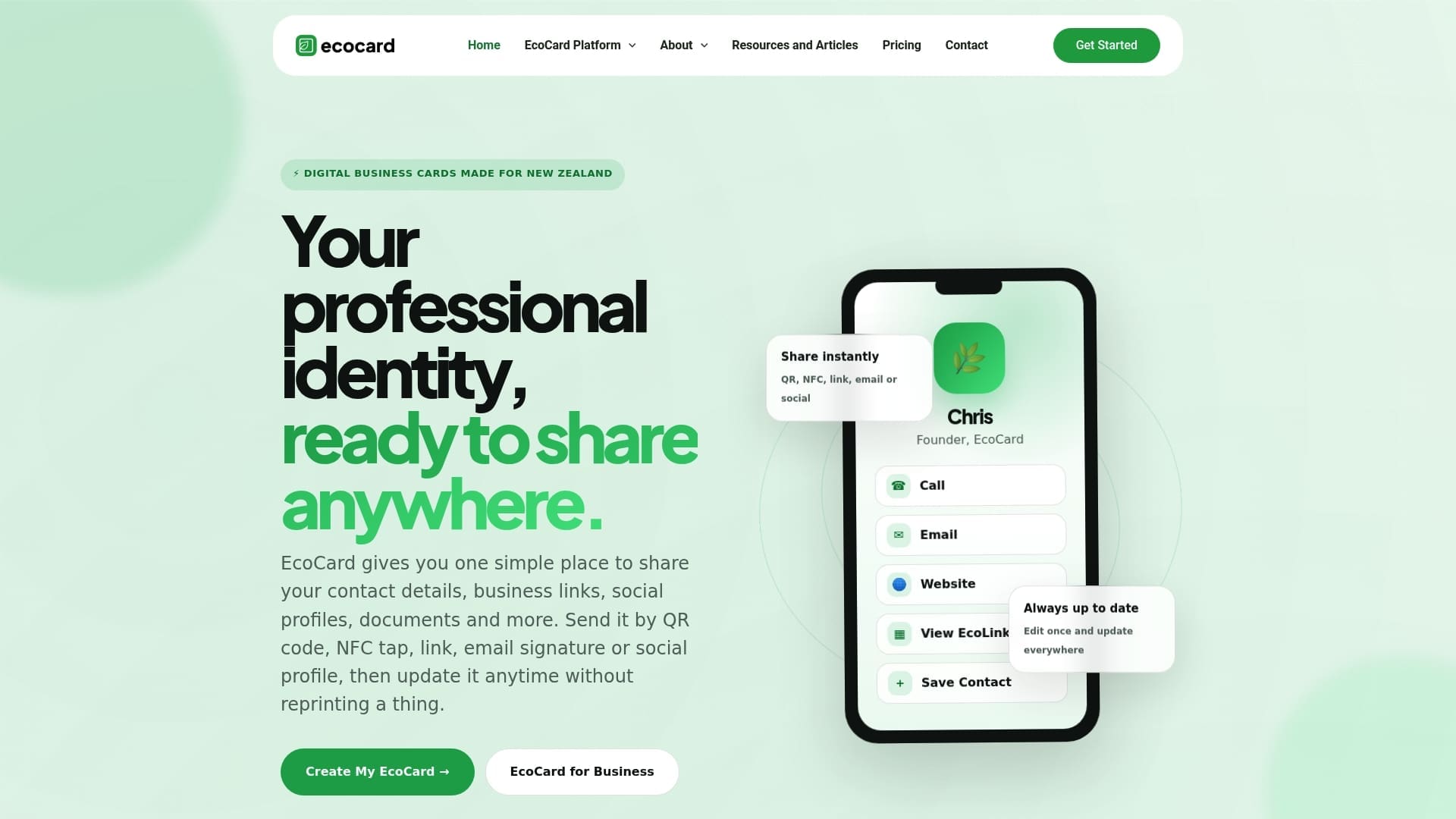
If you are a sole trader or consultant, start with the Individual EcoCard. If you are responsible for staff cards, look at EcoCard for Business. You can see everything the platform does on the features page, and our pricing guide for small teams explains how GST affects the numbers.
Putting it together: a simple routine
Here is a routine that takes about five minutes to set up and then runs itself.
- Build your card with a clear photo, your current role, one work number, one work email and one or two key links.
- Pin the card link in WhatsApp (message yourself, or keep it in your notes) so you can send it in seconds.
- Save two or three message templates, one for events, one for cold enquiries, one for new colleagues.
- Review the card monthly, and straight away when your role or number changes.
- Check your card’s analytics, if your plan includes them, to see whether people are opening what you send.
If your email signature is where clients also find you, our comparison of email signatures and digital cards shows how the two work together.
FAQ
Can you send a business card on WhatsApp?
Yes. The most reliable way is to paste a link to your digital card into a chat, with a short message explaining who you are. The recipient taps the link and the card opens in their browser. You can also send a QR code image or a contact file, but those do not update after sending.
Do I need WhatsApp Business to share a digital business card?
No. A normal WhatsApp account can send any link. WhatsApp Business is worth considering if you run a business number and want a public profile with your address, hours, email and website. A card link then adds the personal detail, such as your role and portfolio.
Does the person I send it to need an app?
Not with EcoCard. The card opens in their phone browser from the link, and they can save your details from there. They only need WhatsApp to receive the message, and that is the app they are already using.
Is it safe to share my details this way?
It is as safe as the details you choose to include and the people you send them to. Share work contact details, avoid private information such as a home address or date of birth, and send to individuals rather than large groups. If you manage a team, agree what goes on staff cards and remove cards when people leave.
What should I write when I send my card?
Say who you are, where you met and what happens next, then add the link. For example: a greeting, a one-line reminder of your conversation, the link and a next step such as a call or a follow-up document.
Sources
- WhatsApp: How to edit your business profile
- WhatsApp: Files shared from another app
- WhatsApp Business: tools for small businesses
- Office of the Privacy Commissioner: privacy breaches
- Department of Internal Affairs: identity theft checklist
Recommended
- One Tap, Live Updates: Digital Business Cards for NZ Teams
- Digital Business Card Privacy: What NZ Professionals Should Check
- Employee Digital Business Cards: A Guide for NZ Teams
- Secure, live digital business card: QR, link & vCard for professionals
This article was produced with AI assistance and reviewed for accuracy. It is provided for general information only and is not professional advice.

