


A vCard (.vcf) is a plain-text contact file used to store and move contacts between phones and address books. Most phones, email apps and web address books recognise .vcf and will import it directly when you tap or upload it. If a file refuses to import, opening it in a text editor to check the VERSION, FN and encoding usually finds the problem.
TL;DR:
- Choose vCard 3.0 for transfers unless both systems explicitly support 4.0, which some exporters implement inconsistently and may silently drop fields.
- Before importing, verify every contact has BEGIN:VCARD, VERSION, FN, and END:VCARD, and that the file uses UTF-8 without a byte order mark.
- For bulk contact moves into Outlook, use CSV with explicit column mapping rather than vCard, which Outlook handles better for single contacts.
- A shared .vcf is a frozen snapshot, so changed numbers or job titles require sending a replacement; live profiles update without another import.
- Trim shared cards to necessary fields, because email recipients can forward files and anyone scanning a public QR code can access its full contents.
Table of Contents
- What a vCard is and what data it holds
- vCard versions and compatibility explained
- How to open a .vcf on your phone or computer
- Creating, exporting and sharing vCard files
- Reading, editing and troubleshooting vCard files
- Protecting your details when you share a vCard
- Keeping contact details current without resending files
- When a .vcf file is enough, and when it isn’t
- EcoCard: share live contact details without losing vCard compatibility
- FAQ
- Sources
What a vCard is and what data it holds
A vCard is a standardised contact format defined by RFC 6350, the specification that governs how contact data is structured, encoded and labelled. It normally carries the file extension .vcf or .vcard and uses the MIME type text/vcard, which is how email clients and browsers know to treat it as a contact rather than a generic attachment. The Library of Congress describes it as a standard, plain-text file used to store and exchange electronic business card information, which is why it has survived as the common denominator between otherwise incompatible address book systems.
Inside a vCard you will typically find:
- FN: the display name shown in the contact list.
- N: the structured name, split into family, given and middle components.
- TEL, EMAIL, ADR: phone numbers, email addresses and postal addresses.
- ORG, URL: company name and website or profile links.
- PHOTO, UID: an embedded image and a unique identifier for the record.
Because the file is plain text, you can open it in any text editor, split a multi-contact file into single cards or manually repair a broken entry without special software.
vCard versions and compatibility explained
Three versions of vCard circulate in the wild, and they are not fully interchangeable. Version 2.1 is the legacy format, still produced by some older phones and feature-phone exports, but it lacks the consistency that newer importers expect. Version 3.0 has become the de facto safe default: most contemporary address books read it reliably, which makes it the safest export choice when you do not control both ends of the transfer. Version 4.0, formalised in RFC 6350, mandates UTF-8 encoding and introduces text/vcard as its own MIME type, technical improvements that sound like a clear upgrade.
Use vCard 3.0 unless both the exporting and importing systems explicitly support 4.0. CalConnect’s developer guidance notes that 4.0 is cleaner on paper but less consistently implemented across real-world exporters, so defaulting to it risks silent field loss on the receiving end.

A handful of syntax rules matter regardless of version: long lines should be folded per the spec, VERSION and FN are mandatory properties that many importers refuse to proceed without, and the file should be saved as UTF-8 to avoid garbled accented characters.
How to open a .vcf on your phone or computer
Opening a vCard is usually a one-tap action, but the exact path differs by platform.
- iPhone: tap the .vcf attachment or shared file, choose “Add to Contacts” or “Create New Contact” from the share sheet, or open it through the Files app if it was saved locally.
- Android: open the Contacts app, go to the menu for “Fix & manage,” then select “Import from file” and point it at the .vcf; manufacturer skins such as Samsung’s Contacts app sometimes rename this menu slightly.
- Google Contacts (web): use the Import option under the main menu; imported batches are grouped by their import date so you can review or undo them as a set.
- macOS / iCloud: drag the .vcf file straight into the Contacts app, or upload it through the import option on iCloud.com.
- Outlook: Outlook handles vCard import less gracefully than a native address book; for bulk moves, a CSV import with explicit column mapping is often more reliable, since vCard tools in Outlook tend to be built around single-card exchange rather than batch work.
Pro Tip: Before importing a large batch anywhere, open the file once in a text editor to confirm it starts with BEGIN:VCARD and ends with END:VCARD for every entry, that way you catch a truncated file before it half-imports.
Creating, exporting and sharing vCard files
Generating a .vcf is just as platform-dependent as opening one, and the right method depends on whether you are sharing one contact or moving your whole address book.
- For a single contact, open the entry on your phone and use the share action, which most address books expose as “Share Contact” or “Send as vCard”; this produces a one-off .vcf attachment.
- For bulk moves, Google Contacts, iCloud and the Android Contacts app each offer an Export option in their settings or overflow menu, producing one combined .vcf file for the full list.
- If you need to edit contact data in bulk, such as correcting a company name across hundreds of entries, exporting to CSV for spreadsheet work is usually faster than editing a .vcf by hand; most contact apps let you convert the CSV back to .vcf on reimport.
- A vCard also works well embedded in a QR code or attached to an email signature, letting someone scan or download your details without typing them manually.
Reading, editing and troubleshooting vCard files
Because a vCard is plain text, most import failures are diagnosable without special tools. Open the file in a text editor and check that every contact block opens with BEGIN:VCARD, carries a VERSION line, includes FN, and closes with END:VCARD. Missing FN or VERSION is one of the most common reasons an importer rejects a file outright.
- Confirm the file is saved as UTF-8 without a byte-order mark; a BOM or the wrong encoding is the usual cause of mojibake, where accented names turn into stray symbols.
- If names look corrupted, re-export the source data as UTF-8 and reimport rather than trying to hand-fix the characters.
- Check for unescaped commas or semicolons inside fields, and make sure long lines (particularly base64-encoded PHOTO data) are folded correctly rather than wrapped by the text editor itself.
- If a bulk import fails partway, split the file into smaller batches and test-import a single card first to confirm the target account before committing the rest.
Pro Tip: Run this 60-second check before every import: open the file, count the BEGIN:VCARD blocks, confirm VERSION and FN are present on each, and glance at any accented names for garbling.
Protecting your details when you share a vCard
A vCard carries whatever you put into it, which can include a direct phone number, home address, email and even an embedded photo, so it is worth treating the file with the same care as a printed business card, arguably more, since it travels digitally and can be forwarded or stored indefinitely. Before exporting a contact for wide distribution, check which fields it actually needs to include; a vCard built for a conference handout does not need a home address field populated, even if your main contact record has one.
Email attachments and shared links are the two most common distribution points, and both can be intercepted or forwarded beyond the intended recipient. If you are sending a .vcf by email, consider whether the recipient truly needs every field in your personal record, or whether a trimmed version with just a name, work number and email is sufficient. QR codes encoding vCard data carry the same consideration: anyone who scans the code gets the full payload, so a QR code meant for public display, say on a conference booth, should point to a card with only the information you are comfortable handing to a stranger.
Static .vcf files also have a quieter risk: once sent, they are frozen. If a phone number changes, everyone who imported the old file is left with outdated information unless you resend it, which usually means your personal number or email sits in other people’s address books long after you have moved on from it. That is less a security flaw in the format itself and more a reason to think about how long a given vCard should stay in circulation before it is worth refreshing or replacing.
Keeping contact details current without resending files
A .vcf file is a snapshot. The moment you change your phone number, job title or email, every copy of that file sitting in someone else’s contacts is out of date, and the only fix within the format itself is to export a fresh file and ask everyone to reimport it, which rarely happens consistently.
This is where syncing contact data with a live, online profile rather than a static file starts to matter. Some CRM systems support periodic vCard import and export as a bridge between tools, which keeps the file format useful for one-off migrations, bulk backups or moving a database between platforms that do not otherwise talk to each other. For ongoing updates, though, a link-based or profile-based contact that updates automatically removes the resend step entirely, since the person who saved your details is pointed at a live source rather than a frozen file.

For individuals, that might mean maintaining one canonical online profile and sharing a link or QR code to it instead of a static .vcf. For a business managing dozens or hundreds of staff contacts, the gap is sharper: a title change, a new phone number or a rebrand means re-exporting and redistributing vCards to every contact who has the old one, which does not scale. Teams that need every card to reflect the current branding and current details, without chasing down who has the stale version, generally need something that updates centrally rather than a file that has to be resent by hand each time.
When a .vcf file is enough, and when it isn’t
A raw .vcf file is still the right tool for migrating contacts between platforms, backing up an address book, or handing someone a one-off set of details they can import once and keep. It does its job well precisely because it is simple, portable and supported almost everywhere.
Where it runs out of road is live sharing: a static file cannot update itself when your phone number or job title changes, and it offers no sense of who actually opened it. A managed digital card complements rather than replaces vCard files, adding live updates, QR or NFC sharing, consistent branding across a team and basic usage analytics, while still letting you export a vCard-compatible file when someone needs one.
— Chris
EcoCard: share live contact details without losing vCard compatibility
We built our digital contact solution around the gap a static .vcf leaves open: once your details change, a file you sent last month cannot update itself, and your contacts may be stuck with outdated information because the file was not resent.
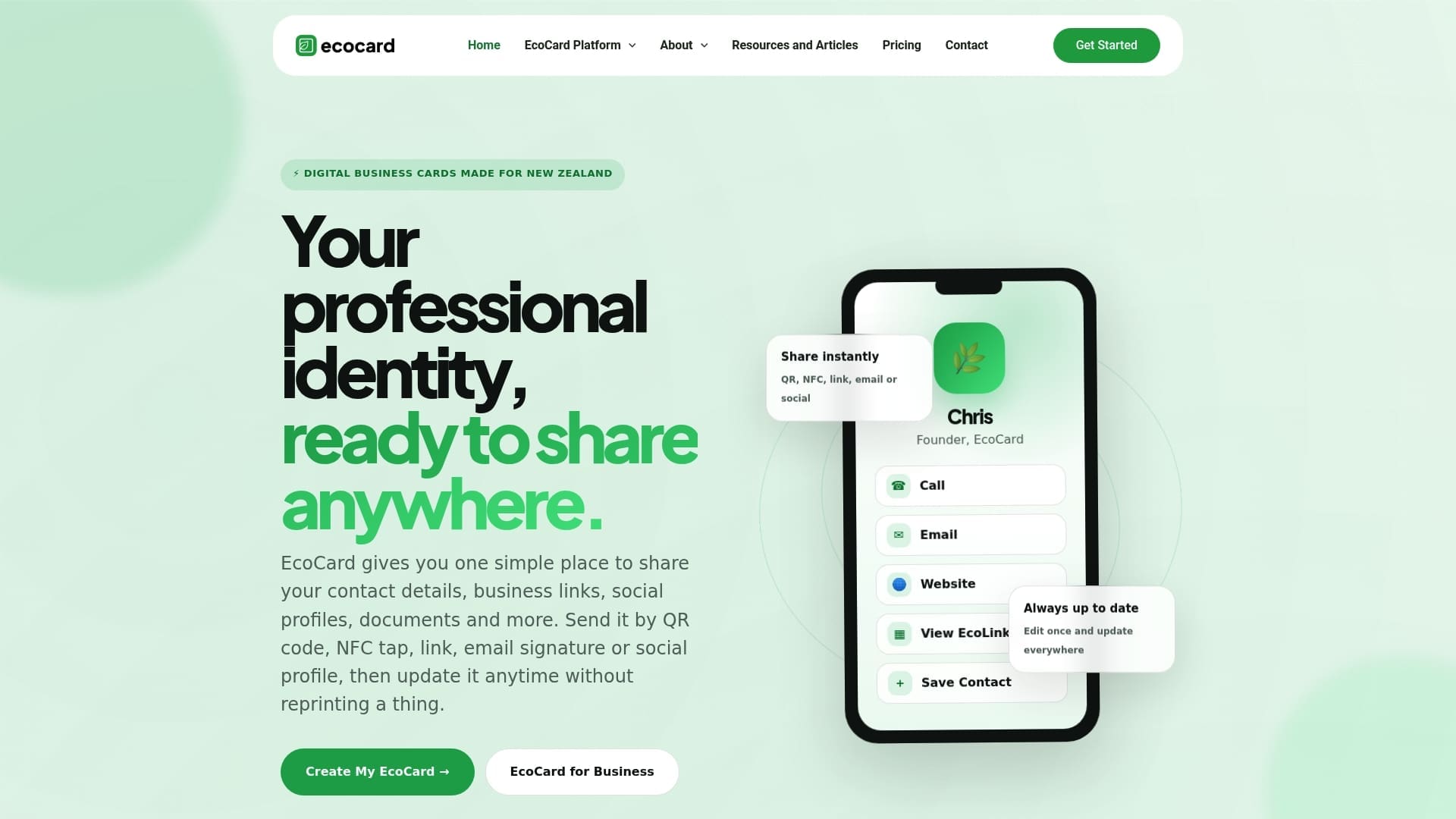
With a digital contact profile, you can share details by QR code, direct link, NFC tap or a vCard-compatible export, so the people who prefer a traditional .vcf still get one. The convenience features include live updates, centralized team administration, multi-card management, and usage analytics.
If you want to see how this works for a single professional profile or a full team rollout, our pricing page lays out the plans, or you can look through the feature set in more detail before deciding.
FAQ
What are vCard files?
A vCard file is a plain-text contact record, usually saved with a .vcf or .vcard extension, that stores details such as a name, phone number, email and address in a standard format. Most phones and web-based address books can read it directly, which is why it is the common format for moving contacts between different systems.
What does VCF mean?
VCF stands for Virtual Contact File, the file extension used for vCard data as described by the Library of Congress. It is the same format commonly referred to as a vCard, governed by the RFC 6350 specification.
How do I create a vCard file of contacts?
On a phone, open a contact and use the share option to export it as a vCard, or use your address book’s bulk export feature, found in Google Contacts, iCloud or the Android Contacts app, to save your whole list as one .vcf file. If you need to edit many entries at once, exporting to CSV for spreadsheet editing and converting back to .vcf is usually quicker than editing the vCard directly.
How do you open a vCard on your phone?
Tap the .vcf attachment or shared file and your phone will usually prompt you to add it straight to your contacts. If it does not open automatically, save it through your Files app and import it manually from within your Contacts app’s import menu.
Sources
Recommended
- Secure, live digital business card: QR, link & vCard for professionals
- 3 Second Scan Digital Business Card Design That Updates Live
- Same Day Wins: Networking Follow Ups with Templates and Digital Cards
- Make QR Code Business Cards Print Ready for Professionals: 2 cm Min
This article was produced with AI assistance and reviewed for accuracy. It is provided for general information only and is not professional advice.

