

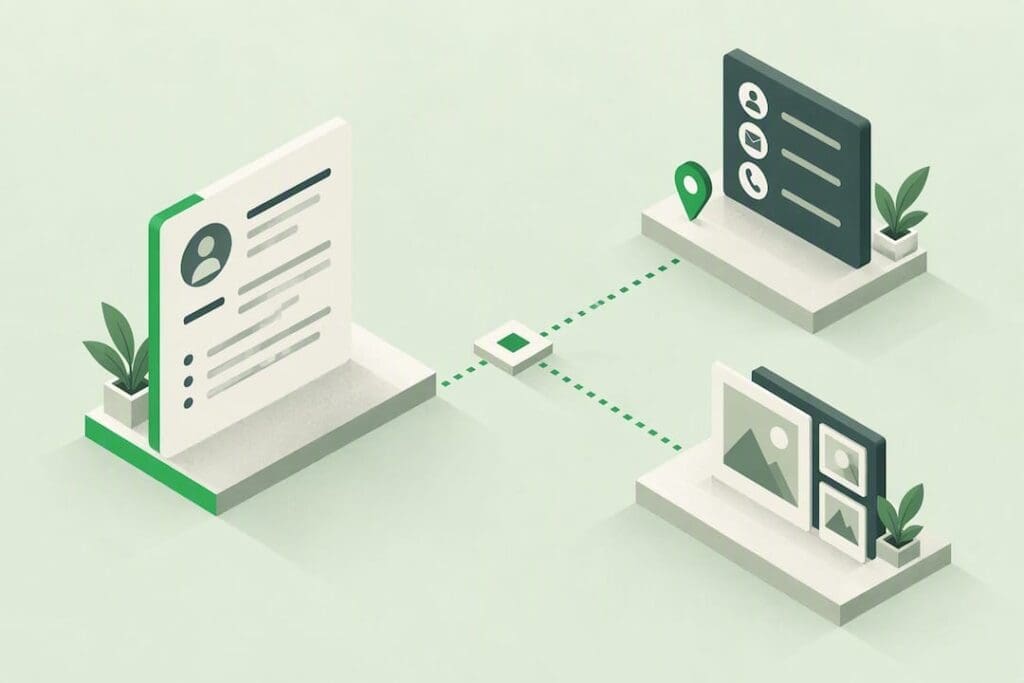
Yes, if it takes recruiters straight to something a name alone can’t show them, like a portfolio or a saved contact card. One QR code, clearly labelled, sitting near your contact details, works best. Use a static code for anything you print, and only go dynamic if you genuinely need to redirect links later and are prepared to manage that.
TL;DR:
- Using a static QR code linked to a vCard provides the highest reliability for contact sharing, as it requires no internet connection or ongoing management.
- Linking to a portfolio, GitHub, or video works best for creative, technical, or client-facing roles, but only if accessibility requires no logins or downloads.
- Proper placement near your contact info in the header or top corner, with a size of about 2.5 to 3 centimeters, ensures noticeability and scanability.
- Always test your QR code on multiple devices in real-world conditions before sending your resume, and add clear labels like “Scan for portfolio” to increase scan rates.
- A managed platform like Ecocard enables live updates to your profile details without reprinting and can track scan analytics, especially valuable during active job searches.
Table of Contents
- Where should your resume QR code actually lead?
- Vcard or url, static or dynamic: pick one destination and stick to it
- How to generate a resume QR code and add it to your document
- Where to place your QR code and how big it needs to be
- How to test your resume QR code before you send it anywhere
- Common mistakes that make a QR code worse than no QR code at all
- How Ecocard helps you manage QR destinations without reprinting anything
- Do QR codes on resumes create privacy risks?
- What good QR code use actually looks like across industries
- Can you actually track who scans your resume QR code?
- What the QR code trend gets wrong
- Manage your QR code and contact details without reprinting a thing
- Sources
- FAQ
Where should your resume QR code actually lead?
The destination decides whether your resume QR code earns its space or just looks decorative. Pick the wrong link and you’ve added clutter; pick the right one and you’ve given a recruiter thirty extra seconds of proof they wouldn’t otherwise get.
The right choice depends heavily on your role:
- General or corporate roles: point the code to a vCard. It saves your name, phone, email, and job title straight to the recruiter’s phone in one scan, no typing, no searching for your email later in a messy inbox.
- Creative and design roles: link to your portfolio. Nothing beats a recruiter tapping a code and immediately seeing your actual work.
- Developers and technical roles: link to GitHub, a project page, or a live demo. Code speaks louder than a resume bullet point ever will.
- Client-facing and sales roles: a short intro video, thirty to sixty seconds, can do more than a paragraph of soft-skill claims.
LinkedIn-only links are the weakest option in most cases. A portfolio link generally outperforms a LinkedIn link because LinkedIn is easy to find by searching your name anyway, and it rarely shows anything a resume doesn’t already cover. It’s an acceptable fallback only if you genuinely have no portfolio, no personal site, and no video to offer.
Whatever you choose, the destination must work without a download, a login, or a desktop-only layout. If a recruiter has to install an app or create an account to see your content, the code has failed before it started.
Vcard or url, static or dynamic: pick one destination and stick to it
Every resume QR code decision comes down to two questions: what format should it encode, and should it ever change?
A vCard QR doesn’t link anywhere. It encodes your contact fields directly into the code itself, so scanning it prompts “Add to Contacts” rather than opening a browser. That’s why vCard is the highest value choice for most candidates: it removes every bit of friction between a recruiter liking your resume and having your number saved.
For anyone using a URL instead, the rule is simple: one destination, no exceptions. Multi-link landing pages or “choose your own adventure” QR codes add friction recruiters won’t tolerate for more than a second or two.
- Static QR codes encode the destination permanently. They never expire, never need a subscription, and keep working even if the generator’s business closes down.
- Dynamic QR codes route through a redirect server, letting you change the destination after printing and see scan counts.
Static wins for anything you’re printing and handing out, since static codes don’t depend on a redirect server staying online. Dynamic only makes sense if you need analytics or expect to change your portfolio URL, and even then, you’re trusting a third-party service to keep redirecting correctly for as long as your resume is in circulation.
How to generate a resume QR code and add it to your document
Building a working QR code takes about ten minutes if you prepare the destination first.
- Decide the destination before touching a generator. If it’s a URL, make sure it’s a permanent one you control, not a temporary portfolio host that might vanish. If it’s a vCard, gather your name, phone, email, and title in one place.
- Choose a generator and paste in your details. Sites like Link2QR let you paste a URL or fill vCard fields directly, then generate the code instantly.
- Export as SVG where possible. SVG is a vector format, so it stays sharp no matter how large you print it. PNG works fine for on-screen PDFs as long as the resolution is high.
- Insert the code as an image in your document. Word, Google Docs, and Pages all treat it as a standard image object. Size it deliberately rather than dragging it to whatever looks convenient.
- Add a short label beneath or beside it. Something like “Scan for portfolio” tells the recruiter exactly what they’re about to open.
- Export the final document to PDF, since that’s the format almost every resume travels in once it leaves your hands.
- Type the full URL somewhere in the text, even if you’ve used a QR code. Applicant tracking systems can’t read images, and some recruiters simply prefer clicking a text link.
Pro Tip: Keep a master copy of your resume file with the QR code as an editable image, not flattened into the PDF. If you ever change your portfolio address, you’ll regenerate the code in seconds instead of rebuilding the whole layout.
Where to place your QR code and how big it needs to be
Placement decides whether recruiters notice the code at all, and size decides whether their phone can actually read it.
Put the code in the header, in the top right corner near your name and contact line, or as part of a compact links row underneath your contact details. That’s where recruiters expect to find it, and placement there measurably improves scan rates compared with burying it in a footer or squeezing it into a margin already crowded with dates and job titles.
Codes smaller than roughly 2.5 to 3 centimetres square often fail to scan from a comfortable arm’s-length distance of about 30 centimetres, and going much larger than 3cm starts crowding a one-page resume unnecessarily.
Beyond size, a few details matter more than people expect:
- Leave a clear “quiet zone”, a small margin of blank space, around the entire code so scanners can find its edges.
- Use high contrast: black on white performs far more reliably than light grey on white or any low-contrast colour pairing.
- Never stretch or compress the code to fit a layout. Distortion is one of the fastest ways to break a scan.
Label it plainly. “Scan for portfolio” or “Scan to save contact” in small, understated type removes any guesswork, and labelled codes get scanned noticeably more often than unlabelled ones simply because curiosity alone isn’t always enough to prompt a scan.
How to test your resume QR code before you send it anywhere
A QR code that works on your laptop screen isn’t proof it works in a recruiter’s hand. Test it properly before it goes anywhere near an application.
- Print one physical copy and scan it from about 30 centimetres under normal office lighting, not the perfect brightness of your desk lamp at home.
- Test on both an iPhone and an Android device. Camera scanning behaviour differs slightly between operating systems, and older phones with worse cameras are still common enough to matter.
- Test the PDF version on-screen, scanning it with a second phone the way a recruiter might during a video call or while reviewing your resume on a laptop.
- If you’re using a dynamic code, confirm the redirect actually resolves without hitting a blocked domain warning, and check that the landing page displays properly on mobile, not just desktop.
Pro Tip: Ask a friend with a different phone brand to scan your printed resume without any instructions from you. If they land on the wrong page or can’t get a read at all, you’ve found the problem before a recruiter does.
Common mistakes that make a QR code worse than no QR code at all
A badly executed QR code doesn’t just fail to help, it actively signals carelessness. A few mistakes come up again and again.
- Adding more than one code. Multiple QR codes on a single-page resume look cluttered and split a recruiter’s attention for no real benefit.
- Linking to something unfinished, unsecured, or genuinely low value, like a half-built site or a page that hasn’t been touched in years.
- Relying entirely on a dynamic redirect with no backup plan if the service shuts down or the subscription lapses without you noticing.
- Skipping the label and the typed URL fallback, leaving recruiters guessing what they’re about to scan.
- Putting personal or sensitive information on the landing page itself, not just behind the QR code but visible once someone lands there.
- Printing a code you never physically tested, then discovering after the fact that it doesn’t scan at normal print resolution.
Keep the visual style consistent with the rest of your resume, and test every single printed copy, not just the first one off the printer.
How Ecocard helps you manage QR destinations without reprinting anything
A printed static QR code is fixed the moment it’s on paper and cannot be changed if your portfolio moves, your phone number changes, or your title updates across copies already distributed.
Some digital card platforms approach this differently by putting the QR code and the destination behind one managed profile instead of a fixed image. A few capabilities matter specifically for job seekers:
- Live updates: change your phone number, title, or portfolio link once, and every card and code you’ve shared updates automatically, no reprinting required.
- Multi-card management: keep separate cards for different job searches or industries without juggling multiple static codes.
- QR and direct-link sharing together: recipients can scan or simply tap a link, useful when a printed resume becomes a PDF attachment later in the process.
- Scan analytics: see when your card gets viewed, useful feedback during an active job search.
Such a solution may suit job seekers applying broadly and updating details often more than someone printing one final resume for a single interview, where a static code printed once is simpler.
Do QR codes on resumes create privacy risks?
A QR code doesn’t create new privacy risk by itself. The risk comes from what sits on the other end of it, and how much personal information you’re exposing to anyone who scans it, not just the recruiter you intended.
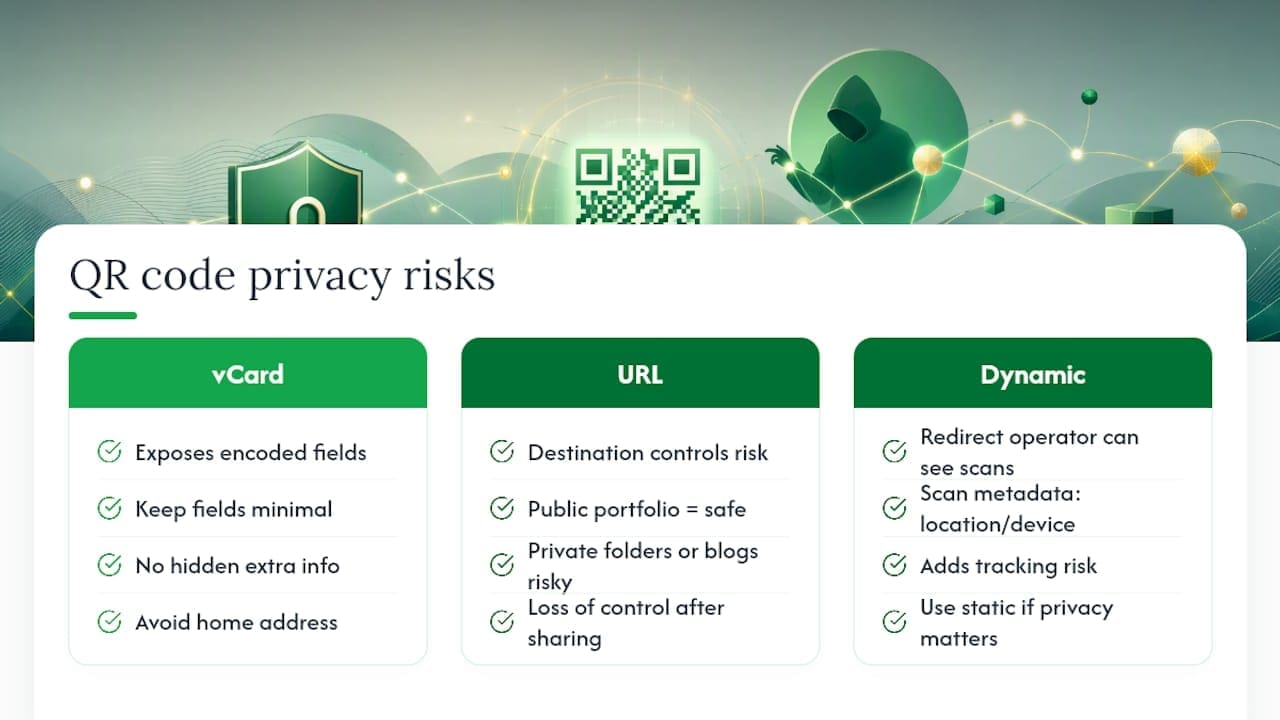
A vCard code exposes exactly the fields you encode: name, phone, email, title. Keep that list deliberately short. There’s no reason to encode a home address or a personal mobile number you wouldn’t otherwise print on a resume; if you wouldn’t type it in plain text at the top of the page, don’t hide it in a code either.
URL-based codes carry a different risk. Once a resume leaves your hands, physically or digitally, you lose control over who scans it. A portfolio site is generally safe to expose broadly, since it’s built to be public. A personal blog, a private cloud folder, or anything containing details about your current employer’s clients or projects is not, and linking to it can create problems well beyond a job search.
Dynamic codes add a further consideration: whoever runs the redirect service can technically see scan data, including approximate location and device type, for every scan. That’s usually harmless, but it’s worth knowing before you assume a QR code is a purely one-way, anonymous handoff. If privacy matters to you, favour a static code pointing to content you’d be comfortable with a stranger seeing, and avoid encoding anything you wouldn’t want sitting in a marketing analytics dashboard somewhere.
What good QR code use actually looks like across industries
The strongest examples share one thing: the destination matches what the industry actually values, not a generic default.
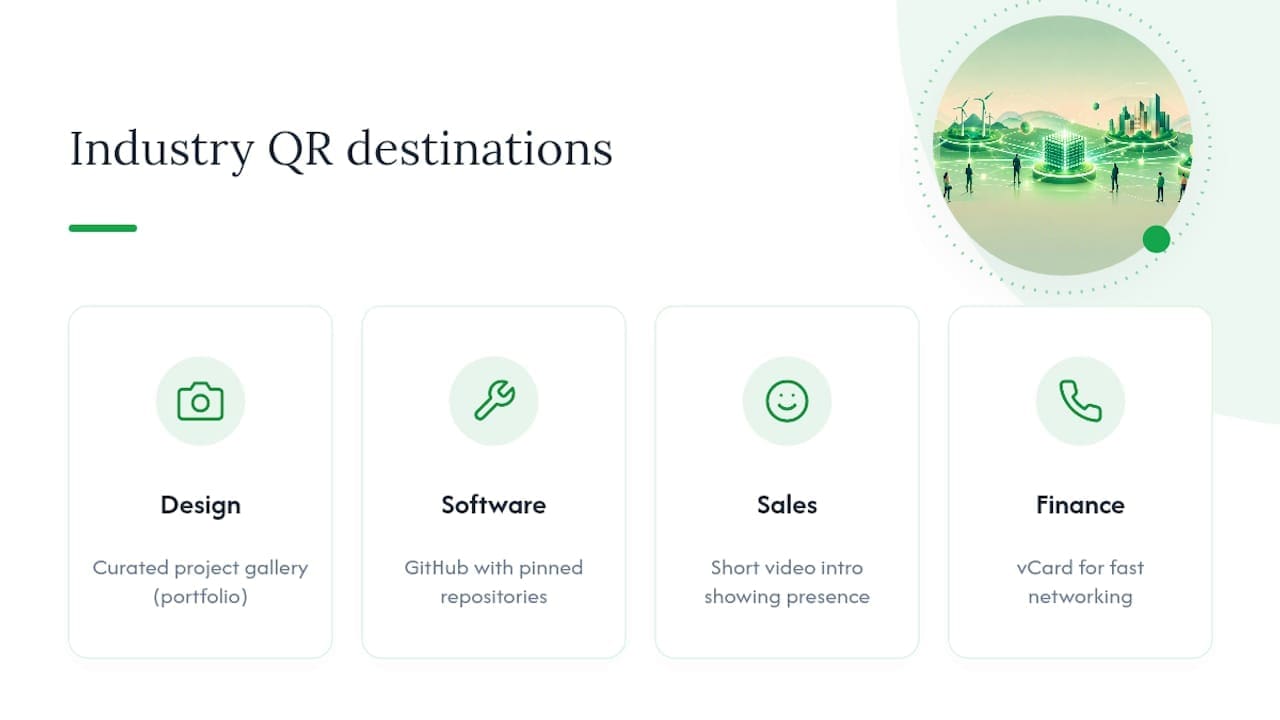
A graphic designer’s resume with a code in the top corner labelled “Scan for portfolio” leading straight to a curated project gallery does more in one tap than three bullet points describing design skills ever could. A software developer pointing the code to a GitHub profile with pinned repositories lets a technical recruiter judge actual code quality, something no resume paragraph can substitute for.
Sales and business development resumes benefit from a different approach entirely: a short video introduction works because these roles are fundamentally about communication style, tone, and presence, qualities a static resume can’t demonstrate. A finance or corporate professional, by contrast, often gets more value from a vCard code than any link at all, since the goal there is usually networking efficiency rather than showcasing creative output.
The common thread across every strong example is restraint. None of them use more than one code. All of them label it clearly. And all of them link to something that was actually finished, current, and worth a recruiter’s thirty seconds, not a placeholder page thrown together the night before applications went out.
Can you actually track who scans your resume QR code?
Yes, but only with a dynamic code or a managed sharing platform, since a static code has no way to report back to you.
Dynamic QR services typically show scan counts and rough timing, letting you see whether your resume is getting attention after you send it out. That’s useful signal during an active search: a spike in scans right after submitting an application often means a recruiter has actually opened your resume and engaged with the link, not just skimmed the page and moved on.
The trade-off is that this data usually lives behind a subscription, and if you let that lapse, your printed codes stop working entirely rather than just losing the analytics. A managed platform like Ecocard bundles this differently, tracking card views without requiring you to maintain a separate QR redirect service on top of your resume. For most job seekers, scan analytics are a nice-to-have rather than a reason to choose dynamic over static; the core job of the code, getting a recruiter to your portfolio or contact details, doesn’t require tracking to succeed.
What the QR code trend gets wrong
Most advice on this topic treats the QR code as the achievement, when it’s really just a delivery mechanism. The code itself has never impressed anyone; what impresses a recruiter is landing on a portfolio that’s actually good, or having their phone offer to save your contact instantly instead of forcing them to type it out.
The conventional wisdom oversells the novelty and undersells the plumbing. Plenty of guides talk up “interactive resumes” without mentioning that a code smaller than 2.5 centimetres often won’t scan, or that a dynamic code tied to a lapsed subscription turns your resume into a dead end six months after you print it. That’s the gap: everyone focuses on the flashy idea and skips the boring maintenance question of what happens when your details change.
My honest read is that most job seekers overthink the destination and underthink the reliability. Pick one high-value link, test it properly before it’s printed, and put more energy into keeping it current than into making it look clever. A working vCard code beats a broken portfolio link every single time, and reliability is the one thing conventional advice rarely bothers to mention.
— Chris
Manage your QR code and contact details without reprinting a thing
Static QR codes work well until something changes, and something always does: a new role, a new phone number, a portfolio that’s moved to a new domain. Ecocard is built for exactly that gap. Instead of a fixed image locked onto a PDF, your details live on a card you can update instantly, and every code or link you’ve already shared reflects the change automatically.
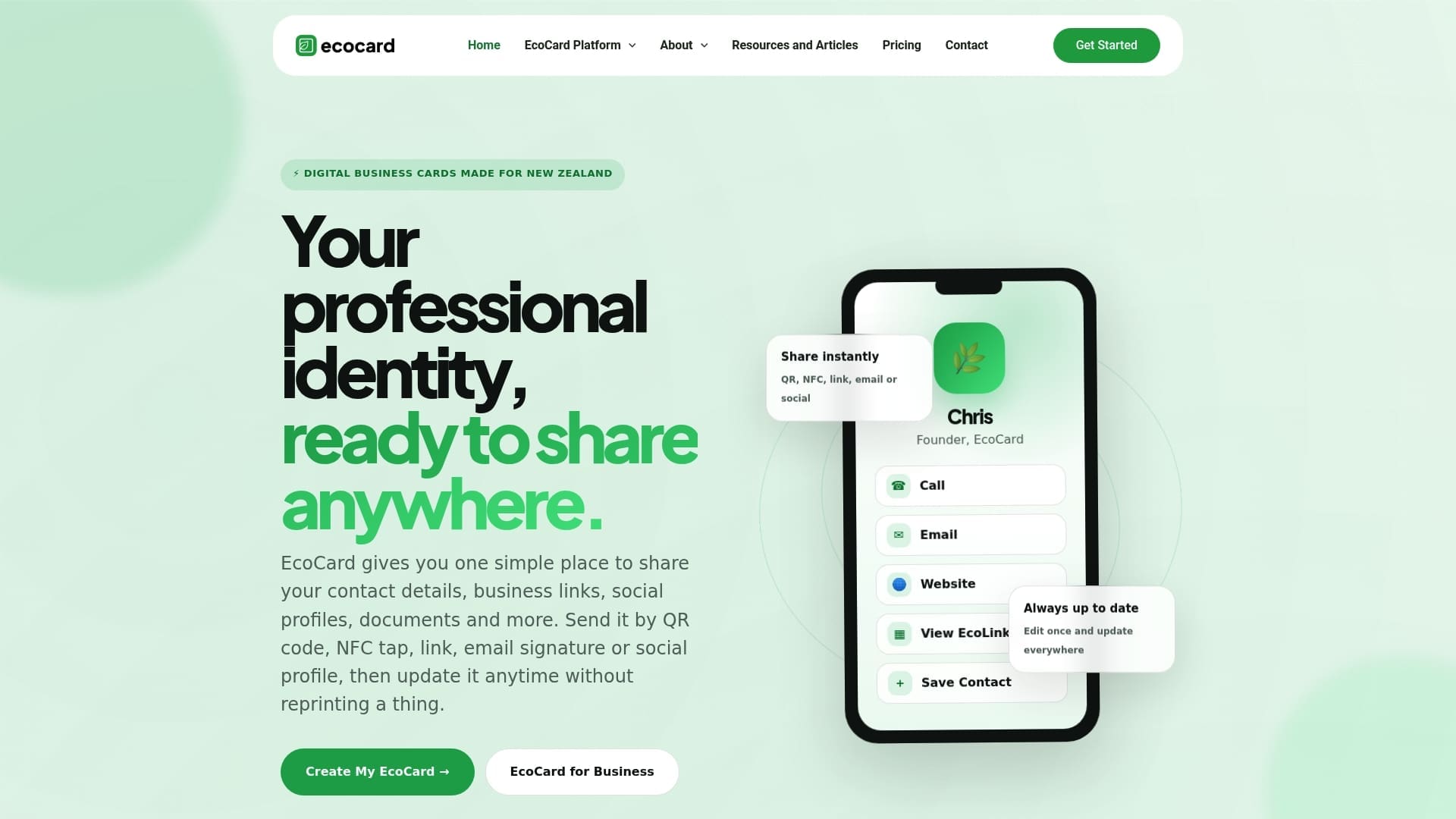
For job seekers managing multiple applications, or professionals who simply don’t want to reprint a resume every time a title changes, an Individual EcoCard gives you one profile with live-updating contact details, portfolio links, and scan tracking built in. Plans start with the Individual tier at $9.99 NZD per month, with additional pricing tiers available for those managing more than one card. Check the current plans and set up your first card today.
Sources
- Should you put a QR code on your resume? (Indeed career advice)
- QR code on resume: complete 2026 guide (EZQR)
- How to add QR code to resume or CV (QR Forever)
- QR Code for resume – free generator (Link2QR)
FAQ
Can I create a QR code for my resume?
Yes, any free or paid QR generator can create one in minutes, whether it links to a vCard, a portfolio, or a specific project page. The key is exporting it as a crisp SVG or high-resolution PNG so it prints without blurring.
What is the 7 second rule in resume?
The 7 second rule refers to the idea that recruiters form an initial impression of a resume within about seven seconds of first glance, scanning layout, headline experience, and formatting before reading in detail. A well-placed, clearly labelled QR code in the header can support that quick scan rather than distract from it.
How do I scan my CV with my phone?
Open your phone’s built-in camera app and point it at the QR code from roughly 30 centimetres away in good lighting; most modern phones detect and prompt automatically without needing a separate scanner app. If nothing happens, check that the code meets the minimum 2.5 to 3 centimetre size guideline before assuming the phone is at fault.
How do I scan a QR code to apply for a job?
Point your phone’s camera at the code and tap the notification that appears, which will either open a link, prompt you to save a contact, or start a download depending on how the code was built. If it’s a vCard code, your phone will typically ask whether to add the details straight to your contacts.
Does having a QR code on my resume affect ATS scanning?
No, applicant tracking systems parse text fields and ignore embedded images entirely, so a QR code has no effect on ATS results. It’s there purely for the human recruiter who reviews your resume after it clears the initial screening.

